Home » Orchestrator (Page 5)
Category Archives: Orchestrator
 DPM MP Reports
Handle disk IOPS when deploying/deleting or update a virtual machine
A couple of weeks ago I needed to build a solution where disk IOPS are allocated when a new virtual machine is deployed. The scenario was that virtualization administrators wanted to make sure no disks was over allocated looking at disk performance. When Virtual Machine Manager deploy a new virtual machine it doesn’t look at what kind of virtual machines that are already deployed at the disk, only at the current disk load. In worst case this could result in very poor disk performance if all virtual machines start working heavily with the disk at the same time. In the virtual environment we had three virtual machine templates, small, medium and large. There was a estimate of disk IOPS required by each template. Virtualization administrators needed to make sure that not more than one virtual machine based on the large template was deployed to a disk and that new virtual machines was deployed to the disk with most free IOPS. Also make sure that no disk was over allocated when looking at disk IOPS.
In Service Manager disks will show up as CI if you have a connect to Operations Manager. But default properties of the disk class was not enough, we needed to store information about disk IOPS and didn’t want to affect anything else, so we created a new configure item class, that would only be used for this purpose. The new class was created with Service Manager authoring tool, example here.


We could now create CI objects for each disk that the virtual environment was using. Disk CI include max, allocated and free IOPS. We then published an offering in the Service Manager self-service to request new virtual machines. We used a runbook to deploy the new virtual machine. As you can see in the runbook below we have a main runbook building the virtual machines, then we invoke another runbook to figure out which disk to use. The runbook also write a register value to the new machine with information of the template used. Operations Manager will later discover this information and start monitor the new virtual machine based on the virtual machine template. Virtual machines are monitored with different thresholds and in different ways based on which template that was used during deployment.

The “Get disk” figure out which disk to use. It use a temp database to store disk information in, so the first step in the runbook is to clean this database to make sure it runs with fresh data. It then adds data to the temp database about each virtual machine template, and query Service Manager to find all disks that have enough free IOPS based on the virtual machine template. After the junction activity the runbook runs a SQL query to find out which disk to use, if we are about to deploy a new virtual machine based on the large template we also check if there is a free disk with enough IOPS that don’t already host a large virtual machine.   In the end the runbook updates the disk CI in Service Manager, allocate the disk IOPS,then returns which disk to use to the “main” runbook that will continue to build the virtual machine.

We also created a runbook to handle deletion of a virtual machine, including giving back allocated disk IOPS to the correct disk CI. We created one portal offering also around update a virtual machine, for example if a machine is running based on the medium template but need more RAM we can update it to a large template. Portal offerings for deletes and updates virtual machines use a query result to show only virtual machines there the portal user are owner, to make sure no one deletes or updates the wrong virtual machine.


example of the runbook that update of virtual machines

example of the runbook that delete virtual machines

Find the Orchestrator Administrators group
There are two security Groups after a default installation of Orchestrator, Orchestrator User Group (OrchestratorUserGroup) and Orchestrator System Group (OrchestratorSystemGroup). The OrchestratorUserGroup is the default administrators group in a Orchestrator environment. After installation, members of this group can run the Runbook Designer console and Deployment Manager. With default settings, members of this group have the authority to perform tasks like create new runbook, deploy new runbook servers, deploy new designer consoles, administrate integration packs and global settings. By default this is a local security group in your management server. From time to time I see the questions about how to find this group if you don’t know which one you specified during installation. You can do that in two steps, first get the SID from the Orchestrator database and then run a WMI Query.
Run the following SQL Query against your Orchestrator database
SELECT Name FROM [Orchestrator].[Microsoft.SystemCenter.Orchestrator.Internal].Parties WHERE ID = ‘1’
You will then get a result like

Copy the SID and run the following VB script
 You will then get a pop-up showing you the group. With a default installation, using a local security group, on a server named SCORCH the pop-up will look like

Get-FileAttachments – Download attached files from Service Manager
In the Integration Pack for Service Manager 2012 there is a activity to upload attachment, you can also look at attachments with the Get Object activity. But what you are looking is just the object, not the context of the file. For example you can see that incident IR123 has a related file (System.FileAttachment), you can see some properties of the file, like name and size, but you cant read it. This has been a challenge in a number of scenario. A couple of days ago I asked Patrik if we couldn’t do something about it and today he uploaded the first public version of a Powershell script. This Powershell script, Get-FileAttachments, will dump all file attachments to a folder. It works with both work items like incidents and configuration items like Windows computers.
One scenario that I read about in the forum a couple of days ago is the fact that attachments are not moved to the data warehouse in Service Manager. Instead you need to archive them before the work item or config item is moved to the data warehouse. There is no built in feature for this. But with a simple runbook in Orchestrator and the get-fileattachments script it is solved 🙂

This example monitor Service Manager for incidents that is updated with a new status that is equal to closed. The runbook then checks if there are any related file attachments, if there are, the script is triggered. The script that I run as a command in this example gets the SC Object GUID from the Monitor Closed Incidents activity as input. C:\SCSM_Archive is my archive folder where all attachments are stored. The scripts creates a folder named as the incident and stores all files in the folder.

Some time ago I wrote a blog post about converting incidents to service requests. That is a scenario where you also would like to include this get-fileattachments script, to make sure all attached files are moved to the other work item too. You can build activity and a integration pack on the script too, see this blog post for a example
You can download the script here.
Consider Invoke Runbook activities when doing a runbook update
The recommended way to build runbooks is to build them in a isolated environment, then move them to a test environment and after that move them into production. In the production environment no modifications should be done, only import new or updated runbooks. When working with the Invoke Runbook activity there is a setting named “Invoke by path”. By default you invoke a runbook by GUID, meaning that you can move around a runbook between folders but it will still be triggered as it has the same GUID.
 When the “Invoke by Path” setting is enable you will always invoke the runbook with the same folder path and name as configured, in this example /Prod/C. Even if update or re-create runbook C in the Prod folder it will be invoked. The challenge is when you invoke, with the invoke by name enabled, another runbook that requires parameters. In the image above we invoke a runbook named C with parameter named msg, the value is “Hello World!”. Looking at this from the database it looks like this

As you can see it will pass “Hello World!” to a parameter with GUID “87BFA0D3-741E-4E9A-9F84-7AD0AEC0FB75”. If we now import a new runbook named C and replace/overwrite the current version of runbook C, the first runbook will still try to trigger runbook C (the path is the same) and still a parameter with GUID “87BFA0D3-741E-4E9A-9F84-7AD0AEC0FB75”. But if we look in the Runbook Designer console, in runbook A we see that the value field is empty on the Invoke Runbook activity

This happened when we imported a new version of the C runbook. Why? It is because when we imported the new version of runbook C it has a new parameter. Even if the parameter has the same name and the runbook looks the same, same activities, the parameter GUID is not the same. The GUID is generated when the activity is created and it follows the activity. If you for example build a runbook in a test environment and then export it to production, it is the same GUID in both, the one from the test environment where you created it the first time.
With the following SQL query you can see all Invoke Runbook activities that have a NULL/blank  the value fields
SELECT OBJECTS.Name AS [Activity Name], TRIGGER_POLICY.TriggerByPolicyPath, TRIGGER_POLICY.PolicyPath AS Runbook, TRIGGER_POLICY_PARAMETERS.Value,
TRIGGER_POLICY_PARAMETERS.ParameterName
FROM OBJECTS INNER JOIN
TRIGGER_POLICY ON OBJECTS.UniqueID = TRIGGER_POLICY.UniqueID INNER JOIN
TRIGGER_POLICY_PARAMETERS ON OBJECTS.UniqueID = TRIGGER_POLICY_PARAMETERS.ParentID
WHERE (OBJECTS.ObjectType = ‘9C1BF9B4-515A-4FD2-A753-87D235D8BA1F’) AND (OBJECTS.Deleted = 0) AND (TRIGGER_POLICY_PARAMETERS.Value IS NULL)
To handle this, avoiding to manual update all Invoke Runbook activities when you implement a new version of the runbook they invoke, you need to work with updates. Always update the runbook, don’t create a brand new runbook. You can import your archive file, or even export from production, edit the runbook in another environment and then re-import it again. That will keep the same GUID for everything you don’t re-create. If you re-create any of the initialize start parameters you need to update runbooks that pass parameters to it.
Estimate the Orchestrator database size
I often get the question how to estimate the Orchestrator database size. It is not as the other System Center databases where we can simple look at number of agents or objects to handle and then we know the size. The Orchestrator database size depends on a number of parameters. For example
- Number of runbooks and how ofter they run. Each time a runbook runs, it writes data to the database. Orchestrator also stores all configuration information for runbooks in the database. A large number of runbooks uses more space, even if they are not running.
- Amount of data runbooks publish. Recommended for production is to use default logging, no extra logging of specific data. The database size will depend on the amount of data each activity publish
- Log Purge settings. By design, only runbook historical data is groomed from the database. If you create a run-book and later delete the runbook, it remains in the database but marked as deleted.Performing all testing and authoring in a test Orchestrator environment will save you space in the production Orchestrator database. Â The log purge job purges job from the Policyinstances, Objectsinstances, and Objectsinstancedata tables in the Orchestrator database. Data from these tables is shown in the Historical Data pane in the Runbook Designer console. The Log and Log History views show selected data from the Policyinstances table. When you click on a log entry, data for the objects in that policy instance are shown from the Objectsinstances table. When selecting an object, data for that object is read from the Objectsinstancedata table.
A new Orchestrator installation have a database around 3Mb and after we add the System Center 2012 integration packs the size is almost 4 Mb.


Compared with the other System Center 2012 components the Orchestrator database is a quite small database. But it will start grow as soon as you build and run runbooks. On Technet you can find information about how to estimate the database size. But to make it a bit easier I have created a Excel that you can fill in information, and it will show you the database size.

- Fill in runbook names in column A. Copy/pate more rows if needed
- Fill in number of activities in each runbook in column B
- Configure logging level in column C. For production you should configure your runbooks to use default logging configuration
- Column D show you bytes added to the database each time the runbook runs. Number of bytes depends on logging level
- Column E show you Mb added to the database if the runbook runs 500 times. To store info for 500 instances is the default log purge setting
- Fill in number of times the runbook runs per day, in column F
- Column G show you Mb added to the database per day
- Column H show you Mb added to the database for 30 days without any log purge
- Column I show you number of times the runbook will run during 30 days
- Column J show you number of days that 500 invocations takes, for example if the runbook runs 100 times every day column J will show you 5. With default log purge settings you will store data for 5 days for that runbook.
- Cell E15 and H15 show the database size. Column E show it with default log purge settings and column H show it without any purge for 30 days
You can download the Excel file here.
If you want to see which activity is writing the most object instance data in your database you can run this SQL query
SELECT COUNT(OBJECTS.Name) AS Instances,
POLICIES.Name AS Runbook, Objects.Name FROM OBJECTINSTANCEDATA
INNER JOIN OBJECTINSTANCES ON
OBJECTINSTANCEDATA.ObjectInstanceID = OBJECTINSTANCES.UniqueID
INNER JOIN OBJECTS ON OBJECTINSTANCES.ObjectID = OBJECTS.UniqueID
INNER JOIN POLICIES ON OBJECTS.ParentID = POLICIES.UniqueID
GROUP BY Policies.Name, Objects.Name
ORDER BY Instances DESC
Note that the Excel sheet is provided “AS-IS” with no warranties. These figures are not exact, see them as a rough estimates.
Dependencies between runbooks in Orchestrator
Today I received a question if it is possible to see the relationship between runbooks in Orchestrator. Relationships in this scenario is runbooks invoking each other. When you build a library of core runbooks, runbooks providing functions multiple runbooks will invoke and use, it is important not to modify these core runbooks without look at all dependencies. We cant see that relationship in a easy way with the runbook designer console. Of course we can open each invoke runbook activity in each runbook and draw the map manually, but that would take a lot of time. Running a SQL query against the Orchestrator database is a faster solution.
The first step in building that SQL query is to list all invoke runbook activities we have in use. The SQL query below will list all activities, or actually all objects, in the Orchestrator environment not marked as deleted. The Objects table includes for example folders too, so not only runbooks.
SELECT Deleted, Name, ParentID, Description, ObjectType
FROM OBJECTS
WHERE (Deleted = 0)
Scroll down in the result list until you find a Invoke Runbook activity, copy the value from the ObjectType field. With the ObjectType value we can now update the query to only include Invoke Runbook activities.
SELECT Deleted, Name, ParentID, Description, ObjectType
FROM OBJECTS
WHERE (Deleted = 0) AND (ObjectType = ‘9C1BF9B4-515A-4FD2-A753-87D235D8BA1F’)
ParentID is the runbook where the Invoke Runbook activity exists, if we want to show the runbook too, we update the query like
SELECT OBJECTS.Name, OBJECTS.Description, POLICIES.Name AS Expr1
FROM OBJECTS INNER JOIN
POLICIES ON OBJECTS.ParentID = POLICIES.UniqueID
WHERE (OBJECTS.Deleted = 0) AND (OBJECTS.ObjectType = ‘9C1BF9B4-515A-4FD2-A753-87D235D8BA1F’)
The next step is to look at the configuration of the Invoke Runbook activities
SELECT POLICIES.Name AS [Activity Name], OBJECTS.Name AS [Source Runbook], OBJECTS.Description AS [Activity Description], TRIGGER_POLICY.PolicyPath,
TRIGGER_POLICY.TriggerByPolicyPath, TRIGGER_POLICY.TargetActionServers, TRIGGER_POLICY.WaitToComplete
FROM OBJECTS INNER JOIN
POLICIES ON OBJECTS.ParentID = POLICIES.UniqueID INNER JOIN
TRIGGER_POLICY ON OBJECTS.UniqueID = TRIGGER_POLICY.UniqueID
WHERE (OBJECTS.Deleted = 0) AND (OBJECTS.ObjectType = ‘9C1BF9B4-515A-4FD2-A753-87D235D8BA1F’)
In the picture below you see a example result from the query. You can now turn this query around to list all runbooks that invokes a specific runbook, or all runbook invoked by a specified runbook.

Add a new activity to a existing service request
A couple of weeks ago I was working on a scenario were we needed to add a review activity to a service request with Orchestrator. Part of the solution for that scenario were a couple of runbooks that I want to share in this blog post. These runbooks adds a new review activity to a existing service request. All runbooks require a input parameter when it starts, the service request ID. These runbooks set the domain admins group as reviewers in the new review activity.
When adding a new activity to for example a service request it is always added as the first activity. If there are already two activities the new activity is added before them, in other words the new activity is the one that will run first. You can control this by working with the sequence ID parameter. The first activity have value 0 and the second have value 1 and so on. If two activities have the same value they will run at the same time. You can update activities already existing in the service request and insert the new activity in any order you need, as the 70.2 runbook do.
This example is built on three runbooks.
- 70.1. This runbook adds a new review activity to a existing service request. The new review activity is added as the first activity (sequence ID equals 0) and the Domain Admins security group is set as reviewers.
- 70.2. This runbook is used to update current activities with a new sequence ID. The runbook simple add one (+1) to each sequence ID value. This is because in the example we want to add the new activity as the first activity, as we add one to each existing activity there will no longer be a activity with sequence id equals 0. We can then create the new activity and add it with sequence id equals 0.
- 70.3. This runbook is used to get current activities and each sequence ID. The result is written as platform events. This runbook is not really needed but it is nice to have to see the current configuration


The result is that a new review activity is created in the service request. Domain Admins are set as reviewers on the new review activity.

You can download my example runbooks here, 20120730_addActivity_Sanitize , please note that this is provided “as is†with no warranties at all.
In this blog post I show how activities in a service request can be updated by a runbook activity, for example dynamic approval steps.
Idea around Group Management with Service Manager and Orchestrator
One of the most common tasks for an IT department is administration of security groups. Security groups are used to control access to most of today’s applications. Memberships of some groups are modified often, for example group that control access to project work spaces. Often I see this modification handle as a request to service desk that service desk either does it manual or they escalate it to 2nd line that does it manually. Often it is done direct in Active Directory Users and Computers whit a user account that has unnecessary high permissions. The risk of human errors are always there, as often the Active Directory tool is run with a high privilege account and the engineer modifying the group can misunderstand what to do.
In this blog post I will show a idea how to handle group management with the self service portal in Service Manager and configure Orchestrator to execute all modification. A nice benefit by using Service Manager is that you get tracking of everything, who submitted the change, who approved it and so on. A nice benefit of using Orchestrator is that is will be done the same every time and no manual steps are required. In this example a manager, a user that is configured as manager on a security group in Active Directory can, with the self service portal in Service Manager
- Add member to security group
- Remove member from security group
- Request a list of members of a security group
I wrote a blog post a couple of weeks ago around password reset with Service Manager and Orchestrator. This idea around group management is very similar to the password reset idea, for that reason I will not write down all the steps again. Look at the password reset post how this build the integration between Orchestrator and Service Manager. One difference compared with the password reset post is that I use Business Phone instead of Pager to store the manager value. That is affect both runbooks and when you build the portal offering,

The group management idea is built on a number of runbooks
- 10.1.1 Invoke 10.1.2 and 10.1.3 to list group members, update the service request and then send a updated list of members to the manager
- 10.1.2 List group members. This is done with a customer assembly. The Active Directory integration pack includes a “Get Group” activity, but it do not get members of the group, only the group itself. I created a new activity that use Powershell to list group members.
- 10.1.3 Updates the service request with a new description
- 10.1.5 Handle add member to group
- 10.1.6 Handle remove member from group
List group members
A manager navigates to the self service portal and request a list of group members. The manager can select only groups where the manager is owner. Read more about details how that works in the password reset blog post. The 10.1.1 runbook executes, as it is part of the service request template for the list group members offering. The runbook ends with sending a e-mail to the manager. The e-mail contains a list of all members of the security group.


Add/remove member of group
A manager (owner of at least one group) navigates to the self service portal and select either the Add User To Group offering or the Remove User From Group offering. Select which group and input the username of the user to add or remove to/from the security group.


This was a simple example of what you could do with Service Manager and Orchestrator. You can of course add a lot more features and  details. I didn’t spend any time on fault tolerance or error handling in the runbooks as this is an example, but for all production runbooks you should really spend time on that.
You can download my custom assembly file for list group members in Active Directory, Service Manager management pack and Orchestrator runbooks here, 20120716_GroupManagement. Please note that this is provided “as is†with no warranties at all.
Richer Incident Reporting with the Service Manager self-service portal
With default settings you can report incident with the self-service portal in Service Manager. But the form is generic, and often you want to customize it. For example if someone reports a issue with e-mail you might want them to submit some e-mail specific details like Outlook version and location. I was looking into this last week and want to share with you some ideas. We can publish incident templates in the self-service portal the same way we can do with service request. They are both published as request offerings. When we configure a request offering we setup a number of user inputs. We can do this with a incident template too, but there are not many suitable fields on a incident to store custom data, like Outlook version. Instead we can create activities on a incident template and on each of them store data, but out of the box we have only the manual activity to use, and lets say we want to store five custom fields, we don’t want to use five manual activities in the incident template. Instead we can create a new activity class, that includes for example five generic fields. To do that we need to start in the Service Manager Authoring Tool
- Start Service Manager Authoring Tool
- Create a new Management Pack, for example ContosoManualActivity
- Right-click Classes and select Create Other Class
- Base Class, select Manual Activity as base class
- Create Class, input Contoso.Manual.Activity as internal name
- Delete the default property named something like Property_XX
- Click Create property, input internal name, for example text01
- Click Create property, input internal name, for example text02
- Click Create property, input internal name, for example text03
- Click Create property, input internal name, for example text04
- Click Create property, input internal name, for example text05
- Save the management pack
- Seal the management pack, more info how to seal a management pack and generate a key file here
- Start the Service Manager Console, import the seal management pack (mp file)
- Restart the Service Manager console to reload class structure
- In the Service Manager console navigate to Library/Templates
- Click Create Template in the Tasks pane
- Create Template, input a name, for example Contoso – Template – Manual Activity. Select the Contoso.Manual.Activity class (under basic classes). Create a new management pack named for example Contoso Activity where you store the template
- Manual Activity Template, input a title, for example Contoso – Manual Activity. Click OK
- Click Create Template again
- Create Template, input a name, for example Contoso – Template – Mail Incident. Select Incident as class and select the same management pack as before
- Incident Template, configure classification category, source, impact, urgency

- Click on the Activities tab
- Click Add…
- Select a class, select Contoso.Manual.Activity and click OK
- Select Template, select Contoso – Template – Manual Activity
- Click OK
- Click OK to close the Incident Template form
- Time to publish this as a Request Offering. Navigate to Library/Service Catalog/Request Offerings, click Create Request Offering from the Tasks Pane
- Create Request Offering, General,
- input title Exchange Issue
- Template name, Contoso – Template – Mail Incident
- Create Request Offering, User Prompt. Note that we use only strings here. You could configure your management pack properties to be true/false or any other data type. You can then also use the same data type in Service Manager user input, for example let the user select Outlook and Windows version from a drop down menu.

- Create Request Offering, Map Prompts,

- Create Request Offering, Publish. Change Offering Status to Published. Finish the wizard
- Create a new Service Offering, named for example Incident, and include the request offering you just created. Don´t forget to change the service offering status to Published.
- Browse to the self-service portal now
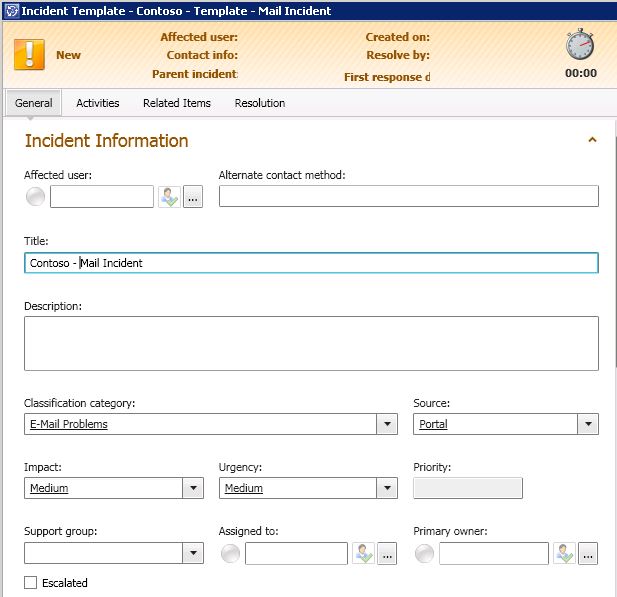


If the user then submits the incident you can see all the custom data under the activities tab. As we added the text fields to the new activity class. That is not optimal to have it there, as it will require some extra clicks to show it.

You can of course solve this with Orchestrator 🙂 I have create a simple runbook that picks up the incident and merge the User Input data with the Description field. The User Input field is a default field on a incident that contains all the data we added to the custom text fields on the activity. You could trigger this runbook automatically when a new incident of this type is created. One thing to think about is that you want to merge the User Input data with the already existing Description field, make sure not to overwrite it. As you can see in the last image we also get the XML code from User Input. I did not create a runbook to clean that, but you could of course do that with a runbook too, to only keep the user input text.
The result, you can use custom input fields, different for different type of incident, to let user report incident with the self-service portal.


As usual thanks to Patrik  for Service Manager authoring support
Please note that this is provided “as is†with no warranties at all.
Password reset with the Service Manager self-service portal
In this blog post I will show you how you can setup password reset with the self-service portal, Service Manager and Orchestrator. The scenario is that a manager should be enable to reset password for colleagues reporting to he or she. The manager could also be something like instructor or teacher for a class. The request offering for password reset should only be shown to members of the “Manager” user role, and the manager should only be enable to reset password for members of their team. To make this work you need to configure the manager attribute on your users in Active Directory, as shown in the image below. We will use a dynamic query based list to show only people reporting direct to the manager. In this example I use Orchestrator to generate a 10 characters complex password, but you could also add “New Password” as a parameter to the service request. Then you input the new password in the service portal. You could also configure the runbook to check the “User must change password at next logon” checkbox on the user account. That check box sometimes result in issues for some applications so I have not included it in this demo.

Runbook

- Start
- Get Runbook Activity. Gets the runbook activity, we submit the ID as a input parameter to the runbook from Service Manager
- Get Related Service Request. We pickup the service request from the runbook activity, by the relationship
- Get Related User. When we configured the query list in Service Manager we configured that the user should be set as a related item to the runbook activity. This activity gets the related user
- Get Service Request. Read the Service Request item
- Get User. Read the User object
- Generate New Password. Generates a 10 characters complex password
- Reset User Password. Set the password to the generated complex password
- Update Service Request. Update the description field on the service request with the new password and account information
The runbook is quite simple, we start with the runbook activity as we get it from Service Manager as ObjectID. We then pickup related service request and user. We generate a new password and set it on the user. We then update the service request with new description, including the new password.
Service Manager Side
- Start the Service Manager console
- Synchronize the runbook over to Service Manager by using the Orchestrator connector
- Navigate to Library/Runbooks, select the runbook (2.2.1 Password Reset) and click Create Runbook Automation Activity Template in the Tasks pane
- Create Template,
- Input a name, for example Contoso – Runbook Activity – 2.2.1 Password Reset.
- Create a new management pack, for example Contoso Password Reset.
- Click OK
- Runbook Activity Template,
- Check Is Ready For Automation
- Input title, for example Contoso – Runbook Activity Template – 2.2.1 Password Reset
- Click the Runbook tab
- Map ObjectID to Object/ID
- Click OK

- Navigate to Library/Templates. Click Create Template from the Tasks pane
- Create Template,
- input name, for example Contoso – Service Request Template – Password Reset
- Select Service Request as Class
- Select the Contoso Password Reset management pack
- Click OK
- Service Request Template,
- Input title, for example Contoso – Service Request – Reset Password
- Click the Activities tab
- Add “Contoso – Runbook Activity – 2.2.1 Password Reset” as activity
- Runbook Activity Template, click OK

- Click OK
- Navigate to Library/Service Catalog/Request Offerings
- Click Create Request Offering in the Tasks pane
- Create Request Offering – General, input title, for example Password Reset
- Create Request Offering – General, select Contoso – Service Request Template – Password Reset as template
- Create Request Offering – User Prompts, add one prompt named User and configure it as query result

- Create Request Offering – Configure Prompts, select the User prompt and select Configure
- Configure Query Results,
- Select Class, change to Combination classes and select User (advanced)
- Configure Criteria, select Manages User and select Pager, click Add Constraint. Configure as image below. Use “Set Token”. Why do we use Pager? The Token: Portal User Name is in format CONTOSO\leni (DOMAIN\username). We don’t store that on a user CI in Service Manager, we store username and domain, but not in that format. Instead I have updated each manager with that information in the Pager attribute, as we don’t use it for anything else in this environment. You can easy update the Pager attribute with a runbook, the export file includes a example of that.

- Display Columns. select User (advanced), the Object/DisplayName and Domain User or Group/User Name

- Options, select “Add User-selected objects to template objects as related item: select the Runbook Automation Activity

- Click OK
- Create Request Offering – Map Prompts,

- Create Request Offering – Publish, change offering status to Published
- Create the request offering
- Navigate to Library/Service Catalog/Service Offering
- Click Create Service Offering from the Tasks pane
- Create Service Offering
- General, fill in title for example Manager
- Request Offerings, add the Password Reset request offering
- Publish, change offering status to Published
- Finish the wizard and create the service offering
- Navigate to Library/Groups. Click New Catalog Group
- Create Catalog items group,
- General, group name, for example Contoso Managers
- Included Members, click Add, add the Password Reset request offering and the Manager Service offering
- Finish the wizard and create the group
- Navigate to Administration/Security/User Roles
- Click Create User Role > End User
- Create User Role,
- General, Name, for example Contoso Managers
- Management Packs, select the Contoso Password Reset management pack
- Catalog item Groups, select Contoso Managers
- Users, add managers
- Finish the wizard and create the user role


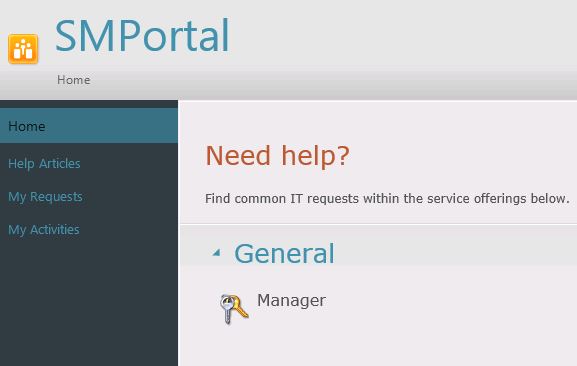


You can download my example runbook here, 20120617_PasswordReset_WOLF
Please note that this is provided “as is†with no warranties at all.
Recent Comments