Home » System Center Service Manager (Page 6)
Category Archives: System Center Service Manager
 Visualize alerts on Azure dashboard [updated]
Active Directory connector behavior
This week my friend Patrik Sundqvist and I delivered a Service Manager event together with Microsoft in Sweden. There were a lot of good questions from the audience and a great interest in the product. One of the questions was if the Active Directory synchronize blank attributes from Active Directory if there is a value in the CMDB. Of course we have tried this in a sandbox J
1. I created a new user account in Active Directory. I did not change any default values so the Office attribute (PhysicalDeliveryOfficeName) was set to < Not Set >
2. I ran the Active Directory connector synchronization
3. I verified that I had a blank Office attribute in the CMDB
4. I updated the attribute in the CMDB
5. I logged in and out with the account on a workstation
6. I ran the Active Directory connector synchronization
7. The Office attribute in the CMDB is back to blank
If my AD user object is updated, in this case some attributes was updated when the user loged into a workstation, the watermark on the user object is updated, then the whole user will be synchronized back to the CMDB.
Remember this! What you see is not always what you think in Service Manager. You might think that looking at a computer in the computer form is in fact looking at a single object in the CMDB. This is seldom the truth since most forms in Service Manager targets TypeProjections (which could be seen as a view displaying data from several objects related to each other). As an example you might take a look at the type projection acting as source to the “computer form†in Service Manager. As you can see in the definition below, quite a few different objects support the computer form.
Microsoft.Windows.Computer.ProjectionType :
<TypeProjection Accessibility=”Public”>
<Component Path=”$Context/Path[Relationship=’ConfigurationManager!Microsoft.SystemCenter.ConfigurationManager.DeployedComputerRunsWindowsComputer’ SeedRole=’Target’]$” Alias=”PhysicalComputer” />
 <Component Path=”$Context/Path[Relationship=’Windows!Microsoft.Windows.ComputerHostsOperatingSystem’]$” Alias=”OperatingSystem” />
 <Component Path=”$Context/Path[Relationship=’Windows!Microsoft.Windows.ComputerHostsLogicalDevice’ TypeConstraint=’Peripherals!Microsoft.Windows.Peripheral.NetworkAdapter’]$” Alias=”NetworkAdapter” />
<Component Path=”$Context/Path[Relationship=’Windows!Microsoft.Windows.ComputerHostsLogicalDevice’ TypeConstraint=’Peripherals!Microsoft.Windows.Peripheral.Processor’]$” Alias=”Processor” />
<Component Path=”$Context/Path[Relationship=’Windows!Microsoft.Windows.ComputerHostsLogicalDevice’ TypeConstraint=’Peripherals!Microsoft.Windows.Peripheral.PhysicalDisk’]$” Alias=”PhysicalDisk” />
<Component Path=”$Context/Path[Relationship=’Windows!Microsoft.Windows.ComputerHostsLogicalDevice’ TypeConstraint=’Peripherals!Microsoft.Windows.Peripheral.LogicalDisk’]$” Alias=”LogicalDisk” />
<Component Path=”$Context/Path[Relationship=’System!System.ComputerPrimaryUser’]$” Alias=”PrimaryUser” />
<Component Path=”$Context/Path[Relationship=’System!System.ConfigItemOwnedByUser’]$” Alias=”Custodian” />
<Component Path=”$Context/Path[Relationship=’WorkItem!System.WorkItemRelatesToConfigItem’ SeedRole=’Target’]$” Alias=”ImpactedWorkItem” />
<Component Path=”$Context/Path[Relationship=’WorkItem!System.WorkItemAboutConfigItem’ SeedRole=’Target’]$” Alias=”RelatedWorkItem” />
<Component Path=”$Context/Path[Relationship=’SupportingItem!System.ConfigItemHasFileAttachment’]$” Alias=”FileAttachment” />
<Component Path=”$Context/Path[Relationship=’System!System.ConfigItemRelatesToConfigItem’]$” Alias=”RelatedConfigItem” />
<Component Path=”$Context/Path[Relationship=’System!System.ConfigItemRelatesToConfigItem’ SeedRole=’Target’]$” Alias=”RelatedConfigItemSource” />
<Component Path=”$Context/Path[Relationship=’CoreKnowledge!System.EntityLinksToKnowledgeDocument’]$” Alias=”RelatedKnowledgeArticles” />
       </TypeProjection>
A short summary of this is â€last-write wins†and that you should be very aware that a form can be a mix of the result of a number of connectors and synchronized data.
Culture ‘en’ is a neutral culture
Last week when working with Service Manager I found this event again, in the Operations Manager log on the Service Manager server. Event ID 33880 from Health Service Module. It is generated when you try to send notification to a user, for example affected user, with a notification template that don’t support the user CI localization settings. More information about that scenario here. How to fix it? Make sure you have the same localization settings in your notification template and on your user CIs.
A Windows Workflow Foundation workflow failed during execution.

Workflow Type: Microsoft.EnterpriseManagement.ServiceManager.Incident.Workflows.

AutomaticIncidentChangeWorkflow

Workflow Identifier: 742dc6d1-90cf-9834-044f-9906bcf9dbf9

Exception Type: System.NotSupportedException

Exception Message: Culture 'en' is a neutral culture. It cannot be used in

formatting and parsing and

therefore cannot be set as the thread's current culture.

Exception Stack: at System.Globalization.CultureInfo.CheckNeutral

(CultureInfo culture)

at System.Globalization.CultureInfo.get_DateTimeFormat()

at System.DateTime.ToString(IFormatProvider provider)

at Microsoft.EnterpriseManagement.Notifications.Workflows.IReplaceableToken.

GetLocalizedPropertyValue(UserSettings settingsIn,

EnterpriseManagementObject instance)

at Microsoft.EnterpriseManagement.Notifications.Workflows.TokenizedMessage.

PopulateTokenValues(UserSettings userSettings,

EnterpriseManagementObject instance,

Dictionary`2 relationshipIdToInstanceToRelatedObjectMapping)

at Microsoft.EnterpriseManagement.Notifications.Workflows.RecipientGroupMessage.

PopulateTokenValues(UserSettings userSettings,

EnterpriseManagementObject instance, Dictionary`2

relationshipIdToInstanceToRelatedObjectMapping)

at Microsoft.EnterpriseManagement.Notifications.Workflows.SendNotificationsActivity.

Execute(ActivityExecutionContext executionContext)

at System.Workflow.ComponentModel.ActivityExecutor`1.Execute(T activity,

ActivityExecutionContext executionContext)

at System.Workflow.ComponentModel.ActivityExecutor`1.Execute(Activity activity,

ActivityExecutionContext executionContext)

at System.Workflow.ComponentModel.ActivityExecutorOperation.Run

(IWorkflowCoreRuntime workflowCoreRuntime)

at System.Workflow.Runtime.Scheduler.Run()
Business Services in Service Manager
Business Services in Service Manager 2010 is a way for you to present your services, both IT components within it and properties of it like affected users and SLA level. Business Services often start in Operations Manager as a distributed application. You then import the same management packs into Service Manager to get the structure of your application. After that you use a Operations Manager connector to synchronize components of your distributed application into your business service in Service Manager. In this post I will show you how you could do that.
I have created a simple distributed application in Operations Manager. It is stored in a management pack named “Contoso – myService”.

- What you need to do first is to export the management pack from Operations Manager and import it into Service Manager. You do that from the Administration workspace in both products. Note that you need to import all the management packs that contain a component from your distributed application. For example if you have created a web application check in MP01 and stored your distributed application in MP02, then you need to import both of them. Else, you will not see all components in the business service in Service Manager.
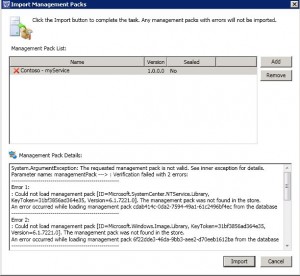
- If this is the first management pack you move over to Service Manager you will probably get a message like this
- The management pack you try to import depends on a number of other management packs and these needs to be imported first. Most o f these you can either download from Microsoft webpage or import from the installation folder of your Operations Manager Root Management Server.
- Once the management pack with your distributed application is imported into Service Manager you will see it under Business Services in the Configuration Items workspace. However there will not be any components in it until you enable synchronization.
- Navigate to the Administrator workspace, expand connectors and open your Operations Manager CI Connector. Refresh the list of management packs and select to synchronize your management pack. Save the setting and start the synchronization of the connector.
- After some time, open the business service configuration item and look at the component tab

You can now fill in the other properties of the business service. Â

What if you want to get alerts from Operations Manager to show up as related incidents, for your service in Service Manager? Service Manager will not connect related incidents and services to each other by default. For example if I get an alert about C: on a logical disk that is in my service component list, the incident will not show up as a related item on my service. The service will not either show up as a related item on the incident. To get this to work you need to generate an alert with the same as the service. In my case an alert named “Contoso – myService”. This can be done with some planning and a couple of dependency rollup monitors in Operations Manager.

Summary: Busniess Services in Service Manager can be used to represent your services within Service Manager. You can merge data and components from other systems like Operations Manager and Configuration Manager and present it as a service. In Service Manager you can fill in information like SLA for the server, contact persons and customers.
Remember that if you change the class structure of your distributed application, dont forget to update the management pack in Service Manager too. If you need to get your incidents in relationship with your services automatically, then start by planning this on a piece of paper, and then create necessary monitors in Operations Manager.
Incident Notification in Service Manager 2010
This week I have been working with notification in Service Manager. Some of my Service Manager customers need Swedish e-mail messages to one part of the company and for example English e-mail messages to another part of the company. To get that to work there are a number of steps to take. After configure e-mail notification channels (Administration/Notification/Channels) we need to configure a notification template. In the template we can configure different e-mail body and subject for different languages. In this post I will use one template, one for new incidents that the affected user will get when an incident is registered for them, you could configured a second one to notify affected user when an incident change status to closed.
I configured the first template with the following settings (Administration/Notification/Templates)
- Notification template name: Contoso Blog New Incident
- Targeted class: Incident
- Management Pack: Service Manager Incident Management Configuration Library (default)
- Message subject: A suitable message and property, I use WorkItem/Id (insert as property) to get the case ID
- Message body: A suitable message and properties. I use
- WorkItem/Id
- WorkItem/CreatedDate
- WorkItem/Title
- Incident/Classification
- Language: Swedish (Sweden)
- Switch to another language, in my scenario English (United States). Input a new message subject and message body. Then click OK to save your template
Now we have a notification template that supports two languages, in my example Swedish and English (United States). Next step is to configure a workflow to send notification. We can use the default incident event workflow configuration workflow for that (Administration/Workflows/Configuration). Add a workflow with the following settings
- Name: Contoso blog New Incident
- Description: E-mail notification to affected user when a new incident is registered
- Check for events: When an incident is created
- Management Pack: Service Manager Incident Management Configuration Library (default)
- Enabled: Checked
- On the Specify Event Criteria page, click Next
- On the Select Incident Template, do not apply a template, click Next
- On the Select People to Notify,
- Enable notification
- User: Affected User
- Message template: Contoso Blog New Incident, click Add

- On the Summary page, click Next
- On the Completion page, click Create and Close

Now, If we register an incident for a English user and one for a Swedish user there will be a couple differences in the e-mail. First it will use different message body and subject as the users has different local settings on their user CI in Service Manager. As you can see we get a very strange value for the category in the Swedish e-mail. This will happen when the list value doesn’t have a display string in the language of the target recipient. The workflow will get the notification template that corresponds to that user´s locale property setting. Replace the list value display string given the user´s locale. Format the date and time values according to the users locale property and time zone. In this scenario the user Kurt has local property configured to Sweden (Swedish) so there is no default display string for Hardware Issues in Swedish. But for Ed it works out of the box as his locale property is configured to English (United States) which is provided out of the box.
If you need to update your users timezone and/or locale settings you could use the CSV connector. Travis has a good post about that here. I have a post about the CSV connector and importing knowledge here.


During my tests I found the following results when you mix user local property, notification template language and default display strings
| User Local Property | Notification Template Language | Available display string | Result in e-mail notification |
|---|---|---|---|
| Sweden (Swedish) | Sweden (Swedish)(only language configured) | US-EN (Default) | Incorrect list values |
| English (United States) | Sweden (Swedish)(only language configured) | US-EN (Default) | correct list values |
| English (United States) | Both English (United States) and Sweden (Swedish). Will use the English (United States) template body | US-EN (Default) | correct list values |
| Sweden (Swedish) | Both English (United States) and Sweden (Swedish). Will use the Sweden (Swedish) template body | US-EN (Default) | Incorrect list values |
| blank/null | Both English (United States) and Sweden (Swedish). Will use the Sweden (Swedish) template body which was first configured in the template. Swedish is also the local settings on the service manager server. | US-EN (Default) | Incorrect list values |
| Other language for example Sweden (Finish) | Both English (United States) and Sweden (Swedish) | US-EN (Default) | No e-mail |
What we need to do to get correct e-mail bodies for Swedish affected users is to add localization in the Service Manager Incident Management Configuration Library management pack. We need to configure the management pack to support Swedish. Travis has a good blog post about this here. General steps are
- Export the Incident Management Configuration management pack
- Open it with XML Notepad
- Add languagepack and localization display strings for your language<
- Save the management pack
- Import it into Service Manager again
If we now register a incident for a English (United States) user and one for a Swedish (Sweden) user they will get one e-mail each, from the same notification template, but with different values for the list properties. In this case the incident category parameter will be translated to different words.

To summarize this post I would say that notification in Service Manager is a key feature that everyone will use. It support multiple-language templates and there are workflows and wizards to help you. But! Remember to plan the user CI local setting, language of your notification template and language of your display string
Importing knowledge into Service Manager 2010 – part 2
In this post I wrote about how-to import knowledge into Service Manager 2010. This week I did some tests about importing knowledge including data from a word file (docx) and a rich text format file (rtf). In my previous post about importing knowledge I wrote how you could use files and how they are mapped to the knowledge article text fields. If I use a Word file (docx) the result is “raw data”, not how we see the same file in Word.

Â
If I instead use a Rich Text form file it looks really nice in the Service Manager console.

Summary: Try to use rich text format files instead of normal Word files when importing knowledge into Service Manager.
Importing knowledge into Service Manager 2010
This week I have tested to import knowledge into Service Manager. Knowledge can be used for example as guides in the self service portal for end-users, system documentation for engineers or troubleshooting guides for service desk personnel. One of the ways to get knowledge into Service Manager is to use the CSV import feature. The CSV import feature allows you to bulk-import instances of any class type or projection type defined in the Service Manager Configuration Management Database (SMCMDB). More info about CSV import here.
I started to map the labels on the knowledge form with properties of the knowledge class. When you use the CSV import feature you have one XML file with the properties that you will write data to and in which order they are, then you have a CSV file with the data itself.
| Property | Form label |
| Status | Status (top left corner of the form) |
| Tag | Flag article as |
| PrimaryLocaleID | Language |
| Category | Category |
| ArticleOwner | ArticleOwner |
| Comments | Comments |
| CreatedBy | CreatedBy |
| VendorArticleID | did not find this one |
| Title | Title |
| Abstract | Description |
| Keywords | Keywords |
| ArticleId | ArticleId |
| ExternalURLSource | did not find this one |
| ExternalURL | URL |
| AnalystContent | Analyst Content |
| EndUserContent | Internal Content |
There are a couple of fields where you cant use normal display values, for example the status property, when you import knowledge articles you cant use “Draft” you will have to use “10F171DF-3AB1-648D-D151-D83A5171DD7B” in the CSV file. That is because the knowledge form use StringIds then there is a “translation table” in the database to translate the string into the correct work and language. So how do you get hold of these values?
They are all in the LocalizedText table in the Service Manager database. For example to get the StringID for draft status you can run the following query
SELECT [LTStringId]

,[LanguageCode]

,[LTStringType]

,[ManagementPackId]

,[ElementName]

,[MPElementId]

,[SubElementName]

,[LTValue]

,[TimeAdded]

,[LastModified]

,[DisplayStringId]

FROM [ServiceManager].[dbo].[LocalizedText] WHERE ElementName LIKE '%knowledge%status%draft%'
It will give you a result like this

As you can see there are different values for different languages. When you need to get StringIds for your values you will need to check in this table. During my test I found that you need to do this for status, tag and category.
There are two other intresting properties,  AnalystContent and EndUserContent. When you use these two with the CSV import feature is looking for files in the C:\Program Files\Microsoft System Center\Service Manager 2010 folder (default path). The content in these two files will be uploaded to the corresponding text field in the knowledge article form.

Â
The following is a example of a CSV file and a XML file I used to import a knowledge article. If you save them to a folder and import them into Service Manager you will get a new knowledge article with some guidelines in each text field, so you easy can identify where to put your text.
10F171DF-3AB1-648D-D151-D83A5171DD7B,

F982E5B1-7864-7FC5-D0A4-8E000C91C241,75F786E2-CAA7-E7E9-47A0-BCC714BF1EDF,ArticleOwner,Comments,

CreatedBy,VendorArticleID,Title,Abstract,keyword,,

ExternalURLSource,http://www.contoso.se,

comment01.txt,comment02.txt
and the XML file used with the CSV file

Travis Wright in the Service Manager product team has written a good post with more info about this.
Asset Management MP for Service Manager 2010
In a collaborative project we, Patrik Sundqvist and Anders Bengtsson have created an embryo of an Asset Management extension for Service Manager. Our thoughts behind this management pack are to build a version one that we could extend in the future. It is not a feature complete asset management solution for enterprise organizations, but it is a foundation that could give you some ideas what you could do with Service Manager 2010.
Download management pack here and there management pack guide here. If you have any ideas or feedback, send us a e-mail.


Target software packages to a group of users
I tested to modify my announcement customization management pack from this post to extend the package class instead. It works really well, I can target packages to a group of users or to everyone. The following post can be a little bit confusing if you have not read this first, please do.
The management pack looks like this

I can configure a package for which group it will be available in the self service portal. The user can then request the software, a change request must still be approved before they get it. The result is that instead of all users see all packages from Configuration Manager in the self service portal, they only see the package assigned to their group. When I was testing it I used the same groups as in this post.
Target knowledge to a group of users
I tested to modify my announcement customization management pack from this post to extend the knowledge article class instead. It works really well, I can target knowledge articles to a group of users or to everyone. The following can be a little bit confusing if you have not read this first, please do.
- Added one new property to the System.Knowledge.Article class, called Group
- On the extension tab of the knowledge article form, I configured target group for the article, for exaple 5 for all and 2 for HR
- Create a new dynamic group for each department, for example the HR group
- Name: Contoso – Knowledge – 2 HR or Everyone
- Management Pack: Contoso Knowledge Extension (same as the class extension)
- Dynamic members
 Â
 - For everything else in the group wizard I use default settings
- Updated the security user roles from the other post to include also this new group
- That would do it 🙂


 Â
Â
 Â
Â
Â
Target IT Announcement to a group of users in Service Manager
This week I have done some tests with IT announcements in Service Manager 2010. What I wanted to do was to target a IT announcements to a group of users and another announcements to another group of users. This can be done, but includes a number of steps and some XML coding. These are the general steps
- Extend the announcement class with a new property
- Sort your announcements in different categories with the new property
- Include you different announcement categories in dynamic groups
- Create new security user roles for your end users, one role for each target group of users
Travis has a good post about extending classes. In this example I extend the announcement class and adds a property named “group”.

Service Manager is using a standard form when creating new announcements in the console. That is default, if not form is target it will use a default form and show you all properties for the class. So In this scenario you dont need to customize the form. As soon as you import the management pack with the extension, and creates a new announcement the new property is in the form.

Next step is to sort your announcements. There is a number of ways to do it but one example could be that your company contains of four departments and that you want to base announcements on departments. You assign each department a number and then one for all departments, for exampleÂ
- IT
- HR
- Manufacturing
- Development
- All departments
Now open all your announcements and configure them with the correct announcements target number (department number) in the group field. After that we need to create groups that contains the correct announcements. We will use the groups in security user roles to control who will see which announcement. Create one group for each department, for example for the HR department
- Group Name: Contoso – Announcement – 2 HR
- Management Pack: Contoso Announcement Extension
- Dynamic Members: [Contoso.Announcement.ExtensionClass] Assigned to group equals 2 ORÂ Â [Contoso.Announcement.ExtensionClass] Assigned to group equals 5
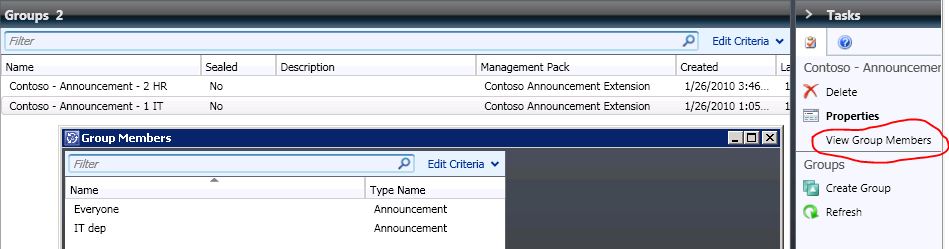
We will need to include 5 in each group as we want all departments get announcement target to 5 – ALL. There is a “View group members” task that you can use to verify that you have the correct annoncements in each group. Remember to save your groups in the customization management pack you imported.
Â
Next step is to configure user roles. With default settings all authenticated users can read all IT announcements. Start by removing authenticated users from the default end-user user security role. Then create a new advanced operator user security role for each department. For example for HR
- General, Name: Contoso – Advanced Operator – HR
- Management Packs: Select All
- Queues: select provide access to only the selected queues and don’t select any
- Groups: Select the Contoso – Announcements – 2 HR group
- Tasks: select provide access to only the selected tasks and don’t select any
- Views: select provide access to only the selected views and dont select any
- Form Templates: All forms can be accessed
- Users: Select your HR users
- Summary: Click Create and close the wizard
If you now log-on to the self service portal as a user from the HR department you will only see announcements target to ALL (5) and HR (2). If you include that use in the default end-user security user role it will see all announcements again, even if it is still in the restricted HR security user role. If a user in one of the new advanced operator roles open the Service Manager console they will see the work items, Library and Configuration Items (DW not installed) workspaces including sub views. But there is no information anywhere in the console, for example they will not see any incidents and no computers.
Recent Comments