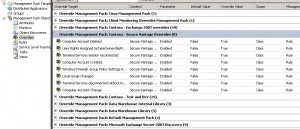
 Override Management Pack
Subscription ID -> Subscription Name
I saw a question from a engineer who recived a number of notifications about the same alert from different notification subscriptions. The questions was how to track down which subscription sending these notifications from the subscription ID. You can do that with Command Shell. Run
get-NotificationSubscription | where {$_.ID -like “subscription ID”}
Â
Event ID 12302: Volume Shadow Copy Service error
I ran into a issue today with Data Protection Manager 2007. When I tried to create a new protection group and select members I got
The Operation Failed bacuse of a protection agent failure
Retry the operation
ID: 998
Details Unknow error (0x80042318) (0x80042318)
on the member I found this error
Volume Shadow Copy Service error: An internal inconsistency was detected in trying to contact shadow copy service writers. Please check to see that the Event Service and Volume Shadow Copy Service are operating properly.
The workaround I found was to (on the member server)
- Backup the follwing regkey: HKLM\Software\Microsoft\EventSystem\{26c409cc-ae86-11d1-b616-00805fc79216}\Subscriptions
- Erase the regkey
- Reboot.
- Verify that things are working by running “vssadmin.exe list writers”
The deleted regkey will be regenerated after reboot.
Remeber to install article ID 940349 on the server you are trying to protect, else you will get an error about pre requirements when trying to select members to a proction group. At this page you can see all Software Prerequisites for different kind of workload.
Monitor and Report SQL Logons
In this post I will show how to setup SQL logon auditing. You will have to complete a number of steps before you have a complete auditing. Beware that logging all logon events can fill up your database. This post includes the following steps:
- Configure SQL to audit logon events
- Configure Ops Mgr to collect logon events
- Create a report to show the collected data
Configure SQL to audit logon events
Login auditing can be configured to write to the error log on the following events.
- Failed logins
- Successful logins
- Both failed and successful logins
To configure login auditing
- In SQL Server Management Studio, connect to an instance of the SQL Server Database Engine with Object Explorer.
- In Object Explorer, right-click the server name, and then click Properties.
- On the Security page, under Login auditing, click the desired option.
- After you have applied this setting you might need to restart the SQL service before it take effect. After that you should see logon events in the local application log, in event viewer.
Configure Ops Mgr to collect logon events
You will need some suitable class to target your rule to. If you import the SQL MP you will get a number of SQL classes.
- In the Ops Mgr Console click Authoring
- Right-click Rules and choose to create a new rule
- Create Rule Wizard – Rule Type: Choose to create a Collection Rules/Event Based/NT Event log. Choose a suitable management pack and click next
- Create Rule Wizard – General: Input a rule name for example “SQL Auditing – Success Logon”. Choose a target, for example “SQL 2005 DB Engine”. Click Next
- Create Rule Wizard – Event Log Type: Log Name should be Application then click Next
- Create Rule Wizard – Build Event Expression: input
Event ID equals 18453
Event Source equals MSSQLSERVER
Click Create
To collect also failed logon you need to create a rule to collect event ID 18456.
You can use the Effective Configuration Viewer from the Ops Mgr 2007 resource kit to verify if your new rule affect a SQL machine. You can also create a new event view, to show these events, after a couple of minutes you should see them.
Create a report to show the collected data
There is no report model in Ops Mgr by default, so if you want to create a brand new report, you must start with create a report model. You can do that with SQL Server Business Intelligence Development Studio. Take a look at Jonathan Hamb step by step guide how to create a report model here.
What you can do, with default reports, is a linked report. A linked report is like a shortcut to a program, it is a link that provide settings that inputs in a existing report. A linked report always inherits report layout and data source properties of the original report. All other properties and settings can be different from those of the original report, including security, parameters, location, subscriptions, and schedules.
To create a new report, for example a report showing all success logon events,
- Start the Ops Mgr console and click Reporting
- Click Microsoft Generic Report Library
- Click Event Analysis and then Open
- In the report select suitable FROM and TO for example
- Click Add Group and select SQL 2005 DB Engine Group
- Select MSSQLSERVER as SOURCE, 4 as Type, 18453 as Event ID and Success Audit as Event Type
- Click Run
Now you can see a report with all Sucess Audit. You can now click the File menu and choose Publish. This report will now be stored as a linked report under Authored Reports. The next time you want to see success logons to SQL you can click this report direct in the console, and all the parameters will be there.
If you select MSSQLSERVER as source and 4 as event type, you will get both Failure and Success audit events, but you must first make sure you have rules to collect them both.
Update Folder Security
This post is not about System Center, instead it is about updating adding permissions to folders. This script will read all folders in a folder and give the user with the same userID as the foldername permissions. I combine a script from Microsoft, xcacls.vbs, with my own script to attain this. More information about Xcacls.vbs here. Download my script here. Xcacls.vbs is a great script with a lot of functions and options.
Operations Manager 2007 Service Pack 1
Ops Mgr SP1 RC0 is here. You can download it from MS Connect, here. This version will support upgrade to the final version of SP1. The final version will be public around mid febuari 2008.
Some of the news in SP1 RC0
- Improved performance when working in the console
- Improved advanced search in the console
- Support for both SNMP v1 and SNMP v2 network devices
- Support for exporting diagrams to Visio VDX format
- Support for copy/paste from the alert details pane (Ctrl+C and Ctrl+V)
- RMS encryption key backup wizard
- Support to copy views between management packs
- Both the repeatcount and override summary function are improved
- Scripts can noe be used for diagnostic tasks
- Enable to publish a report to for example sharepoint services web sites
- ACS is now supported on the Management and Gateway server roles
- ACS forwarding can be enable with command shell script
Read more about What’s New in Operations Manager 2007 Service Pack 1, here
If you want to discuss the service pack please join the SP1 news group at microsoft.public.opsmgr.sp1 at news.microsoft.com. I recommend JetBrains Omea Readers as news group reader, you can download it here. More information about Microsoft news groups here.
Recent Comments