Home » System Center Service Manager (Page 4)
Category Archives: System Center Service Manager
 Dynamic web farm with Opalis, VMM, OPSMGR and SCSM
 Measure bandwidth with Azure Monitor
The book has arrived
The book has finally arrived in printed, non electronic, format. I hope it will provide you with good information and ideas around Service Manager. Thanks again to the team behind the book, has been great working with you. You can order the book at for example Amazon, or if you are in Sweden maybe Adlibris is easier. More info around the book here.

Save time for servicedesk with Opalis
In this post I want to give a simple example how you can use Opalis to save time for your service desk. Often the 1st line do the same tasks over and over again. For example when a user calls in a incident around access to the intranet, service desk connect to the desktop machine, check the same things every time and it is almost every time the same issue. Doing this every day is boring and it is easy that there is a difference between how service desk engineers perform these tasks.
This is where Opalis can help. Instead of resources from your service desk should do these simple tasks, let Opalis do them and then update the incident. Opalis will do it quick and exactly the same every time. If you need to change anything, change the workflow, and Opalis will instant start using the new settings. The following workflow is a example of what you could build to save some time. The next obvious phase would be to add more steps to also fix any problem that Opalis detect.

- The first activity checks for new incidents in Service Manager with classification category equals Desktop Problem
- Update the incident status to Opalis. This is to show that Opalis is working on the incident
- Get related computer, affected item, from the incidents. This is the machine where we will do all tests, as this is the machine the end-user has a problem with.

- Gets the windows computer object with the object GUID that we get from the “get related computer” activity
- Trigger the first troubleshooting workflow, “ping policy”
- If the first troubleshooting workflow did not found any issues the next troubleshooting workflow will start, process policy
- Change the incident status back to the status it had before activity 2 in the workflow

The first troubleshooting workflow is shown below. It will start by simple check if the desktop machine is accessible on the network with a simple ping. the workflow till update the incident with the result and then publish the result on the databus. I trigger the same workflow for both a good and a bad result. There are both disadvantage and advantage with that solution. I can use the same workflow for all my troubleshooting policies and that results in simple workflows. A disadvantage is that I cant add that much custom details to the incident update, for example in this example I will only update the incident action log saying the “ping policy” failed. There will be no info around number of pings that failed. I try to keep number of tests in my troubleshooting workflows to a minimum, so if a workflow fails we know direct what it is. For example instead of testing five processes in the same workflow, I can build multiple workflows with one test in each, then simple update the incident with the incident that failed. As the workflow only test one thing I know what the problem is, and I can use same error logging for all workflows.
 The incident update workflow generate a random number that will be used as ID for the action log comment in the incident. From each workflow that trigger it the workflow gets result, policy name of the calling workflow and computer name. These three attributes are used to generate the action log update.


Incident action log updated by Opalis. The header of the action log comment is <Workflow name> <Result>, the comment is <Result> <Workflow name> <Computer name> as shown in the figure above, result below. This makes the update action log workflow easy to use for all workflows, they just need to forward workflow name, computer and incident number.

The second troubleshooting workflow checks a process and a service on the machine, and then updates the incident.

This export file have meet “mr Wolf†so it should not contain any unnecessary settings or objects. You can download my policies here, ZIP-file, please note that this is provided “as is†with no warranties at all. Also please read this blog post about export and import of policies.
System Center Service Manager 2010 Unleashed Book is up on Amazon
We are in the final stages of copy edit for the System Center Service Manager 2010 Unleashed book now. It’s up on Amazon now available for pre-order. The release date on Amazon says around October, but I’m pretty sure it
will be something more like this summer when it is actually released though. Hopefully you will find lots of new and useful information in this book! Link to the book

Dynamic web farm with Opalis, VMM, OPSMGR and SCSM
I have built a scenario where I use Opalis, Virtual Machine Manager, Operations Manager and Service Manager to control number of web servers in a web farm. The web farm is behind a NLB cluster. The scenario was to only have enough with IIS running, no extra IIS machines that is not doing anything. If one IIS can handle the current load, there should only be one IIS online.
We use Service Manager to track what is happening. Opalis executes and Service Manager remembers. As soons as Opalis is done, it will drop everything, it only keeps it in memory during execution (and maybe some logs). Working with Service Manager will give us a great way to track everything.
Operations Manager are monitoring my IIS machines, if IIS01 is running low on resources an alert will be raised. If any other IIS in the web farm is idle another alert will be raised. When an alert about high load on IIS01 is raised the first Opalis policy starts. When an alert about a idle IIS is raised the “shut down” policy will start.

The purpose of this policy is to start a extra IIS, that is already in the web farm. The IIS will then relieve pressure from IIS01 that is running low on resources.
- The first activity monitor Operations Manager for new alerts about IIS01 running low on resources
- Set resolution state of the alert in Operations Manager to a Opalis resolution state. This makes sure no one else picks it up, instead you can see that Opalis is working on it in the Operations Manager console
- We use a counter to decide which IIS to start, this activity reset the counter to 0
- This activity gets all running machines from Virtual Machine Manager that is named something with IIS0. I have three IIS, named IIS01, IIS02 and IIS03.
- For each running IIS machine, add one to the counter (+1)
- The merge step is used to merge multiple treads, we don’t want to run the rest of the policy more the once. If step 4 returns multiple IISs a Junction activity is a good way to terminate parallel treads. One thing to remember here is that the merge step don’t publish any data from activities before it, so that is why we need to read the counter again.
- Reads counter value
- Add one (+1) to the counter. Each running VM added one to the counter and we want to start the next free IIS. If there is only one IIS running the value will be “1” then we add “1” and gets “2”. In step 9 we use that “2” to start IIS02
- Gets VM with name IIS0<Output from 8>, for example IIS02
- Create a change request in Service Manager saying the web farm is running low on resources and we need to add a extra IIS. We also include that we need to start the machine that we picked up in step 9
- Start the virtual machine. If it fails we will update set the change request to failure and add information around it, also generate an alert in Operations Manager
- Wait four minutes to make sure the virtual machine is up and running
- Trigger a policy to remove maintenance mode from Operations Manager
- Wait three minutes to make sure the maintenance mode is stopped
- Check if the web page is working on the IIS machine. If it fails we will set the change request to failure and add information around it, also generate an alert in Operations Manager
- Update the change request with result and change it to completed
The Stop Maintenance Mode policy is used to stop maintenance mode for machines that was shut down by Opalis earlier. This policy check if the affected machine is in maintenance mode, by checking Windows Computer (1), Health Service (2) and Health Service Watcher (4). We use a SQL query to get the agent watcher ID (3). These are the three objects that Opalis puts into maintenance mode when it shuts down a IIS in this example. Another example of Opalis and maintenance mode here.

The stop IIS policy will look for an alert in Operations Manager saying a IIS is idle, it will then shut down the IIS. In one version of this policy I added a run command activity that drain the IIS first from active sessions before shutdown.

- Monitor for an alert saying that a IIS is idle
- Set resolution state of the alert in Operations Manager to a Opalis resolution state. This makes sure no one else picks it up, instead you can see that Opalis is working on it
- Create a change request in Service Manager saying we will shut down a IIS, including name and reason
- Get VM to shutdown
- Put the Windows Computer into maintenance mode
- Put the Health Service into maintenance mode
- Query the OperationsManager database for the agent ID
- Put the agent watcher into maintenance mode
- Wait three minutes to make sure the maintenance mode is active
- Shutdown the machine (VM)
- Wait four minutes to make sure the machine is down
- Verify that the machine is down, else update the change request with a status equals failure and generate an alert in Operations Manager
- Update the change request with success and set status to completed
- Close the alert in Operations Manager
A couple of pictures of change requests in Service Manager


In this scenario and example I used two unit monitors in Operations Manager to trigger on a performance counter, to decide if IIS01 was running low on resource or if another IIS was idle. As the NLB will decide the load equal between my IIS machines I only measure load on IIS01, if I had two IIS online and IIS01 was low on resources IIS02 was that too.


In the first policy there should be a thread checking if already all IIS is running, then create a change request saying we need more IIS machines in the web farm. Or trigger another policy to create a new VM, configure it and include it in the web farm.
This export file have meet “mr Wolf†so it should not contain any unnecessary settings or objects.
You can download my policies here, ZIP file, please note that this is provided “as is†with no warranties at all. Also please read this blog post about export and import of policies.
Identify problems with Opalis and Service Manager
I have created a Opalis workflow that checks number of active incidents related to a business service. If there are more the X (in my example 4) incidents active a problem work item will be generated. The problem work item will be assign to the problem managers Active Directory group.

The policy is divided into three parts. Part one will find the business service and active related incidents. Â
Â
- Starts at 6 am every day
- Deletes the temporary file if it exists. The link after “Delete temp file” is configure to continue even if the “Detete temp file” activity fail, becurse there is no file to delete.
- Gets the business service, in my example “Contoso – Extranet”
- Gets related incidents to the business service
- Gets the incident workitem for each incident that is in relationship with the business service
- If the incident status is equals active, the policy continue over the link, else nothing more will happen
Part two will count number of active incidents and see if there are more incidents then the threshold. In my example the threshold is 4.

- Â If the status of the related incident in the first part of the policy is active, the GUID of the incident will be echo to a temporary file.
- The Junction activity is used to combine multiple threads to one. As multiple incidents can get back from “get related incidents” we need to make sure the rest of the policy is not ran in multiple threads, we use a junction activity for that. Â
- The combine activity is configure not to publish any data, that why we need to get the business service again. If we choose to publish data the policy might run multiple times and we dont want multiple problem work items.
- This activity count the number of lines in the temporary file
- Â Checks if number of lines in the file (number of active related incidents) are equal or more then the incident threshold
- If there are enough with related incidents the policy will move on
Part three will create a problem and assign it to problem managers. It will also link the problem to the business service and all the incidents to the problem.

- Created a problem work item with some dynamic text depending on the settings in the rest of the policy
- Link the new problem work item to the business service
- Query Active Directory to get the Problem Managers (in my example) security group
- Writes a platform even with the problem work item ID
- Assign the problem work item to the Active Directory group found in “Get Problem Managers from AD” activity
- Reads each line in the temporary file. Each line is a GUID of a related and active incident
- Link each active and related incident from the temporary file to the problem work item
The following two images show the problem work item created in Service Manager. Note that all incidents are related to the problem work item and that it is assign to problem managers.


To save some data processing you could move the “Get Business Service GUID” activity to the other side of “Compare Values” activity. Then you could not contact Service Manager a second time if there was not enough with incidents. The “Get Business Service GUID” result is used in the “Link Problem to Service” activity.
This export file have meet “mr Wolf” so it should not contain any unnecessary settings or objects.
You can download my policies here, 21 Problem Management clean, please note that this is provided “as is†with no warranties at all. Also please read this blog post about export and import of policies.
Generate SCSM Incident with Opalis
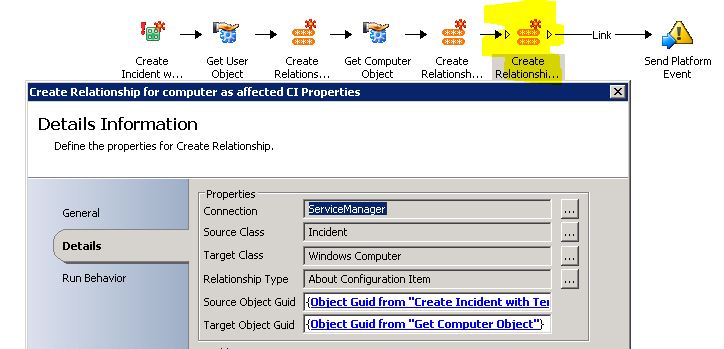
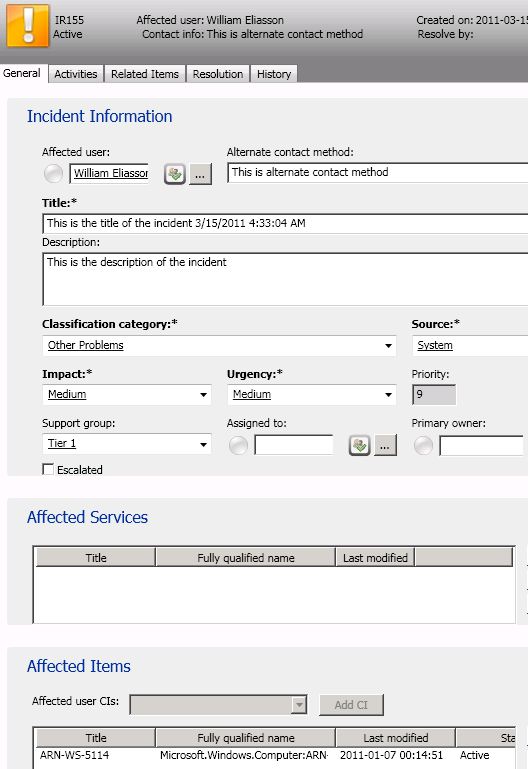
I read a question on the forum about creating a incident in Service Manager with Opalis. The question was about all the fields you see in the incident form in Service Manger, but not on the “Create Incident with template” activity in Opalis. Many things we see in Service Manager as one form is a combination of objects and relationships between classes. Some more info about that in this post. Opalis handle this object per object and relationship per relationship. In the following policy I create a incident and create a relationship to a user and a computer. The computer is added as related CI and affected CI.

- Creates a incident in Service Manager
- Gets a user from the CMDB
- Create a relationship between the incident and the user
- Gets a computer object
- Create a relationship between the incident and the computer, as related CI
- Create a relationship between the incident and the computer, as affected item
- Sends a platform event


Coming Soon to a Bookshelf Near You

There’s a lot of curiosity about the Service Manager book which is great. The book will be released around the summer of 2011.
Deploying servers and software with Opalis, Service Manager and Virtual Machine Manager
In my sandbox I often need to install a new server or a new server application for example SQL, IIS or Operations Manager. Unfortunaly I have never really learned how to use Configuration Manager to do that, deploy software and operating system. But lucky for me I have learned a bit about Virtual Machine Manager (VMM), Service Manager (SCSM) and Opalis. In this post I will describe for you how I deploy servers and apps in my sandbox.
The picture below show the policy I have for deploying new virtual servers. It includes a number of objects that first decide which VM host to use and then deploys the server. It all starts with a change request in Service manager. I will try to explain each step in the policy.

- The first object is from the Service Manager IP. I have built my own activity class in Service Manager, a deploy server activity. The new activity management pack includes a form where I can input VM Name, description and server type. Server type is a way to set which hardware to use, for example my DC machines will only get 1GB RAM. When a instance of this class gets in status “IN PROGRESS” Opalis will pick it up and start the policy. I have a blogpost here about writting a new custom activity class and integrate with Opalis, it also includes step how to use the new activity in a change request template.


- The following three objects is QMI Query objects. They query each of my Hyper-V Hosts for free memory. I want to deploy the new server to the host with most free RAM. Each of the WMI Query objects have a link to a Operations Manager object that will generate an alert if the policy cant query a machine for free RAM.

- Next item is a RUN .NET Script object. It runs a Powershell script. This script compare each of the hosts and returns the host with most free RAM. I guess I could solve it with a number of compare value objects, but it is easier with a script and it is only one object in the policy. As you can see in the beginning of the script I use DIV to get the free memory value in GB format.

- The “Map Published Data” object, Map Disk, is used to map which disk to use and which template to use. Depending on which Hyper-V server that has most free RAM, I want to use different logical disks. This object also map the server type fromthe Service Manager change request to a template in Virtual Machine Manager. The template controls what kind of hardware the virtual machine will get. For example if the server type is DC it will use a template with only 1 GB RAM.
- The “Create VM From Template” object connects to Virtual Machine Manager and creates the new virtual machine. I notice that when you work with this object, and want to test the connection to VMM, it does that from the machine where you run the console, not from the action server where you will run the policy. In my case my workstation did not have WS management installed, so the connection test failed. Instead I did that part from the Opalis server.

- The two “Update Activity” objects updates the change request in Service Manager. One if the machine cant be created and one if it worked out fine. As you can see in the picture I have updated the status of the change request and also added some info about where the virtual machine was created and which template that was used. All steps to update a change from Opalis is in this post.


 Â
 

Now when you have a easy way to create a new virtual machine the next step would be to install something on it, for example SQL server. This can also be done with Opalis 🙂 I have built a library of policies that each install small parts of a complete server. For example I have a policy to add the .NET Framework feature on a server.

I have another policy to unattend install SQL server. This policy first creates C:\temp, if the folder don’t exists. It then copy a INI file from a network file share. The INI file is the “answering” file for the SQL installation. It contains all the settings that you normally input manually during SQL installation. The policy then run the SQL setup, “D:\setup /ConfigurationFile=C:\temp\SQL2008R2_OPSMGR.ini /QUIET”. It is pretty easy to get the SQL unattend file, when you run the SQL setup wizard, on the last page you will see a path to a configuration file. You can copy that file direct from the path. The only thing I added to the INI file was “IAcceptSQLServerLicenseTerms=”TRUE””


When you have created your own library of policies that install and prepare machines you can create different “master workflows” that will create a new machine, install the application and configure the server for you. For example a “master policy” from installing a new Operations Manager server. This policy will then trigger the other policies. I use it almost every day in the sandbox and it saves me a lot of time. The policy below is a “master policy” for a new SQL server. It starts with a change request in Service Manager, it creates a new machine, run server setup to add for example .NET Framework and then it install SQL server. It finish by updating the change request. I have a notification in Service Manager that will notify me by e-mail when then machine is ready. If you want to take a look at the policy for the new machine, you can download it here 6.1 New Virtual Machine 
Please note that this is provided “as is†with no warranties at all. Update: There is a extension to the VMM IP that you can download here
Service Manager and Opalis 6.3
In this post I will show you a idea how you can connect Service Manager 2010 with Opalis. The demo scenario is very common, create user account based on a change request. In this demo the change request will be in Service Manager and the user will be created in Active Directory.Â
Opalis 6.3 will include new Integration Packs for the four remaining System Center suite products – Configuration Manager, Data Protection Manager, Virtual Machine Manager and Service Manager. These four new packs along with the existing Operations Manager pack provide deep, dynamic integration within the Datacenter. And of course you can go cross-platform and cross-application with the 26 other Integration Packs. Opalis 6.3 will be released Q4 CY2010, in other words pretty soon 🙂 More info about 6.3 here. Keep in mind that the information in this article is based on a beta version of the Opalis IP for Service Manager and is subject to change
We will extend Service Manager with a new activity for creating accounts in Active Directory. When Opalis find a instance of the new activity, in “in progress” state, it will read the properties of it and create the account in Active Directory based on them. Opalis will then update the activity in Service Manager so it can continue with other activities in the change. To get this to work we need to perform two major steps, extend service manager and build the workflow in Opalis. The Service Manager step includes two parts, first to author the new management pack with the authoring tool and then create templates in the Service Manager console.
Before we begin, please note that the purpose of this post is to give you a idea what you can do with the new Service Manager integration pack. This is not a production ready solution, for example the Opalis workflow is very simple and without any error handle. Lets begin!
- Begin with start the authoring tool for Service Manager. In the management pack explorer pane, right-click classes, select “Create other class…”
- In the Base Class window, select Activity as base class
- In the Create class window, input contoso.createaccount
- In the contoso.createaccount pane, delete the default Property_16 property
- Create the following properties in the contoso.createaccount class
- First
- Last
- Department
- Opalisinfo
- Select the Department property and then in the details pane change data type to list
- In the Select a list window, click Create List…
- In the create list window, input Departments as internal name and displayname. Select your new list and click OK
- In the Management Pack Explorer pane, right-click Forms and select Create
- In the Base Class window, select contoso.createaccount
- In the Create form window, CreateAccountForm as internal name
- Design the form as the picture below. Bind each text box to a propety according to the list below
- First name = First
- Last name = Last
- Department = Department
- Add one extra label, and bind (binding path) it to the OpalisInfo property, without any default values. Opalis will populate it later

- Save your new MP
- Switch to the Service Manager 2010 console and import it into Service Manager 2010
- Navigate to Library/Lists and populate the Department list with your departments. Note that this is stored in the management pack. So if you edit the MP in the authoring tool and import it again you will have a blank department list. Instead export the MP from the service manager console and import it in the authoring tool when you need to edit it.

- Navigate to Library/Templates and click “Create Template” in the tasks pane
- In the Create Template window, input “Create Account” as Name and Description, select “contoso.createaccount” as class and contoso.autoaccount as management pack. Click OK
- In the “Form Host” window, click OK to save
- Click “Create Template” in the tasks pane again
- Input “New User Account” as name, select “Change Request” as class and contoso.autoaccount as management pack. Click Ok
- In the “form host” window, change area, priority and risk to suitable value

- Click the Activities tab
- On the Activities tab click Add, add the “Create Account” activity and click OK and save the new template.


Now we have built the new activity in Service Manager and a change template that use it. The next step is to build a workflow in Opalis that picks up this activity and create the account in Active Directory. The following picture show you how a very simple version of that workflow could look. Please note that this workflow is not production ready and only for demo. To get some ideas how you should build your workflow take a look at this (Fault-tolerance in Opalis policies) and thispost (Opalis creating accounts in Active Directory).

The following pictures show the configuration of my three workflow objects. The first object monitors for new objects of our new class (contoso.createaccount). When it finds a object it moves on to the Active Directory object that will create the user account based on information in the contoso.createaccount object. The Active Directory object could of course include a lot more information about the users, but for this example I only use department, first and last name. When the user account is created the Service Manager object udates the object, both with a new status and with information about the account. The account information is written in the opalisinfo property of the contoso.createaccount class. We did add a blank textbox in the form and bound it to the opalisinfo property. That is where this info will be displayed. Ad you can see in the picture below, the “get object” object will query Service Manager to get a list of your classes, and we can easy select our new class.


Note that we can use any property of the new class, Opalis will query Service Manager and show us all the properties we created in the Authoring Tool. It will in the last step update the service manager object, in this scenario the activity.


I don’t use many of the settings that we can use in Opalis when working with Active Directory and Service Manager. My workflow picks up the new instance of our new activity class. It creates a Active Directory user based on the information that we filled in in the change form. When the workflow has created the user, it updated the form with information about the account, see below. Some things that you might want to add is fail tolerance, what if the user name is already in use? Or if there is anything else that interrupts the workflow. See my post about Opalis failover for more ideas around that. You could also input more properties of the user in the change form, so you get more information inserted into Active Directory direct.

This post showed you a simple example of the integration between Opalis 6.3 and Service Manager 2010. The Opalis IP for Service Manager could be used in a number of ways to integrate system and services to and from Service Manager. I guess you have already figure out a number of scenarios where you can use this integration. Good Luck!
Notification on all unassigned incidents
I saw a question in the forum today about notification on unassigned incidents. This is difficult to do from the console because there is no support for subscribing to the absence of a relationship. If you want notification on all unassigned incidents that are older then X hours you could instead use a custom script. The script could then be triggered by a workflow in Service Manager. In this post I can build a simple script that I will add to a workflow. The script will run every hour and see if there are any unassigned incidents that are older then 2 hours.
- Open Service Manager Authoring Tool and create a new management pack, in my case Contoso.Unassigned
- Right-click Workflows and create a new workflow
- In the Create Workflow Wizard, General, input a name, for example ContosoUnassignedIncidents
- In the Create Workflow Wizard, Trigger Condition, select Run at a scheduled time or at…
- In the Create Workflow Wizard, Trigger Criteria, select Other interval and 1 Hours
- In the Workflow window, from the toolbox, drag and drop the Windows PowerShell Script

- In the properties of the script activity, paste the following script into the script body field
$smtphost=”LUDSRV206″
$to=”kurt@contoso.local”
$from=”svc-wf-ludsrv204@contoso.local”function Send-Mail
{
param($From,$To,$Subject,$Body)
$smtp = new-object system.net.mail.smtpClient($smtphost)
$mail = new-object System.Net.Mail.MailMessage
$mail.from= $From
$mail.to.add($To)
$mail.subject= $Subject
$mail.body= $Body
$mail.isbodyhtml=$true
$smtp.send($mail)
}Import-Module SMLets
$BeforeDate = (get-date).AddHours(-2).ToString(“yyy-MM-dd HH:mm:ss”)
$getIncidents = Get-SCSMIncident -Status “Active” -CreatedBefore $BeforeDate | where { $_.AssignedTo -eq $NULL } | select ID, Title, AffectedUserif ($getIncidents.count -gt 0) {
$subject= “Unassigned incidents in Service Manager, total of ” + $getIncidents.count
$body=$getIncidents|convertto-html
Send-Mail $from $to $subject $body}
Remove-Module SMLets
- Modify the following parameters to fit your environment
- $smtphost = hostname of your mailserver
- $to = the e-mail address that will recive the e-mail
- $from = the e-mail address that the script will use to send the e-mail
- $subject = the subject in the e-mail

- Save your management pack
- Copy the ContosoUnassignedIncidents.dll to the C:\Program Files\Microsoft System Center\Service Manager 2010 directory on your Management Server
- Import your management pack into Service Manager


After a hour the e-mail address in your $TO parameter (in the script) could get a e-mail looking like this

In this e-mail we can see all incidents older then two hours that don’t have anyone in “assigned to”. To verify that your workflow is running you can look in the Workflows/Status view in the Administration workspace. A nice extension of this soultion could be to control notification from the console and not in the script. Also adding support for different notification based on incident area and category. That is something for the feature 🙂 Also, please not that my scrip needs the Service Manager cmdlets, more info about them here.

Recent Comments