 Exchange mail flow check with Opalis and Operations Manager
 Notification and reporting for maintenance mode
Reading a logfile with a 3 state monitor
If you build a monitor to monitor a logfile, Operations Manager will remember which line it was reading last. Operations Manager will only look for new keyword below that line, it will not read the whole file again. I did a lot of tests with logfile monitoring, read more about them here. If you need to get Operations Manager to read the whole logfile each time, you can use a scrip like this:
Â
Const ForReading = 1
Set oAPI = CreateObject(“MOM.ScriptAPI”)
Set oBag = oAPI.CreatePropertyBag()Set objFSO = CreateObject(“Scripting.FileSystemObject”)
Set objTextFile = objFSO.OpenTextFile _
(“c:\temp\file.txt”, ForReading)Do Until objTextFile.AtEndOfStream
strText = objTextFile.ReadLinevarWarPos = Instr(strText, “Warning”)
If varWarPos > 0 Then
varStatus = “Warning”
varLine = strText
End IfvarCriPos = Instr(strText, “Critical”)
If varCriPos > 0 Then
Call oBag.AddValue(“Line”, strText)
Call oBag.AddValue(“Status”,”critical”)
Call oAPI.Return(oBag)
Wscript.Quit(0)
End IfLoop
objTextFile.CloseIf varStatus = “Warning” Then
Call oBag.AddValue(“Line”, varLine)
Call oBag.AddValue(“Status”,”warning”)
Call oAPI.Return(oBag)
Wscript.Quit(0)
Else
Call oBag.AddValue(“Status”,”ok”)
Call oAPI.Return(oBag)
End If
This script will read the file (c:\temp\file.txt) line by line. The script is looking for two keywords in the logfile, “Warning” and “Critical”. If there is a “Critical” in a line the script will send back a bag with status=Critical and the script will stop. If there is a “Warning” in the line the script will continue, as there might be a “critical” somewhere too. If there was only “Warning” the script will send back status=Warning. If there was no “Warning” or “Critical” the script will send back status=ok.
If there is a “Warning” or “Critical” the script will also put that line into a bag, and send it back to Operations Manager. You will see this line in the alert description. To use this script, you can configure a monitor like this:
- Create a new monitor of type Scripting/Generic/Timed Script Three State Monitor. Input a suitable name and target. More about targeting here.
- Schedule
- Configure your script to run every X minute. The script will rad the whole logfile each time
- Script
- Filename and Timeout, for example CheckFile.vbs and 2 minutes
- Paste the script in the script field
- Unhealthy expression
- Property[@Name=’Status’]
- Equals
- Warning
- Degraded expression
- Property[@Name=’Status’]
- Equals
- Critical
- Healthy expression
- Property[@Name=’Status’]
- Equals
- ok
- Alerting
- Check Generate alerts for this monitor
- Generate an alert when: The monitor is in a critical or warning health state
- Check Automatically resolve the alert when the monitor returns to a healthy state
- Alert name: Input an alert name
- Alert Description
- State $Data/Context/Property[@Name=’Status’]$
- Line $Data/Context/Property[@Name=’Line’]$
Summary: This monitor, including the script, will read a logfile and generate alerts based on keywords. In will read the whole logfile each time and look for two different keywords.
Custom alerting based on distributed applications
I ran into a interesting scenario some time ago. A customer have first line operators online 24/7. During none business hours they receive all alerts and needs to call the on-call engineer if needed. But first line don’t have deep knowledge about the environment so sometimes the alerts from Operations Manager is a bit complicated to connect to a service, for example if the alert only tells you that database Y has a problem, and also to understand how critical the alerts are. For example if only one IIS in the IIS farm goes offline, they should not call the on-call engineer in the middle of the night.

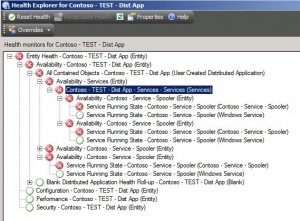
We had for example a service including two Windows services. As long as one of them are running, there should not be an alert, and if there is an alert, it should include a simple non-technical description. First we needed to create a distributed application with the two services. We used the Configure Health Rollup feature to configure rollup algorithm to “best health state”. As long as any service is health, the component box will be healthy.

When one of the services are stopped, you will receive an alert telling you for example “the print spooler service on computer X has stopped running”. If you don’t need it you can override the monitor and configure it not to generate alerts. When booth services are down the distributed application will switch to critical status. But you will not receive an alert, only for the two services included in the distributed application.
If you need an alert when both services are offline, when the component box switch state, you can override the aggregate rollup monitor in the distributed application. Override it to both configure the alert description and also rename the alert to get a better alert name in the console. In this scenario I override the aggregate monitor on top of my two Availability monitors.
Now when both services are offline I get one alert, saying that first line should contact the on-call engineer.

50217 – Planning and Deploying Microsoft System Center Service Manager 2010
Microsoft Learning will release a Service Manager 2010 four-day instructor-led (classroom) course in the beginning of next year. I will deliver this course in Sweden, if you have any questions about the course or want to attend, send me a e-mail at andersATcontosoDOTse . We are planning to deliver this course during Q1 2010.
This four-day instructor-led course provides students with knowledge and skills to plan, install and configure System Center Service Manager. It starts with a one-day workshop on the Microsoft Operations Framework and other methodologies for planning and deploying service management solutions, and then goes deeper into implementing, configuring and integrating Service Manager with other System center products . It also focuses on how IT processes such as MOF & ITIL processes can be implemented side by side with Service Manager.
- Day 1: Using the Microsoft Operations Framework to Set the Baseline for a Service Manager 2010 Implementation
- How MOF and ITIL Processes Support System Center Service Manager
- Change Management
- Configuration Management
- Service Desk
- Incident Management
- Problem Management
- Reviews and Reports
- Policy and Process exercises
- Day 2: Planning a System Center Service Manager 2010 Deployment
- Organizational analysis
- Planning and architecture design
- Deploying Service Manager
- Day 3: Configuring and troubleshooting system center service manager 2010
- Configurations Management and Connectors
- Service Manager Management Packs
- User Roles and Functions
- Troubleshooting Service Manager
- Day 4: Operating and Maintaining System Center Service Manager 2010
- Operating and using the product
- Data Warehouse and reporting
- Self Service Portal
- Maintaining Service Manager
Recent Comments