 Have you noticed the Export button?
Look for new databases (…with a pinch of DPM)
With SQL Server Audit, SQL Server 2008 introduces an important new feature that provides a true auditing solution for enterprise customers. While SQL Trace can be used to satisfy many auditing needs, SQL Server Audit offers a number of attractive advantages that may help DBAs more easily achieve their goals such as meeting regulatory compliance requirements. These include the ability to provide centralized storage of audit logs and integration with System Center, as well as noticeably better performance. Perhaps most significantly, SQL Server Audit permits fine-grained auditing whereby an audit can be targeted to specific actions by a principal against a particular object. This paper provides a comprehensive description of the new feature along with usage guidance and then provides some practical examples. Source MSDN
If you want to get an alert when a new database is created in SQL 2008 you will first need to configure auditing on SQL side, and then a rule in Operations Manager to generate an alert. Configure a new audit with audit destination equals Application log or security log. If you select security log you might need to configure some extra security permissions. Create a new server audit policy, configure audit action type equals DATABASE_CHANGE_GROUP.

Next step is to create the rule that will pickup the SQL event and generate an alert. Create a new event based rule, target it to for example SQL Servers, to monitor all your SQL machines. Configure the rule to look for event ID 33205 including CREATE and DATABASE in the event description.

In the expression of the rule, we use “.” to tell Operations Manager “any character before, around or after the two keywords, CREATE and DATABASE.

Â
Another step that you might want to do is to verify that you backup the new SQL database. I modified a power shell script and the result is that it will connect to your DPM server and a SQL box, it will then ask you if you want to add any of the unprotected databases on that server to a protection group in DPM.Â
param([string] $ProductionServer, [string] $PGName)

if(!$ProductionServer)

{

$ProductionServer = read-host "Enter the production server name (a SQL server protected by DPM)"

}

if(!$PGName)

{

$PGName = read-host "Enter the name of your existing SQL protection group name"

}
$dpmservername = read-host “Enter the name of your DPM server”
connect-dpmserver $dpmservername
$dpmservername
$PGList = @(Get-ProtectionGroup $dpmservername)
foreach ($PG in $PGList)
{
if($PG.FriendlyName -eq $PGName)
{
write-host “Found protection group $PGName”
$MPG = Get-ModifiableProtectionGroup $PG
$PGFound=$true
}
}
if(!$PGfound)
{
write-host “Protection Group $PGName does not exist”
exit 1
}
$PSList=@(Get-ProductionServer $dpmservername)
$DsList = @()
foreach ($PS in $PSList)
{
if($PS.NetBiosName -eq $ProductionServer)
{
write-host “Running Inquiry on” $PS.NetbiosName
$DSlist += Get-Datasource -ProductionServer $PS -Inquire
$PSFound=$true
}
}
if(!$PSfound)
{
“Production Server $PS does not exist”
exit 1
}
$protectedDsList = @()
foreach ($ds in $dslist)
{
if($ds.ToString(“T”, $null) -match “SQL” -and !$ds.Protected)
{
$toadd = read-host “Do you want to protect the” $ds.Name “database? (y/n)?”
If ($toadd -eq “y”)
{
$protectedDsList += $ds
Add-ChildDatasource -ProtectionGroup $MPG -ChildDatasource $ds
$x=Get-DatasourceDiskAllocation -Datasource $ds
Set-DatasourceDiskAllocation -Datasource $x -ProtectionGroup $MPG
}
}
}
Set-ReplicaCreationMethod -ProtectionGroup $MPG -Now
if($protectedDsList.Length)
{
write-host “Adding new SQL DBs to” $MPG.FriendlyName
Set-protectiongroup $MPG
}
disconnect-dpmserver $dpmservername
“Exiting from script”

(tested in a sandbox, so I am aware that the ops mgr databases are not protected and all the test databases) If you want to integrate the script into Ops Mgr you should read this post from David Allen.
Windows 7 Tour [Sweden]
Atea, Knowledge Factory and Cornerstone will this fall visit 7 cities in Sweden on the Windows 7 Tour.
We’ll show you Microsofts new client operating system Windows 7 in cooperation with their simultaneously released server operating system Windows Server 2008 R2. On top of this we’ll add the management software suite, including System Center, and show you why they’re stronger together.
Speakers:
Me, Anders Bengtsson from Atea
Lasse Frändeby from Cornerstone
Joachim Nässlander from Knowledge Factory
City / Date
Umeå 12/10
Sundsvall 13/10
Borlänge 14/10
Stockholm 15/10
Malmö 20/10
Göteborg 21/10
Karlskrona 22/10
Tour site (in Swedish): http://www.cornerstone.se/sv/ExpertZone/Windows7/tour/
Meet MEET and get to know Exchange 2010 [Sweden]
Wednesday 2:nd of September MEET (Microsoft Extended Expert Team) is hosting an After Work at Grodan in Stockholm, Sweden. The exact location is Grev Turegatan 16. The topic of this night is Exchange 2010, and if you’re into Exchange or the technologies related to Exchange there’ll be a whole bunch of knowledgeable experts to meet. If you’re in Stockholm, pass by and grab a beer! The more the merrier!
2007 R2 Universal Connector
If you have not seen it yet, Microsoft has now released a number of connectors for Ops Mgr 2007 R2. The System Center Operations Manager 2007 R2 Connectors provide System Center Operations Manager 2007 R2 alert forwarding to remote systems, such as an Enterprise Management System (EMS) or service desk system. One of the connectors that Microsoft has released is the universal connector, a connector that can be installed and configured for potentially any remote system that is hosted on a Windows system or on a supported UNIX system. More info and download here.

Each deployed Operations Manager 2007 R2 Connector has the following components:
Interop Provider – This service is installed on a Windows or UNIX server in a supported remote system environment and is automatically started at install. The Interop Provider receives alerts from the Connector Service in the Operations Manager 2007 R2 environment and forwards them to the supported remote system through APIs of that system. The Interop Provider also sends updates on those events back to the Connector Service. Connector Service – This service is installed on a server in the Operations Manager 2007 R2 environment and is automatically started after configuration is completed. The Connector Service gathers alerts from the Operations Manager 2007 R2 RMS and sends them to the Interop Provider that is installed on a remote system server. The Connector Service also receives updates from that Interop Provider for remote system events that were created from Operations Manager alerts. Connector Configuration UI – This configuration dialog box is installed on a server on which an Operations Manager 2007 R2 console is installed, and it becomes an integrated component in that console. Use the Connector Configuration dialog box to configure communications for Operations Manager 2007 R2 servers with remote system servers. Tabs on the Connector Configuration dialog box also provide for mapping Operations Manager alert properties to properties of the remote system’s events and for configuring the High Availability feature.
The installation was pretty simple, the manual explain the different steps in a good way. You install the “Interop Provider” and the connector service. The connector configuration UI needs to be installed on a machine with the Ops Mgr R2 console as there is a integration between the two. It is not possible to upgrade any pre-RTM version of the connector, so if you have been running a pre-RTM version make sure you uninstall it before you tries to install the RTM version. When the installation is complete you will see a new connector in the console
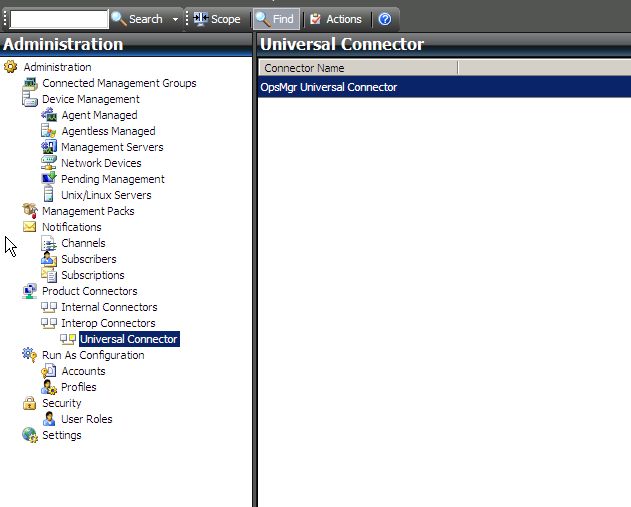


On the Ops Mgr Universal Connector you can configure where your EMS server is, how ofter to synchronize, where your Ops Mgr server is and of course which alert fields to synchronize. You will also see a new connector under Internal Connectors. This is where you can configure which alerts that will be forwarded to the EMS server. With default settings all alerts are forwarded.
When a new alert is generated a XML file will be generated on the EMS server side. In this example I generate an alert for a event in the event viewer.

As you can see below, the alert has ID 8f474850-7308-41f8-ba40-0fb27b72084e, and there are XML files generated for the alert. The filesname is <AlertID>. <sequence number>.XML. The sequence number starting at 1, is added so that if an alert is forwarded and not processed in a timely manner of if an alert is updated multiple times in a short time period, the files are not overwritten. Overwritting the files could result in lose updates. It is important that the EMS system process the file with the lower numbers first so that the sequence of activities is not lost. Note that if you get two alerts at the same time they will be named <AlertID001>.1.XML and <AlertID002>.2.XML, the .X. number is common for the management group, and not a sequence number of each alert ID.

The next step is that the remote system needs to acknowledge (event type = 2) the alert back to Ops Mgr. This is done with a new XML file. Dont forget to delete the first XML file, so you dont process it again.

Â
If you then want to update (event type = 1)Â the alert you generate a new XML file, in the following example the resolution state is set to 100. You can use the same XML code to update the resolution state to 255, in other words close an alert.

Â
There are a couple of different event types you can use with the universal connector
- <EventType>0</EventType> = New Ops Mgr alert being forwarded
- <EventType>1</EventType> = Update to an Ops Mgr alert being forwarded to the remote system or update to the event/ticket on a remote system being forwarded to Ops Mgr
- <EventType>2</EventType> = Remote system acknowledgement of a new alert
- <EventType>3</EventType> = Remote system acknowledgement of an alert update
Summary: You can use the Universal connector to forward alert in XML or EVT format to remote systems. Remote systems can then generate files that the connector picks up and process in Operations Manager, for example update resolution state of an alert. You can run the connector against both Microsoft and non-Microsoft systems.
Monitor multiple events in a logfile within X minutes
This is a example how you can configure a monitor to generate an alert if a log file contains a word more then X times during Y minutes. In the following example I have configure a monitor to generate a critical alert if the logfile contains “error” more then four times during a minute. The following example look in any file named logfile*.log in the C:\logfiles folder. It the application writes a “success” to the logfile, the monitor will be reset back to healthy.
1. Go to the Authoring workspace and create a new monitor, Log Files/Text Log/Repeated Event Detection/Event Reset
2. General
Name: Contoso – Logfile – Repeated Event w event reset
Monitor Target: for example Windows Server 2008 Computer (more about targeting here and here)
…next
3. Single Generic Log
Directory: C:\logfiles
Pattern: logfile*.log
…next
4. Single Event Expression
Parameter Name: Params/Param[1]
Operator: Contains
Value: success
…next
5. Repeated Generic Log
Directory: C:\logfiles
Pattern: logfile*.log
…next
6. Repeated Event Expression
Parameter Name: Params/Param[1]
Operator: Contains
Value: error
…next
7. Repeated Event Description
Counting mode: Trigger on count
Compare Count: 4
Based on items occurrence within a time interval: 1 Minutes
…next
Â
8. Health
Event Raised: Healthy
Repeated Event Raised: Critical
…next
9. Alerting
Check “Generate alerts for this monitor”
Input a suitable alert description, also try include a couple of the data parameters
…create

If any file named logfile*.log in the C:\logfiles folder now writes four “error” within one minute an critical alert will generated. Then, if a “success” is any file the monitor will be set back to healthy state. Step 3 and 4 configure the event that will set the monitor back to healthy.


(click on a picture twice to enlarge it)
Recent Comments