Home » System Center Service Manager (Page 5)
Category Archives: System Center Service Manager
 Opalis Log Purging
 Importing knowledge into Service Manager 2010 - part 2
 Business Services in Service Manager
Quick Calls in Service Manager 2010
Quite often someone in the Service Manager forum ask how to ask really quick and simple questions. They think that it is to many clicks to use the default incident form or incident process. In this blog post I will show you a solution to that, a way to create a new type of work items simple.
- Open the Service Manager Authoring Tool
- Click File>New
- Input a name, for example Contoso.QuickCalls
- In your new management pack, right-click classes and select Create Work Item Class…
- In the Create class window, input Contoso.QuickCall
- In the Class properties window, delete the default Property_10
- Click Create property and add a property named ClassificationCategory
- In the details pane of ClassificationCategory select Incident Classification as List Type (from the Incident Management Library management pack)

- In management pack explorer, right-click Form and select Create
- In the base class window, select Contoso.QuickCall
- In the Create Form window, input Contoso.QuickCall.Form as internal name
- On the form drag and drop the following items,

- Verify that you have a user picker, a textbox and a list picker and a couple of labels
- In the details field of each object configure the binding path according to
- User picker – Affected User
- Text box – Description
- List Picker – ClassificationCategory
- On your list picker configure List Type to Incident Classification (Incident Management Library)
- Save you new management pack and import it into Service Manager
There are no views to show your new work item class so we need to create a view targeting the new class, and then we will also get a Create task for this work item class.
- After import of the management pack, navigate to work items
- Select Work Items and Incident Management in the navigation pane and select create view from the task pane
- In the Create View wizard input
- Name: Contoso – Quick Calls
- Management Pack: Contoso.QuickCalls
- Search for objects of a specific class: Contoso.QuickCall
- Display: Create Date, Display Name, ID, Time Added
- Click OK to save your new view
Now to create a quick call select the new view, then click Create Contoso.QuickCall from the tasks pane.

Thats it! Now you have a new work item class named Contoso.QuickCall, it takes very new clicks to register a call like this.
Add history tab to your custom forms
In this post I showed you how to create a custom CI class, a form and seal the management pack. If you want to continue working with your form and add the history tab you can follow this blog post.
Patrik have created a form templates for the Authoring Tool that contains already implemented controls like the “Related Items†control and “History” controls. You can download his template here. In this example I will add the history tab to the form created earlier in this post.
- Download the package and extract all files
- Copy CustomFormTemplates.dll to a suitable folder, in my case C:\MPs
- Open the Authoring tool and your MP where you want to create a form . In my case I will use the MP and form created in the earlier post. I will replace the form with a new form
- In the Management Pack Explorer, right-click Forms and select Add Custom
- In the base class window, select Contoso.Projector as base class, click OK
- In the Add custom form window, input
- Internal name: contoso.projector.formB
- Assembly: CustomFormTemplates.dll
- Type: HistoryOnlyTemplate
- Click Create
- Add date pickers, labels and text fields as in the earlier post

- When done, delete your old form, in my case contoso.projector.form
- Seal your management pack according to my earlier post
- Save your management pack and close the Authoring Tool
- Start power shell as administrator, goto your MP folder
- Make sure you have the selaed MP (.mp) and the CustomFormTemplates.dll in the same folder
- We need to create a MP bundle as we have a custom dll (Patrik form templates) that needs to be inserted into Service Manager.
Run, new-mpbundle.ps1 Contoso.Projector.Library.mp Contoso.Projector.Library (new-mpbundle.ps1 is included in the package from Patrik) - Verify that you now have a new .mpb file in your folder
- Import the new MPB file into Service Manager
- Change something on a project and then open the CI again and look at the history tab


How to create a new CI class and a new form
The RTM version of Service Manager Authoring Tool is released! The new versions allows you to do some new things that we did direct in XML before. In this blog post I will show you how you can create a new CI class, add a custom form to work with your class and also seal your management pack. The first thing you need to do is install the RTM version of the Authoring Tool. You can download it here.
In this example we will build a custom CI class named contoso. The first part will create a new CI class named Contoso.Projector.Library, we will then add a couple of properties that describes a projector.Â
- Start Service Manager Authoring Tool (v 7.0.5826.620)
- Click “Create a new Management Packâ€
- Input Contoso.Projector.Library as file name, click save
- Select the top node in the management pack explorer, in the details pane, input “Management Pack that extends the CMDB with a projector class.†as description
- In the management pack explorer, right-click Classes and select “Create Configuration Item Class…â€
- In the create class window, input Contoso.Projector and click Create
- Change the class name and description if needed
- Click “Create Propertyâ€
- In the create property window, input for example “Resolutionâ€. Repeat step 9 for each of the following properties
- Resolution
- Name
- Location
- Contrast
- Manufacture
- Number
- Purchase
- WarrantyEnd
- Vendor
- Monthly
- Select the Name property and change Key to TRUE. This means that the Name property will be the single property identifying a unique instance of the projector class.
- Select the automatically added property named Property_X. Delete it.
- Â When you select a property you can change details in the details pane. Change the data type for your properties, for example change WarrantyEnd and Purchase to data type Date Time. That means that the data should be in date format.
- Change some of the names to a better display string for example
- Purchase, Purchase date
- Number, Serial Number
- WarrantyEnd, Warranty End
- Monthly, Monthly Price
- Change Name to minimum length 2. You need to input at least two letters

That should do it; the class for projectors is done. Next step is to create a form that we can use to add projectors in the service manager console.
- In management pack explorer, right-click Forms and select Create
- In the base class window, select Contoso.Projector
- In the create form window, input contoso.projector.form
- Drag and drop a label for each property from the form customization toolbox to the form design window
- Drag and drop a text box for each property where the user will input text strings
- Drag and drop a date picker for the purchase date and warranty end date properties
- In the detail pane you can change the font and text size for any text
- The next step is to bind each text box to a property of your project class. Select a text box, for example Name and click binding path in the details pane.
- In the Binding Path window, select Name
- Repeat step 9 for each text box and date picker

That should do it! You now have a management pack with a new class and a form that we can use to create CIs for the new class.
We should seal the management pack before we import it. That would give us a couple of benefits, for example we can store views and folders in another management pack and access objects related to our projects management pack. We can’t create views and folders in the current version of the authoring tool so good practices could be to save them in another unsealed management pack and all core things in a sealed library management pack.
Next step is to seal the management pack. To seal the MP we will use .NET framework strong name utility (sn.exe).
- Open a command prompt
- Navigate to the folder where SN.EXE is located, in my case C:\Program Files (x86)\Microsoft SDKs\Windows\v6.0A\bin\.
- Run SN –k mykey.snk
- Verify that a new key pair was generated, for example a mykey.snk file
- Switch to the Authoring Tool again
- In the management pack explorer, right-click the top node, in my example Contoso.Projector.Library and select “Seal Management Packâ€
- In the Seal Management Pack window, select a suitable Output Folder, for example C:\MPs
- Browse and select your key file that you generated in step 3
- Input a company name, for example Contoso
- Click Seal
- Verify that seal succeeded, click Close
Now, import your management pack into Service Manager. Remember to import the management pack from C:\MPs, your sealed version. To create and view projectors you need to create a folder and a view
- In the service manager console, go to the Configuration Items workspace
- In the tasks pane, click Create Folder
- In create new folder window, input Projectors as Folder Name. Create a new management pack named Contoso.projector.config and store the folder in it. We can’t store the folder in your Contoso.projector.library management pack as it is now sealed.
- Select your new Projectors folder and select Create View
- In the create view window, input “All projectors†and view name. In the Criteria tab select Contoso.Projector as class. Click OK to save the view.
- Select your new “All projects†view. Create “create contoso.projector†from the tasks pane. Contoso.Projector is the name of the class we created in the authoring tool.
- In the projector form, fill in the text fields and click OK

Now you have a new class in your CMDB, you can store information about projectors. You can use your new form to input the information and your new view to review it.
Service Mapping
A common task when working with Operations Manager and Service Manager is that you need to create distributed applications and business services. Often you don’t have knowledge about the service, you don’t know where to start or what to include and not to include. I found a good document around this, Service Mapping, from Microsoft Operations Framework (MOF). This document is intended to introduce the content, structure, development, usage and benefits of service maps. It will
- Show you a service map
- Demonstrate how to build service maps
- Suggest how to use service maps
The document also includes information how to use service maps in Operations Manager and Service Manager. You can download the document here.
Merge two incidents
I have seen the question at Technet forums a number of times, is it possible to merge to incidents? In this post I have built a idea how to do it. When you run it you input two incident numbers. The first number is the incident that you want to keep, and the second number is the incident that you want to close. The script will move all comments from the action log in the first incident to the second, so your comments will be moved to the incident that will be keep open. This solution require smlets that you can download here.
I made some notes about how it works…


It includes a couple of scripts
- MergeInc.vbs, main vbscript
- GetComments.ps1, powershell script that export comments from the incident that you want to close. All comments are stored in C:\temp\export.txt
- UpdateIncident.ps1, powershell script that update the incident that you want to keep. It will be updated with all the old comments, in one large private comment in the action log
- CloseIncident.ps1, powershell script that will close the incident that you don’t want to keep anymore
You can run MergeInc.vbs as a task from the console, the same way I do with a script in this post. You could of course pick up a incident ID from the console when you run the console. In this example I have two incidents, IR67 and IR69. For some reason IR69 is a double of IR67 so we want to move the comments from IR69 to IR67 and close IR69.

Run the task and input IR69 and IR67.

Then IR69 is now closed and there is a comment in the action log

and if we look at IR67 the action log is now updated with all the old comments from IR69

It is not a optimized enterprise ready solution but it works. You can download my scripts here, Merge.
Auto Close Incidents
I have a couple of Service Manager customers that want to automatically close incidents one day after they are resolved by a analyst. It will save them some manually work. In this post I will show you how to build a workflow that does this. The following example will close incidents that has been in resolved state for two hours. This workflow require smlets that you can download here.
- Start the Service Manager Authoring Tool.
- Create a new management pack, for example Contoso.AutoClose
- Create a new workflow
Name: ContosoAutoCloseWF
Run at a scheduled time or at scheduled intervals
Other interval, 2 hours - Drag and drop the “Windows PowerShell Script” activiti from the toolbox to your workflow

- In the Details pane, click “Script body”
- Input the following script in the script bodyGet-SCSMIncident -Status Resolved -InactiveFor 02:00:00 | Set-SCSMIncident -Status Closed -comment “Closed due to duration of resolved period”The 02:00:00 is a TimeSpan declaration where 2 is the number of hours by hh:mm:ss. Observe that this will use the “lastmodified” timestamp for comparison and not the “resolved date”.
- On the script properties tab, input smcomlets as windows powershell snap-in required by the script
- Copy the ContosoAutoCloseWF.dll to the C:\Program Files\Microsoft System Center\Service Manager 2010 directory on your Management Server
- Import the management pack into Service Manager
- After a couple of hours, navigate to Administration/Workflows/Status and verify that your workflow is working
- Done!
Your workflow will now automatically close all incidents that has been in resolved state for at least two hours, without any update. It will also add a comment to the action log saying “Closed due to duration of resolved period”. If you get any problems with your workflow the look at Travis post about troubleshooting workflows here.
You can download a example of this here AutoClose.
Update: Please note that SMCOMLETS is now named SMLETS. When you import this module or load it on the script properties page, make sure to use the correct name.
Update: Before start working with the cmdlets, please read this blogpost Properly Querying SCSM Using SMLets Get-SCSMObject cmdlet
Reset Password with Service Manager
A common task for service desk is to reset an end-user password. A common scenario is that the operator has to fill in an incident form, start Active Directory Users and Computers console, find the user, reset the password, notify the password over the phone or send it in a e-mail to the end-user. There are a lot of steps; the operator sees the password and it is not good practise to give out passwords over the phone. In this post I will show you one solution to this issue. I will use a vbscript, a powershell script and the updated version of Patrik’s cmdlets for Service Manager.
The first script, resetpassword.vbs1, will ask the operator for a username and an e-mail address. The username is the user that needs a new password. The e-mail address is the mailbox that will receive the new e-mail. This could be a colleague e-mail address or a private e-mail address of the affected user.
The second script, password.ps1, is a powershell script that will create a closed incident for this task. This script is started by the vbscript resetpassword.vbs. For many service desks it is important to track all calls, and with this powershell script a new incident will be created and closed in the background.
You need to create a task in the console. This task will be used to trigger resetpassword.vbs. Create the task with the following settings:
- Task Name: Contoso – Reset Password
- Description: A task to quick reset a password
- Target class: Incident
- Management Pack: for example Service Manager Incident Management Configuration Library
- Categories: Incident Support Groups Folder Tasks
- Command Line – path: C:\windows\system32\cscript.exe
- Command Line – parameters: C:\scripts\resetpassword.vbs
- Command Line – Working directory: %windir%\system32
- uncheck, log in action log when this task is run
- check, show output when this task is run
This task will trigger the vbscript and will then show the operator two dialog boxes, one for an e-mail and one for a username.

the next dialogue box will ask for an e-mail.

the task will run and after a minute you get

in the console you will see an incident which is closed with some default information

the e-mail with the new password is delivered to the e-mail address

You create a task, the task triggers the vbscript resetpassword.vbs. The vb script asks for a username and an e-mail address. The script will then generate a complex password (thanks to Martijn Haverhoek). The new password will be sent in an e-mail to the specified e-mail address.
You can download my scripts here.
To get this to work in your environment you need to customize the scripts a bit. You first need to download the Service Manager cmdlets from Codeplex and install them. In the resetpassword.vbs script you will need to change the domain LDAP path (around line 20), e-mail settings (around line 62), domain name (around line 82) and script paths (around line 90).
Handle VIP Users in Service Manager
From a number of Service Manager customer I have received the question about VIP users. How can we mark incidents from VIP users? In this post I will show you one way to handle incidents incidents from VIP users. We will first extend the domain user class with a new VIP property, then use the default incident workflow to update incidents from VIP domain users.
Use the Service Manager Authoring Tool to extend the System.Domain.User class in the System.Library management pack.
- In the Authoring Console use the class browser to find the “Domain User or Group” class. Right-click it and select View
- In the Management Pack Explorer pane right-click “Domain User or Group” and select extend class
- Select a management pack, for example create a new one named Contoso.VIP
- Click Create Property
- Input a internal name, for example isVIP
- Select the new property, then in the details pane configure Data Type to BOOL
- Save your management pack and import it into Service Manager

The next step is to configure the incident workflow. We will use the default incident event workflow so no more authoring console for now.
- In the Service Manager console, navigate to Administration/Workflows/Configuration
- Click on Incident Event Workflow Configuration, then click Add in the dialog box
- Input a suitable name for example Contoso – Update VIP Incidents
- Configure, Check for events: When an incident is created
- Configure Event criteria according to the picture below
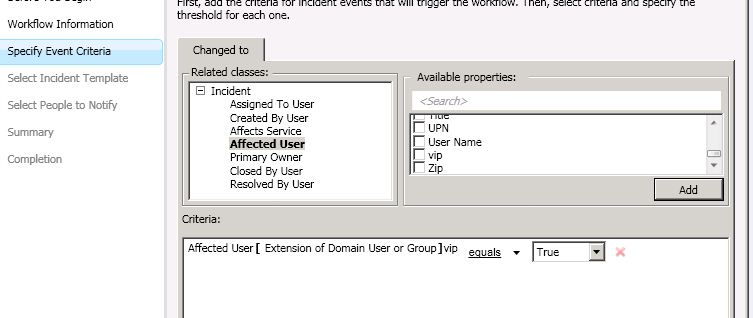
- Choose to apply the default “High Priority Incident Template”. This template will change priority and urgency to high and also assign it to support tier 1. You could of course use any template here.
- Choose if you want to notify anyone, that might be a good idea in some scenarios
- Save your new workflow.
Now, update one of your user CI to be a VIP. The VIP property is on the Extension tab of a user CI. After that, when you create a new incident for a affected user that has VIP = TRUE the workflow will kick in and update both priority, support group and urgency of the incident. You could use the CSV connector to update this isVIP property based on some attribute in AD or a script that checks something in your environment.
Update. Make sure you restart the Service Manager console after you have imported the MP. Else changes to the VIP attribute will not be stored.
Create incidents based on a CSV file
Today I needed to generate incidents based on a CSV file that a external system generated. There are a couple of different ways to do it, but one simple way is to use the Service Manager PowerShell cmdlets that Patrik wrote. In my example I have a CSV file that looks like

I then have a PowerShell script that looks like

The PowerShell script read the CSV file and generate one incident for each line. BF261F09-5FAD-EEA4-24CE-1DA889CEF381 is the LTValue for category “Printing Problem”. For default list values you can use friendly name but for all custom values you need to use the GUID. To get the GUID you need to query the ServiceManager database. You can run the following query to find the GUID for Printing Problems.
SELECT [LTStringId]

,[LanguageCode]

,[ElementName]

,[LTValue]

FROM [ServiceManager].[dbo].[LocalizedText] WHERE LTValue LIKE '%Printing%'
Update: If you need to import incidents that includes "," in for example the description, add "" around the whole description part in the CSV file. For example Incident Title 11,"Description including a , 02 here",Medium,Medium,BF261F09-5FAD-EEA4-24CE-1DA889CEF381,System
Update incidents by e-mail in Service Manager 2010
Update: you can download my scripts here
Out of the box Service Manager 2010 can generate incident based on incoming e-mails. But there is no default feature to update incidents based on incoming e-mails. In this post I will show you a solution to that. The flow of the e-mail will be
- A end-user sends a e-mail to scsm@scsmserver.hq.contoso.local
- The end-user is connected to the normal Exchange server, which will forward all e-mails for the scsmserver domain to my SCSM server
- On the SCSM server a vbscript will see if the e-mail contains “Contoso-IR” or not. If it does the e-mail will be moved to a “UpdateSCSM” folder, else it will be moved to a “NewSCSM” folder. As then it will generate a new incident in Service Manager
- Another vbscript will check all e-mails in the “UpdateSCSM folder”. The script will read “FROM” from each e-mail and which incident to update, it will then kick of a power shell script that will update the incident and attach the e-mail as related item.
Instead of having Service Manager looking at all incoming e-mails the first vbscript will look at them. If the script decides that it is a e-mail that should generate a new incident it will move them over to a another folder and let Service Manager handle it with the default feature. Before you start, make sure to enable incoming e-mails in Service Manager (Administration, Settings, Incident Settings, Incoming E-mails).
The first thing you need to configure is e-mail deliver to a folder. I use my Exchange 2010 machine to send all e-mails for the scsmserver.hq.contoso.local to my SCSM server. On my SCSM server I run IIS and the built-in SMTP feature. It will drop all e-mails to C:\Inetpub\mailroot\drop. I have schedule the following vbscript to run every five minute to sort e-mails. If the e-mail contains “contoso-IR” it will be moved to the UpdateSCSM folder, else to the NewSCSM folder.

Â

Once the e-mail is moved to the new folder, in my case C:\Inetpub\maildrop\drop\newSCSM\, the following scripts looks into it

This script looks in all files and tries to find the incident ID. In the e-mail that SCSM send out to end-users about the incidents the subject contains Contoso-IRXX where XX is the incident ID. The script then take the file patch and the incidnet ID and starts a power shell script. This power shell script, see picture below, runs a cmdlet that my colleague Patrik has build, you can download it here. The Set-SCSMIncident cmdlet let you update a incident. The power shell script input a comment and attach the e-mail as a related item to the incident.

Â
The following five pictures first show the notification template that sends a e-mail to the affected user when a incident is created. As you can see the subject line contains Contoso-IR<Incident ID>, that is also the string that we look for in incoming e-mails. In the last four pictures you can see the e-mail that a affected user recives when a incident is registered. The end-user replies with and includes the Contoso-IRXX in the subject line. In Service Manager the incident is updated in the action log and the e-mail is attached as a attached file.
If you have problem with open EML files, please take a look at this post.


Â
Â
Recent Comments