 Operations Manager Admin Integration Pack (v1)
 Create Event Integration Pack
Reset Password with Service Manager
A common task for service desk is to reset an end-user password. A common scenario is that the operator has to fill in an incident form, start Active Directory Users and Computers console, find the user, reset the password, notify the password over the phone or send it in a e-mail to the end-user. There are a lot of steps; the operator sees the password and it is not good practise to give out passwords over the phone. In this post I will show you one solution to this issue. I will use a vbscript, a powershell script and the updated version of Patrik’s cmdlets for Service Manager.
The first script, resetpassword.vbs1, will ask the operator for a username and an e-mail address. The username is the user that needs a new password. The e-mail address is the mailbox that will receive the new e-mail. This could be a colleague e-mail address or a private e-mail address of the affected user.
The second script, password.ps1, is a powershell script that will create a closed incident for this task. This script is started by the vbscript resetpassword.vbs. For many service desks it is important to track all calls, and with this powershell script a new incident will be created and closed in the background.
You need to create a task in the console. This task will be used to trigger resetpassword.vbs. Create the task with the following settings:
- Task Name: Contoso – Reset Password
- Description: A task to quick reset a password
- Target class: Incident
- Management Pack: for example Service Manager Incident Management Configuration Library
- Categories: Incident Support Groups Folder Tasks
- Command Line – path: C:\windows\system32\cscript.exe
- Command Line – parameters: C:\scripts\resetpassword.vbs
- Command Line – Working directory: %windir%\system32
- uncheck, log in action log when this task is run
- check, show output when this task is run
This task will trigger the vbscript and will then show the operator two dialog boxes, one for an e-mail and one for a username.

the next dialogue box will ask for an e-mail.

the task will run and after a minute you get

in the console you will see an incident which is closed with some default information

the e-mail with the new password is delivered to the e-mail address

You create a task, the task triggers the vbscript resetpassword.vbs. The vb script asks for a username and an e-mail address. The script will then generate a complex password (thanks to Martijn Haverhoek). The new password will be sent in an e-mail to the specified e-mail address.
You can download my scripts here.
To get this to work in your environment you need to customize the scripts a bit. You first need to download the Service Manager cmdlets from Codeplex and install them. In the resetpassword.vbs script you will need to change the domain LDAP path (around line 20), e-mail settings (around line 62), domain name (around line 82) and script paths (around line 90).
Handle VIP Users in Service Manager
From a number of Service Manager customer I have received the question about VIP users. How can we mark incidents from VIP users? In this post I will show you one way to handle incidents incidents from VIP users. We will first extend the domain user class with a new VIP property, then use the default incident workflow to update incidents from VIP domain users.
Use the Service Manager Authoring Tool to extend the System.Domain.User class in the System.Library management pack.
- In the Authoring Console use the class browser to find the “Domain User or Group” class. Right-click it and select View
- In the Management Pack Explorer pane right-click “Domain User or Group” and select extend class
- Select a management pack, for example create a new one named Contoso.VIP
- Click Create Property
- Input a internal name, for example isVIP
- Select the new property, then in the details pane configure Data Type to BOOL
- Save your management pack and import it into Service Manager

The next step is to configure the incident workflow. We will use the default incident event workflow so no more authoring console for now.
- In the Service Manager console, navigate to Administration/Workflows/Configuration
- Click on Incident Event Workflow Configuration, then click Add in the dialog box
- Input a suitable name for example Contoso – Update VIP Incidents
- Configure, Check for events: When an incident is created
- Configure Event criteria according to the picture below
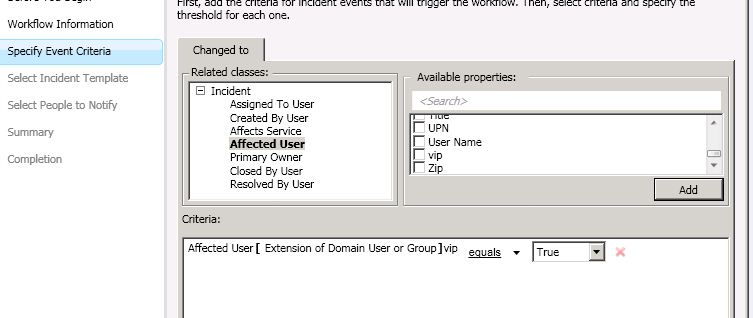
- Choose to apply the default “High Priority Incident Template”. This template will change priority and urgency to high and also assign it to support tier 1. You could of course use any template here.
- Choose if you want to notify anyone, that might be a good idea in some scenarios
- Save your new workflow.
Now, update one of your user CI to be a VIP. The VIP property is on the Extension tab of a user CI. After that, when you create a new incident for a affected user that has VIP = TRUE the workflow will kick in and update both priority, support group and urgency of the incident. You could use the CSV connector to update this isVIP property based on some attribute in AD or a script that checks something in your environment.
Update. Make sure you restart the Service Manager console after you have imported the MP. Else changes to the VIP attribute will not be stored.
Create incidents based on a CSV file
Today I needed to generate incidents based on a CSV file that a external system generated. There are a couple of different ways to do it, but one simple way is to use the Service Manager PowerShell cmdlets that Patrik wrote. In my example I have a CSV file that looks like

I then have a PowerShell script that looks like

The PowerShell script read the CSV file and generate one incident for each line. BF261F09-5FAD-EEA4-24CE-1DA889CEF381 is the LTValue for category “Printing Problem”. For default list values you can use friendly name but for all custom values you need to use the GUID. To get the GUID you need to query the ServiceManager database. You can run the following query to find the GUID for Printing Problems.
SELECT [LTStringId]

,[LanguageCode]

,[ElementName]

,[LTValue]

FROM [ServiceManager].[dbo].[LocalizedText] WHERE LTValue LIKE '%Printing%'
Update: If you need to import incidents that includes "," in for example the description, add "" around the whole description part in the CSV file. For example Incident Title 11,"Description including a , 02 here",Medium,Medium,BF261F09-5FAD-EEA4-24CE-1DA889CEF381,System
Check Last Line Only
I wrote a script to check only the last line of a file. The scripts checks the last line every time it run. If you search my blog you will find a number of script to read logfiles. Create a new two state script monitor where you include the script below. In my example script I looks in the C:\temp\myfile.txt file for the word “Warning” ( varWarPos = Instr(strLine, “Warning”) )
- Unhealthy Expression
- Property[@Name=’Status’] Contains warning
- Healthy Expression
- Property[@Name=’Status’] Contains ok
- Alert description
- You could write any alert description here, but if you include the following parameters you will see the whole line and the status in the alert description.
- State $Data/Context/Property[@Name=’Status’]
- Line $Data/Context/Property[@Name=’Line’]$
Recent Comments