 How to move your Orchestrator database
 Workbook Template
Business Services in Service Manager
Business Services in Service Manager 2010 is a way for you to present your services, both IT components within it and properties of it like affected users and SLA level. Business Services often start in Operations Manager as a distributed application. You then import the same management packs into Service Manager to get the structure of your application. After that you use a Operations Manager connector to synchronize components of your distributed application into your business service in Service Manager. In this post I will show you how you could do that.
I have created a simple distributed application in Operations Manager. It is stored in a management pack named “Contoso – myService”.

- What you need to do first is to export the management pack from Operations Manager and import it into Service Manager. You do that from the Administration workspace in both products. Note that you need to import all the management packs that contain a component from your distributed application. For example if you have created a web application check in MP01 and stored your distributed application in MP02, then you need to import both of them. Else, you will not see all components in the business service in Service Manager.
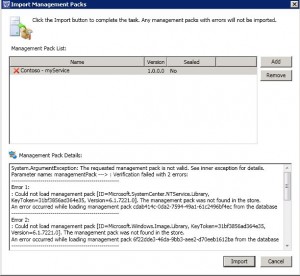
- If this is the first management pack you move over to Service Manager you will probably get a message like this
- The management pack you try to import depends on a number of other management packs and these needs to be imported first. Most o f these you can either download from Microsoft webpage or import from the installation folder of your Operations Manager Root Management Server.
- Once the management pack with your distributed application is imported into Service Manager you will see it under Business Services in the Configuration Items workspace. However there will not be any components in it until you enable synchronization.
- Navigate to the Administrator workspace, expand connectors and open your Operations Manager CI Connector. Refresh the list of management packs and select to synchronize your management pack. Save the setting and start the synchronization of the connector.
- After some time, open the business service configuration item and look at the component tab

You can now fill in the other properties of the business service. Â

What if you want to get alerts from Operations Manager to show up as related incidents, for your service in Service Manager? Service Manager will not connect related incidents and services to each other by default. For example if I get an alert about C: on a logical disk that is in my service component list, the incident will not show up as a related item on my service. The service will not either show up as a related item on the incident. To get this to work you need to generate an alert with the same as the service. In my case an alert named “Contoso – myService”. This can be done with some planning and a couple of dependency rollup monitors in Operations Manager.

Summary: Busniess Services in Service Manager can be used to represent your services within Service Manager. You can merge data and components from other systems like Operations Manager and Configuration Manager and present it as a service. In Service Manager you can fill in information like SLA for the server, contact persons and customers.
Remember that if you change the class structure of your distributed application, dont forget to update the management pack in Service Manager too. If you need to get your incidents in relationship with your services automatically, then start by planning this on a piece of paper, and then create necessary monitors in Operations Manager.
Incident Notification in Service Manager 2010
This week I have been working with notification in Service Manager. Some of my Service Manager customers need Swedish e-mail messages to one part of the company and for example English e-mail messages to another part of the company. To get that to work there are a number of steps to take. After configure e-mail notification channels (Administration/Notification/Channels) we need to configure a notification template. In the template we can configure different e-mail body and subject for different languages. In this post I will use one template, one for new incidents that the affected user will get when an incident is registered for them, you could configured a second one to notify affected user when an incident change status to closed.
I configured the first template with the following settings (Administration/Notification/Templates)
- Notification template name: Contoso Blog New Incident
- Targeted class: Incident
- Management Pack: Service Manager Incident Management Configuration Library (default)
- Message subject: A suitable message and property, I use WorkItem/Id (insert as property) to get the case ID
- Message body: A suitable message and properties. I use
- WorkItem/Id
- WorkItem/CreatedDate
- WorkItem/Title
- Incident/Classification
- Language: Swedish (Sweden)
- Switch to another language, in my scenario English (United States). Input a new message subject and message body. Then click OK to save your template
Now we have a notification template that supports two languages, in my example Swedish and English (United States). Next step is to configure a workflow to send notification. We can use the default incident event workflow configuration workflow for that (Administration/Workflows/Configuration). Add a workflow with the following settings
- Name: Contoso blog New Incident
- Description: E-mail notification to affected user when a new incident is registered
- Check for events: When an incident is created
- Management Pack: Service Manager Incident Management Configuration Library (default)
- Enabled: Checked
- On the Specify Event Criteria page, click Next
- On the Select Incident Template, do not apply a template, click Next
- On the Select People to Notify,
- Enable notification
- User: Affected User
- Message template: Contoso Blog New Incident, click Add

- On the Summary page, click Next
- On the Completion page, click Create and Close


Now, If we register an incident for a English user and one for a Swedish user there will be a couple differences in the e-mail. First it will use different message body and subject as the users has different local settings on their user CI in Service Manager. As you can see we get a very strange value for the category in the Swedish e-mail. This will happen when the list value doesn’t have a display string in the language of the target recipient. The workflow will get the notification template that corresponds to that user´s locale property setting. Replace the list value display string given the user´s locale. Format the date and time values according to the users locale property and time zone. In this scenario the user Kurt has local property configured to Sweden (Swedish) so there is no default display string for Hardware Issues in Swedish. But for Ed it works out of the box as his locale property is configured to English (United States) which is provided out of the box.
If you need to update your users timezone and/or locale settings you could use the CSV connector. Travis has a good post about that here. I have a post about the CSV connector and importing knowledge here.


During my tests I found the following results when you mix user local property, notification template language and default display strings
| User Local Property | Notification Template Language | Available display string | Result in e-mail notification |
|---|---|---|---|
| Sweden (Swedish) | Sweden (Swedish)(only language configured) | US-EN (Default) | Incorrect list values |
| English (United States) | Sweden (Swedish)(only language configured) | US-EN (Default) | correct list values |
| English (United States) | Both English (United States) and Sweden (Swedish). Will use the English (United States) template body | US-EN (Default) | correct list values |
| Sweden (Swedish) | Both English (United States) and Sweden (Swedish). Will use the Sweden (Swedish) template body | US-EN (Default) | Incorrect list values |
| blank/null | Both English (United States) and Sweden (Swedish). Will use the Sweden (Swedish) template body which was first configured in the template. Swedish is also the local settings on the service manager server. | US-EN (Default) | Incorrect list values |
| Other language for example Sweden (Finish) | Both English (United States) and Sweden (Swedish) | US-EN (Default) | No e-mail |
What we need to do to get correct e-mail bodies for Swedish affected users is to add localization in the Service Manager Incident Management Configuration Library management pack. We need to configure the management pack to support Swedish. Travis has a good blog post about this here. General steps are
- Export the Incident Management Configuration management pack
- Open it with XML Notepad
- Add languagepack and localization display strings for your language<
- Save the management pack
- Import it into Service Manager again
If we now register a incident for a English (United States) user and one for a Swedish (Sweden) user they will get one e-mail each, from the same notification template, but with different values for the list properties. In this case the incident category parameter will be translated to different words.

To summarize this post I would say that notification in Service Manager is a key feature that everyone will use. It support multiple-language templates and there are workflows and wizards to help you. But! Remember to plan the user CI local setting, language of your notification template and language of your display string
Recent Comments