Home » Orchestrator (Page 8)
Category Archives: Orchestrator
 Monitor Linux Daemon with Log Analytics
Validate your runbook design
Since I started to work with Opalis I have been surprised to see how fast people build their first policy or runbook. When showing Opalis or now Orchestrator for a group of engineers it doesn’t take many minutes before they have a running workflow. Now with Orchestrator we don’t have a complex installation, instead we can install quickly and they focus on designing runbooks. A disadvantage when it is too easy is that it often is not used as it should be used. In Orchestrator and Opalis the problem is that many engineers quickly drag and drop a couple of activities to the policy or runbook, click Start and then lean backward. Most likely they have a working runbook, but are they really working? Is it built as it should be? I have written a blog post around fault tolerance, Fault tolerance in Opalis polices, and another around logging, Building a log for your runbooks, that is two topics that often is left out in those quick-dag-drop-start” runbooks.
This blog post is a sequel to the same theme; this blog post is around validating your runbook design. There is of course a lot to think about when building an A+ runbook, and I have selected a couple of them. I guess I will add more checks later; this is version 1.0 of the runbook. This version of the runbook checks the following things, for each runbook that is in your environment (all checked in runbooks)
- Missing failed links
It is important to handle all results from an object. Often you drag a link and go with the default “<activity name> returns success”. But what if it is not success? Maybe you want to roll-back some action or write to a log. - Missing warning links
Same as above, important to handle all results, not only failed or success - Links with default named
When you look at a runbook you should get some kind of basic understanding of what it is doing. Renaming links from “Link” to something more descriptive is a good start. - Number of link colors in use
You should change the color of your links. I often use GREEN as success, RED for warning or failed and ORANGE if there is a condition. For example if I have an activity that can return TRUE or FALSE, then I could have two activities after. Depending on the result, TRUE or FALSE, the workflow will choose a path. You should try to use a standard, not use all kind of colors because then you lose the descriptive purpose. - Number of objects per runbook
If you get to many objects in the same runbook it is difficult to administrate it and it is also difficult to understand it when you see it. If you instead split it up into “child runbooks” it is often easier to administrate and you can also re-use these child runbooks in other workflows. - Runbook Logging
Checks if any runbook have logging enable. By default, logging options are disabled. Enable logging increases the size of the database. Instead you should use a external system for log, see Building a log for your runbooks. - Log Purge settings
In this blog post, Opalis Log Purging, you can read about how Opalis and Orchestrator handles logs and log purging. It is an important to configure to keep your installation healthy.
The attached export file (.ois_export) contains a number of runbooks
- 4.1 SCO check master.
This is the “master” runbook that will trigger the other runbooks. This runbook will start by checking if there is an old report file. The result of these runbooks will be written to a HTM file. If the file already exists, it is deleted. Then a new report file is started, all the “check” runbooks are invoked and in the end the report file is closed, or the HTML code in the HTM file is closed.

- 4.1.1, Missing Filed Links
1. Trigger runbook 4.3.1 to write the start of a HTML table in the report file
2. Query the Orchestrator database for all objects that are not marked as deleted. The query excludes action servers, counters, variables, links and send platform event objects
3. For each object returned, a new query is checking if it is source object for a link, with a trigger that has %failed% as value.
4. If the query in step 3 returns 0 rows, then there is no link handling Failed
5. Trigger runbook 4.4.3Â that writes the data from query 3 and 4 to the report file

- 4.1.2, Missing Warning Links
This runbooks works the same way as 4.1.1 except it checks for missing warning links instead of failed links. - 4.1.3, Check Links With Default Name
1. Trigger runbook 4.3.1 to write the start of a HTML table in the report file
2. Query the database to the all links that is not marked as deleted and has a name equals “Link” (default name)
3. It the query returns 0 rows, the runbook will trigger runbook 4.3.2 to close the HTML table
4. For each row that is returned, trigger runbook 4.3.3 and write it to the report file
5. Merge multiple threads
6. Trigger runbook 4.3.2 to close the HTML table in the report file

- 4.1.4, Check Link Colors
1. Trigger runbook 4.3.1 to write the start of a HTML table in the report file
2. Query the database to get all color values on all links, and count each of them
3. Trigger runbook 4.3.3 to write the result to the report file
4. Merge multiple threads
5. Trigger runbook 4.3.2 to close the HTML table in the report file
- 4.2.1, Count Objects in Runbook
1. Trigger runbook 4.3.1 to write the start of a HTML table in the report file
2. Query the database to get number of activities per runbook, exclude links and objects marked as deleted
3. Trigger runbook 4.3.3 to write the result to the report file
4. Merge multiple threads
5. Trigger runbook 4.3.2 to close the HTML table in the report file

- 4.2.2, Runbook Logging
This runbook checks if any runbook have “Store Activity-specific Returned Data” or “Store Common Returned Data” enable. You should not have these enable in production as they will store a lot of extra data in the database. Instead use them during dev and test. Then use a external system to log in production, if needed. - 4.3.1, 4.3.2 and 4.3.3 is used by multiple runbooks to write HTML table in the report file and write result to the report file. In runbook 4.3.3 there is a filter that make sure that if the runbook name or activity name starts with “4.” it is not written to the report file. The result is that “SCO Check” runbook will affect the report as little as possible. We could exclude a bit more by editing the database query, now we don´t write anything to the report file that includes “4.” in the name, but we include the “SCO Check” runbooks when we for example count link colors in use.
- 4.4.1, Log Purge Check
Checks if schedule log purge is enable or not. Read more about log purge at Opalis Log Purging


These runbooks use a  couple of variables too, that needs to be update before you start the master runbook. Variables to update is database name, database server and report path.
Let´s test this. I have built a simple runbook as the image below. Note that I only handle warning and failed result for the “Delete org file” object. To include a runbook it needs to be checked in.
 If I now run the “4.1 SCO Check Master” runbook, it will, after a while, result in a report file that looks like this

You can download all runboks here, 20110728_SCO_CHECK. Please note that this is provided “as is†with no warranties at all. If you have any ideas what I should add, please post them as comment to this post or send me an e-mail. Also please note this is all based on my ideas and is not a “Health check” or Microsoft official guidelines.
Building a log for your runbooks
The last week I have been working on a way to handle logs for multiple runbooks in Orchestrator. Opalis and Orchestrator will executes but as soon as they are done, they will drop everything, and will not “remember anything”. They only keeps data in memory during execution (and maybe in some logs). That is one of the reasons why it is important to log to a external system when working with Opalis or Orchestrator. You most likely want to store information in a external system so you can go back and review it later, for example what triggered the runbook to start, what files was it moving and with which parameters? Some scenarios can be solved by using Service Manager and change management. When someone submits a change, you will have all the information in the change request, that will trigger Orchestrator. But there will not always be a change request, you could then use for example a SQL database that each runbook writes to. In this blogpost I share some ideas around logging to a SQL database. I will use the Orchestrator beta build but most of this you can build exactly the same in Opalis.
In this example I have a runbook that creates the database I will use to store logs. Of course you can create the database manually, but it is easy to keep it in a runbook, easy if you copy the runbook to a new environment. Then you know that the database will be setup the same every time. The “Create LOG Database” runbook looks like

- “Create log database”, creates the log database. If it works there is a 10 sec delay on the link before tables are created. If it doesn’t work it will go to 4

- “Create tables”, creates tables in the database. If it works it will move on to 5, else it will go to 3
- “Drop db”, deletes the database
- “Error Event”, writes a platform event saying that the database or tables could not be created
- “Get timestamp”, gets the current timestamp in a suitable format
- “Insert test event”, test insert a event in the database
- “Write Error Event”, if the test insert activity don´t work a platform event is generated

- “Send OK event”, a platform event is generating saying the database has been created
- Get a timestamp in correct format. I notice when I was moving this runbook between environment that the default time stamp is different, so I use this activity to format the data format to yyyy-M-d h:m:s
- Insert a test event into the database
- Send a platform event saying the database is created
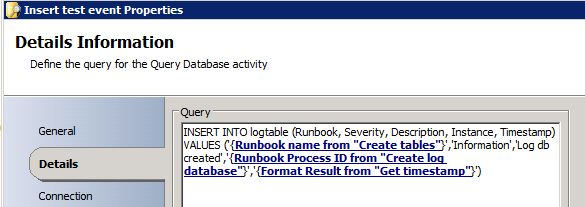
After the database is created and is working we need to create the runbook that will add events to the database. In the picture there is a example of a runbook that writes log data to the log database, the “write to log runbook”. When you trigger this runbook you need to send some parameters,
- Runbook, name of the runbook that trigger the log runbook
- Description, description of the event, for example “Service can´t start”
- Runbook Process ID, the process ID of the runbook module
- Severity, how serious is the issue. Try to use a standard here, like INFORMATION, WARNINGÂ and CRITICAL

If the severity is Critical there will be an alert generated in Operations Manager direct. Then the runbook creates a suitable time format. Next step is to insert the data into the database. As you can see in the picture below we insert all the data that was sent from the runbook that triggers this runbook.

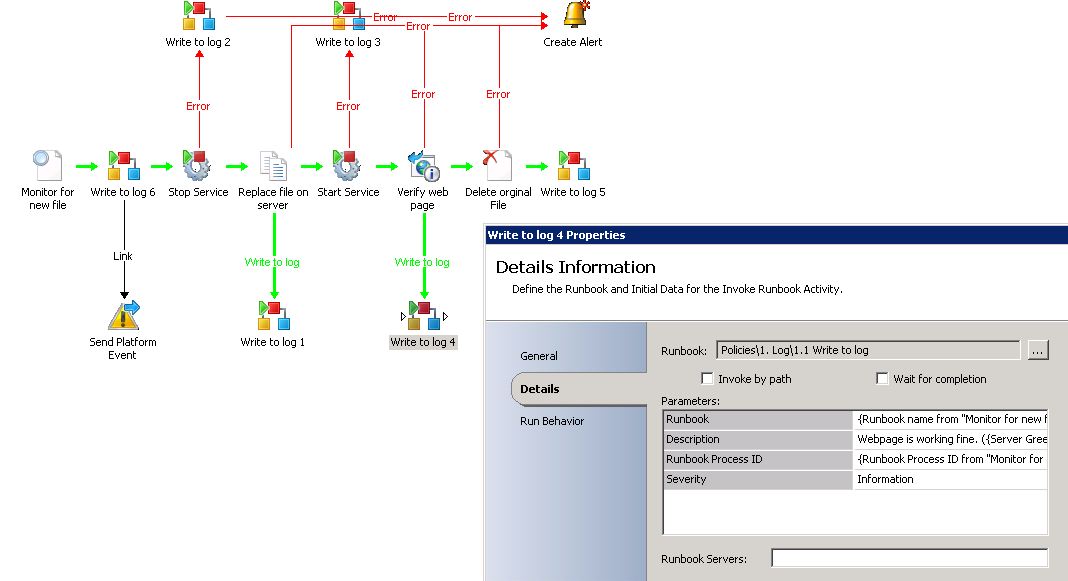
If the runbook cant insert event into the database an Operations Manager alert will be generated and also a platform event. So we have the database setup and we have a runbook that insert events into the database. How do we use all this? We use the Invoke Runbook activity! Below I have a runbook that loooks for new files in a folder and then copies them and moves them around. I have a number of Invoke Runbook activities that triggers the “write to log” runbook when there is something that needs to be in the log. As you can see in the image I forward data from this runbook to the “write in log” runbook, like the description and severity. This is the info that will be written in the database.
Your runbooks will now write logs to a common database. You can review the database with any tool to see how everything has been working and if you need to review some parameter or some variable value, you can simple look in your database (presuppose that you wrote it there :)). If you want to change how to store logs you can change one place, the “write to log runbook”, and you don’t need to modify all your runbooks. If you want to trigger alerts or incidents you can also do that simple in the “write to log runbook” instead of modify all your runbooks. Remember that Opalis and Orchestrator “only” executes, you need to store your data somewhere else if you want to read it after the runbook/policy is done.
How to move your Orchestrator database
In this post I will show you the steps to move the System Center Orchestrator database to a different SQL machine. When I first installed the Orchestrator beta I had SQL server and all Orchestrator components on the same machine, but of course after a couple of days I needed to move the database to a dedicated SQL server.
- Stop all currently running and queued instances of runbooks. This can be done using the System Center Orchestrator Runbook Designer, or the Opalis Integration Server Client, or the System Center Orchestrator web console.
- Stop the following services on your Orchestrator management server,
- OpalisActionServerWatchdog
- OpalisActionService
- OpalisRemotingService
- OrchestratorManagementService
- Stop the following services on your Orchestrator Runbook Servers
- OpalisActionService
- OpalisRemotingService
- Create a back of your Orchestrator database. Open Microsoft SQL Server Management Studio, right-click the Orchestrator database, select backup from the menu. Choose to do a Full backup to a file, for example C:\TEMP\Orchestrator
- Restore the database backup onto the new SQL server that you are moving to. Open Microsoft SQL Server Management Studio, right-click Databases and select Restore Database. Input the file as devices and Orchestrator as database name to restore to.
- In SQL Server Management Studio, add the Orchestrator service Account as Login and configure it to use the Orchestrator database as default database. Also configure the account with db_owner permissions on the Orchestrator database
- On your Orchestrator management server start the Data Store Configuration tool, configure to use the new SQL server and a existing database, the Orchestrator database. If you get a warning saying that the data store already exists, click Yes
- On your Orchestrator Runbook Servers, repeat step 7
- Start all services on your Orchestrator management server, that you stopped on step 2
- Start all services on your Orchestrator Runbook servers, that you stopped on step 3
After these steps everything except the web console and the web services was working fine. To get both the web console and web service to work against the new database I simple uninstalled them, and re-installed them. The re-installation took a couple of minutes. I guess there is a configuration file we could edit too, but re-installation is a fast and simple solution.
Please note that this is provided “as is†with no warranties at all.


How-to build custom activities with QIK and PowerShell
In this blog post I will show you how to build two custom activities based on PowerShell commands. I will be using the Orchestrator beta and Quick Integration Kit 3. The Quick Integration Kit (QIK) enables you to extend your library of activities, with new custom integration packs and activities. QIK features a Command Line Interface (CLI) Wizard that allows you to describe how to run Command Line Interfaces (such as Windows Commands, SSH or PowerShell) and capture their output as Published Data. The QIK CLI Wizard provides a mechanism for very rapidly producing activities without the need for programming, given the readily available libraries of PowerShell from Microsoft and other community sources. In this blog post we will build two activities, one for counting files in a folder and one for list all files with a specific extension (for example mp3 files) in a folder. We will use QIK CLI that will help us build an integration pack (IP) around in this scenario two PowerShell commands. Let´s start with the one counting files
- Start Opalis QIK CLI. After default installation of QIK there will be a shortcut on your desktop
- Welcome to the Opalis QIK CLI, click Next
- Assembly QIK CLI, input a name for example ContosoFileAssembly
- Assembly QIK CLI, browse and input where the file will be created, for example C:\TEMP\FILEIP\ContosoFileIPAssembly.dll
- Assembly QIK CLI, click Next
- Commands, click Add…
- Add/Edit Command, General, input
- Name: Count Files in Folder
- Mode: Run Windows PowerShell

- Add/Edit Command, Arguments,
- Click Add under Parameters
- Add/Edit Parameter, input
- Name: Folder
- Usage mode: Command Argument
- Display Style: Folder
- Echo as published data: Check
- Click OK

- Add/Edit Command, Arguments, input “get-childitem $(Folder) | measure-object -property length” as command line. Click OK

- Add/Edit Command, Published Data, click Add
- Add/Edit Published Data, input
- Name: _Count (We use _ in front of all object-specific published data, then it is easier to see it in the list of published data when working in the console. Thanks to Robert Hearn for that tip)
- Property: Count
- Description: Number of files in folder
- Click OK

- Add/Edit Published Data, input
- Add/Edit Command, Published Data, click OK
- Commands, click Next
- Click Finish


We now have a dll file, a .NET assembly. We can now use the invoke .NET activity in the QIK IP to test the DLL before we build the IP. Start the System Center Orchestrator Runbook Designer and build a simple runbook to use the Invoke .NET activity and a Send Platform Event activity. To get the Invoke .NET activity you need to import the QIK IP. It is located at C:\Program Files (x86)\Opalis Software\Quick Integration Kit 3\Integration Packs after default QIK installation. Don’t forget to input a folder under Properties of the Invoke .NET activity. Configure the Send Platform Event activity to publish the count data from the Invoke .NET activity. Run the policy and verify that you get a result in the Send Platform Event activity.


Time to add the second activity, that should list all files with a specific extension in a folder.
- Start QIK CLI again, on the Welcome screen, click “Load from QIK CLI Assembly” and select your dll file (C:\TEMP\FILEIP\ContosoFileIPAssembly.dll)
- Assembly Details, click Assembly Information and raise version to 1.0.0.1. Click OK
- Assembly Details, click Next
- Commands, click Add…
- Input the following settings
- General, Name: List specific files in folder
- General, Mode: Run Windows PowerShell
- Arguments, Parameters, add
- Name: Folder
- Usage mode: Command Argument
- Display Style: Folder
- Echo as published data: Check
- Arguments, Parameters, add
- Name: File Extension
- Usage mode: Command Argument
- Display Style: Text
- Echo as published data: Check
- Arguments, Command Line, input “(Get-childitem $(Folder) | where {$_.Extension -eq ‘$Extension)’})

- Published Data, add
- Name: _Fullname
- Property: fullname
- Description: File path
- Published Data, add
- Name: _Name
- Property: name
- Description: Name of the file
- Published Data, add
- Name: _Length
- Property: Length
- Description: File size
- Published Data, click OK

- Commands, click Next
- When the wizard complete successfully you can can test the new command in the console with the .NET Invoke activity. Else, to build the integration pack, click Build Integration Pack. It is the same wizard that you can start direct from the shortcut “QIK Wizard”
- Input the following settings
- Opalis Quick Integration Kit Wizard, product details, input
- Category Name: Contoso File Management
- Manufacturer: Contoso
- Opalis Quick Integration Kit Wizard, product details, click Next
- Opalis Quick Integration Kit Wizard, objects, click Next
- Opalis Quick Integration Kit Wizard, dependencies, click Next
- Opalis Quick Integration Kit Wizard, Opalis Integration Pack File, input where to create the IP, for example C:\TEMP\FILEIP\ContosoFile.oip . Click Next
- Opalis Quick Integration Kit Wizard, The QIK Wizard Succeeded, click Finish


Now, use the Deployment manager to register IP with Orchestrator Management server and deploy IP to runbook servers and runbook designers. You can then use your new integration pack and activities in runbooks 🙂

Please note that this is provided “as is†with no warranties at all. If you want to take a look at my demo files send me a e-mail, I will upload them after some extra activites has been added. Download QIK here.
Error initializing MAPI in Orchestrator or Opalis
Today I was building a runbook including a Send Exchange Email activity. Unfortunately it didn’t work, instead I had to troubleshoot for a moment. The error was “Error initializing MAPI”. This activity use a Outlook profile, so you need to have Outlook installed on the runbook server/action server that is going to execute the runbook/policy. In my case I had Outlook 2010 installed. Here are some of the things I checked to find the missing configuration, outlook profile on the action server for the correct service account 🙂
- Make sure you spell the Outlook profile name correct, else you will get a error saying it cant find the profile
- Make sure that Outlook profile exists on the action server that is going to run the runbook/policy. It needs to exist for the account that is executing the activity. In my case the action server service account. To make sure the profile exists, and to create it, logon to the runbook server/action server, start control panel, configure the profile. Then also start Outlook to make sure the profile is working.
- Make sure you execute the runbook/policy on the correct action server, where the service account has the Outlook profile
- Verify if the “Task fails if an attachment is missing” check box should be checked. If it is, and there is no attachment, the Send Exchange Email activity will fail.


System Center Community Evaluation Program
You can now sign up for the Operations Manager 2012 and/or the System Center Orchestrator community evaluation program. This community evaluation program is designed to take you on a guided tour and evaluation of the product.
The Community Evaluation Program from the Management and Security team at Microsoft provides IT professionals a structured approach to evaluating System Center and Forefront products before their final release. Members of this program are able to evaluate early versions of products with guidance from the product team and by sharing of experiences and best practices among a community of peers.
To sign up at the Microsoft Connect website.
A question that has come up a few times is the difference between this CEP, and the Orchestrator TAP that some of you are participants in. The Table below should help you understand the differences in these two programs.
| Orchestrator TAP | Orchestrator CEP | |
| Access to Orchestrator Beta | Yes | Yes |
| Assigned Buddy from the product group | Yes | No |
| Required to deploy the RC into production | Yes | No |
| Information disclosure level | NDA | Public |
| Program Owner | Chris Hill | Adam Hall |
| Program duration | Beta through RTM | Beta only |
Recent Comments