Home » Orchestrator (Page 6)
Category Archives: Orchestrator
 Review a Generic Text Log with Ops Mgr Reporting
 List all activities not using default service account
VM lifecycle in Service Manager with Orchestrator magic
A couple of weeks ago I was speaking at a System Center 2012 event in Stockholm/Sweden. My session was around Orchestrator and Service Manager integration. On stage I created and demo a scenario where Service Manager, Virtual Machine Manager and Orchestrator was used to administrate lifecycle of virtual machines and virtual services. My laptop only hosted Orchestrator and Service Manager so in many of the example runbooks I only create a computer object in Service Manager. But as you realize you could re-place that with any kind of Virtual Machine Manager activity. In this post I will share with you the demo files, runbooks and management packs I used.
The demo scenario was that someone could order a virtual machine or a service (service template) from the self service portal in Service Manager. Orchestrator and Virtual Machine Manager then created the machines and so on. When you order a new virtual machine you needed to input a expire date, for how long will you need the virtual machine. You also need to input a cost center, to know who should approve and how will pay for it. When a virtual machine is close to the expire date it is picked up by a runbook that notify the owner. The owner can use the portal to extend the date or simple don’t. If the machine pass the expire date Orchestrator will shut it down. When it has been shut down for some months it is deleted. The demo also showed how to generate reports to follow up which how much each cost center should pay. When the order is complete the user can see the result in the Service Manager portal


The cool thing about this demo is not only that we can create any kind of virtual environment with Virtual Machine Manager 2012, instead of just deploying machines we can follow up on who order, who approved and we can also see how much each cost center is using.
The solution is divided into multiple steps
- Extend the Windows Computer CI class in Service Manager with a couple of extra properties, like order date, cost center, owner, expire date, approver and cost. (MP attached)
- Create a new CI class in Service Manager to store cost information (MP attached)
- Create a runbook that creates computer objects (export file attached)
- Publish a service in the self-service portal in service manager (not included in this post, ping me if you need step by step guide)
- Create a report to follow up number of orders and total cost per cost center
- Create runbooks to administrate removal of expired objects (export file attached)
Extend the Windows Computer Class
To add extra attributes to all Windows Computer CI objects in Service Manager we need to extend the Windows Computer class. We can do that with the Service Manager Authoring Tool, download here. (http://www.microsoft.com/en-us/download/details.aspx?id=28726). When the Authoring Tool is installed follow these steps to extend the Windows Computer class
- We need to seal the management pack we will create in the Authoring Tool. If we don’t seal it we cant use it with Orchestrator or the data warehouse. To seal it we need a keyfile. SN.EXE (.NET Framework Strong Name Utility) is a tool that we can use to generate that key file. Open a command prompt and navigate to C:\Program Files (x86)\Microsoft SDKs\Windows\v6.0A\bin
- To generate a key pair run, SN.EXE -k C:\temp\snKey.snk
- Start Service Manager Authoring Tool
- From the File menu choose New
- New Management Pack, save the new management pack in a suitable folder, for example C:\TEMP\Contoso.WinCompExt
- Use the Class Browser to find the Windows Computer class, right-click it and select View
- In the Management Pack Explorer pane, note all the default properties. Right-click on the Windows Computer class and select Extend Class
- Target Management Pack, select Contoso.WinCompExt to save the extension in the management pack
- Click Create Property and add the following properties. Edit each property in the Details pane
Internal Name Name Data Type Note ContosoOrderDate Order Date Date Time ContosoCostCenter Cost Center String ContosoOwner Owner String ContosoExpireDate Expire Date Date Time ContosoApprover Approver String ContosoCost Cost Integer - Save your management pack
- In the Management Pack Explorer pane, right-click Contoso.WinCompExt and select Seal Management Pack
- Seal Management Pack,
Output Directory: C:\TEMP
Key File:Â C:\temp\snKey.snk
Company: Contoso
Click Seal and then Close - Start Service Manager Console and import the sealed Contoso.WinCompExt management pack from C:\temp\Contoso.WinCompExt.mp (make sure to select the .MP management pack, MP=Sealed XML=Unsealed)
- Close the Service Manager Console and open it again, this will re-load class information
- Navigate to Configuration Items/Computers/All Windows Computers and open a computer. Note all the new properties that are shown on the Extensions tab. We have now extended the Windows Computer class with the properties we need for the computer lifecycle demo.


The pricelist
One of the properties we extended the Windows Computer class with is Cost. My idea is to use this field to show the monthly price of the configuration item, the computer. We could input that price manual but we can also build a price list inside of Service Manager. To do that we can use the Authoring Tool to create a new CI class, Contoso Price List.
- Start Service Manager Authoring Tool
- From the File menu create a new management pack, for example C:\TEMP\ContosoCost
- In the Management Pack Explorer pane, right-click Classes and select Create Configuration Item Class
- Create Class, input ContosoCostItem as internal class name
- In the Details pane change the Name to Cost Item
- Delete default Property_4
- Add two properties, AvailabilityLevel and Cost. Change AvailabilityLevel name to Availability Level. Change data type to Integer for the Cost property. Change Key to TRUE on the Availability Level property
- Save the managemente pack
- Seal the management pack the same way we did with the first management pack
- Import the management pack into Service Manager. Remember to import the sealed version, MP file.
- Restart the Service Manager Console
- Navigate to Configuration Items
- Create a new folder, name it Price List. Create a new management pack, for example Contoso, and store the folder in it
- Select the Price List folder and click Create View in the Tasks pane
- Create View
Name: All Items
Criteria: All objects of the ContosoCost Item class, where object status does not equals Pending Delete
Display: Availability Level and Cost - Select the new All Items view and click Create Contoso Cost Item from the Tasks pane
DisplayName: Gold
Availability Level: Gold
Cost: 100 - Click Create Contoso Cost Item from the Tasks pane
Contoso Cost Item Properties
DisplayName: Silver
Availability Level: Silver
Cost: 70 - Click Create Contoso Cost Item from the Tasks pane
Contoso Cost Item Properties
DisplayName: Bronze
Availability Level: Bronze
Cost: 40 - Click OK

Runbooks
This example use a number of runbooks, all included in the export file attached to this blogpost. I will explain each one of them and you can import them and look at the in the Orchestrator Runbook Designer

- Â 700.10 Cost. This runbook will get the correct price for the new computer based on the price list in Service Manager
- 700.11 Count Machines. This runbook counts existing machines to figure out a suitable computer name for the new machine
- 700.2 Update Approver. This runbook updates the approver step in the service request template based on the cost center. The runbook attach approver to the manual approval step
- 700.3 Create VM (picture) creates the new computer
- 700.4 Update Service Request, updated the Description attribute on the Service Request. This is used when the machine is create to communicate the new computer name to the user. The user will see this in the self-service portal
- 700.5 This one will find all VMs that are close to expire date (2 months or less) and send a e-mail to the owner of the machine. Also flag the virtual machine that e-mail has been sent
- 700.6 Get Cost Center. This runbook gets approver for each cost center. This could be done with a external database or any other way
- 700.7 When a VM have passed expire date it is shut down in Virtual Machine Manager
- 700.8 Deleted expired VM, when the VM has been shutdown for 2 months it is deleted
- 700.9 Update expire date, if the user order a new expire date for the computer in the portal, this runbook will update the virtual machine with the new expire date
- 500.1-500.3, these runbooks are used to generate the HTML based report. One master runbook and then one runbook for each cost center
Report
Reporting have changed a lot with Service Manager 2012. We now have cubes to analyze the data and we use Excel to easy drag and drop fields to build table. The first image below show a table with everything that cost center 2 is running right now. If you want to sum everything into a one cell, total cost, it is a bit more difficult now when we are running cubes. We need to extend the cube to include that field. If you don’t know how to do that you could solve it with SQL reports or using Orchestrator. In the second image below you can see a HTML based report generated by a couple of runbooks in Orchestrator.


Runbooks, SC12day_demo_wolf
Management packs SC12 day MPs
Please note that this is provided “as is†with no warranties at all.
Who Did That? Auditing in Orchestrator
In this post I want to share with you some ideas around auditing in Orchestrator. When Orchestrator gets more and more integrated into your IT environment auditing and change control within Orchestrator also gets more important. In Orchestrator you have a couple of different ways to do this. You have the possible to enable audit trail. Audit trail is a number of text log files that contacts information about activities in runbooks and who started which runbook. Depending on how your runbooks are working the audit trail log files can grows very large and consumes a large amount of disk space. If you enable audit trail you should also plan how to archive and purge these log files. To enable or disable audit trail follow these steps
- On the Orchestrator management server open a command prompt and change folder to the Management Server folder in the Orchestrator installation folder , default C:\Program Files (x86)\Microsoft System Center 2012\Orchestrator\Management Server
- Run “ATLC.EXE /enable” to enable audit trail or run “ATLC.EXE /disable” to disable audit trail


In the Orchestrator Runbook Designer you can also see some auditing information. In the console there is an Audit History tab for each runbook. In the Audit History tab you can see all changes to a runbook, for example who change the name of an activity. Below there is figure that show an example of Audit History information. The information shown in the Audit History tab is a mix of data from two tables in the Orchestrator database, the OBJECT_AUDIT table and the CHECK_IN_HISTORY table.

To review all changes to objects in the Orchestrator database, for example a new setting on a activity run the following SQL query against your Orchestrator database. Note that the SQL query only show objects that have DELETED equals “0”, the SQL query only show objects that are non-deleted. You can change this setting if you want to see changes also to objects that are deleted.
SELECT P.Name AS [Runbook Name], O.Name AS [Activity Name], OT.Name AS [Activity Type], OA.Action,
CASE WHEN OA.Attribute LIKE '%[0-F][0-F][0-F][0-F][0-F][0-F][0-F][0-F]-[0-F][0-F][0-F][0-F]-
[0-F][0-F][0-F][0-F]-[0-F][0-F][0-F][0-F]-[0-F][0-F][0-F][0-F][0-F][0-F][0-F][0-F][0-F][0-F]
[0-F][0-F]%'
 THEN 'NEW ACTIVITY' ELSE OA.Attribute END AS Attribute, OA.OldValue, OA.NewValue, CIH.DateTime AS
 [Change Timestamp], S.Account AS [User]
FROM OBJECT_AUDIT AS OA INNER JOIN
 OBJECTS AS O ON OA.ObjectID = O.UniqueID INNER JOIN
 POLICIES AS P ON O.ParentID = P.UniqueID INNER JOIN
 OBJECTTYPES AS OT ON OA.ObjectType = OT.UniqueID INNER JOIN
 CHECK_IN_HISTORY AS CIH ON CIH.UniqueID = OA.TransactionID INNER JOIN
 SIDS AS S ON CIH.CheckInUser = S.SID
WHERE (O.Deleted = 0)
ORDER BY [Change Timestamp] DESC

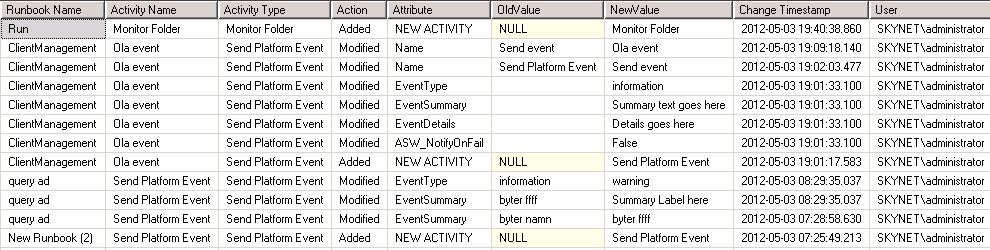
Thanks to Fanjoy and Ahrens for SQL query support.
List all activities not using default service account
A runbook is executed with the Orchestrator Runbook Service service account. In most scenarios that are not an issue. But in some scenarios you need a runbook to run with a specific account, and all other runbooks run with the default service account. This can be done with an extra Runbook Server that uses another Runbook Service service account, or per activity or it can be solved at design level in the runbook by using the Invoke Runbook activity. To configure a runbook to run with a specific account, please see this post.
Specifying an account on each activity requires a lot of administration. If you need to specify the same account on multiple activities it is recommended to use variables. Variables minimize the risk of incorrect input and also make updates much easier. In Orchestrator 2012 you can configure a variable to be encrypted. If you store a password in a variable it will not be shown or stored in clear text, instead it will be encrypted.
If you want to see all activities in your Orchestrator environment that is not using the default service account you can run the following query
SELECT OBJECTS.Name AS Activity, OBJECTS.ASC_Username, POLICIES.Name AS Runbook, OBJECTTYPES.Name AS [Activity Type]
FROM OBJECTS INNER JOIN
POLICIES ON OBJECTS.ParentID = POLICIES.UniqueID INNER JOIN
OBJECTTYPES ON OBJECTS.ObjectType = OBJECTTYPES.UniqueID
WHERE (OBJECTS.Deleted = ‘0’) AND (OBJECTS.ASC_UseServiceSecurity = 0)

Building groups in Operations Manager, with a bit of Orchestrator magic
In many scenarios you have a list of servers, a database query result or a place in your Active Directory that contains servers that you want to monitor in some special way. Often you need the machines in a group in Operations Manager so you can for example create overrides, maintenance mode and views for that group. It is a pretty boring work to build the group manually and then to keep the group updated.
A way to get the Operations Manager group in sync with the machine list is to use a runbook that creates a management pack including a group based on the list. This set of example runbooks reads a list of machine, creates a management pack with a group that includes the machines. The list of servers could be generated by another runbook or another tool. The last runbook also imports the management pack into Operations Manager.

This first runbook execute the following steps. In general this runbook checks if the machines in the list has a Operations Manager agent, if they are monitored by Operations Manager
- Delete File. Deletes old Machines_IDS.txt file if it exists. Machines_IDS.txt is used later in the runbook and needs to be blank before we begin
- Get Lines. Read all lines in the list. The list is simple a text file with servers, one server per row
- Get Monitor. Check if Operations Manager have a Microsoft.Windows.Computer monitor for the servers in the text file
- Append Line. For each machine that has a monitor, we write the machine name to a temporary file. This is the same file as step one deleted any old version of
- Junction. We merge multiple threads together
- Invoke Runbook. Trigger next runbook

- Delete File. Deletes old MP files
- Modify Counter. We use a counter to keep track of the management pack version number. This step adds one to that counter value
- Get Counter Value. Get the counter value for the same counter as in step 2
- Append Line. This steps writes the first half of the XML code that needs to be in the management pack. The GroupInstanceID is a random ID that the Operations Manager console generated when I test created a group in the console. You could replace that and all the other names in the management packs.

- Read Line. This step reads every machine that we wrote in the machine list in the first runbook, step 4,
- Append Line. This steps writes all the machines from step 5 into the management pack file

- Junction. We merge multiple threads together
- Append Line. Writes the end of the management pack, some more XML
- Invoke Runbook. Starts the last runbook and pass the path to the management pack file


The result is that each time you run this set of runbooks they will generate a new management pack version with a group that includes all the machines from your list, that has a agent. The management pack is imported into Operations Manager and you can use the updated group. You could include a step to seal the management pack too. You can download my runbook example here, 20120410_GroupSync_WOLF.  Please note that this is provided “as is†with no warranties at all.
Convert a incident to a service request, with a bit of Orchestrator magic
A couple of days ago there was a question about converting a incident in Service Manager to a service request. The scenario was around a support call first register as an incident, but later the operator finds out it should be a service request. Out of the box in Service Manager there is no tool to move the data we have already input in the incident over to a new service request. But of course we could use Orchestrator to do it 🙂 We could also build this workflow as an internal workflow in Service Manager… but that would take me a lot of hours; this runbook only took two cups of coffee. In this post I will show a idea how to build a task that you can run against a incident in Service Manager to “convert” it into a service request. The incident is not really converted, we copy the info we have in the incident over to a new service request, link them together and close the incident.
The runbook is trigger by a task in Service Manager, input parameter is only the incident ID.

- Initialize Data. Input parameter is IncidentID. ID of the incident we want to “convert” to a service request
- Get Object. Gets the incident from Service Manager. This step also verify that the incident don’t have Closed as status
- Send Platform Event. If the incident is closed or cant be found a platform event is generated. For example if you trigger the runbook with a incorrect incident ID from the Orchestrator console it will not run
- Get Relationship. Gets related Active Directory User to the incident
- Get Object. Gets the user that step 4 found
- Create Object. Creates a new service request and writes info to it from the incident
- Create Relationship. Create a relationship between between the service request and the affected user (relationship type = user)
- Create Relationship. Create a relationship between the service request and the incident (relationship class = is related to work item)
- Format Date/Time. Gets the current time stamp in a correct format, will be used when creating comments on the incident and the service request
- Run .NET Script. A small PowerShell script that generates a GUID. The GUID will be used as ID for the incident comment
- Create Related Object. Creates a Trouble Ticket Action Log (action log comment) on and relates it to the incident. The runbook writes a comment saying the incident has been converted to a service request (relationship type = Trouble Ticket Has Action Log)
- Update Object. Resolve the incident, change status to Resolved
- Run .NET Script. A small PowerShell script that generates a GUID. The GUID will be used as ID for the service request comment
- Create Related Object. Creates a Trouble Ticket Analyst Comments (log comment) and relates it to the service request. The runbook writes a comment saying the service request was based on the incident
- Send Platform Event. Writes a platform event with service request ID and incident ID
That is the runbook, the next component is the task in Service Manager. We could trigger the runbook from Orchestrator console and input the incident ID manually, but it is easier with a task in Service Manager. In the Service Manager console, in the Library workspace you can create a new task with the following settings.
- General/Task name: Contoso -Â Convert Incident to Service Request
- General/Target class: Incident
- Categories/Categories: Incident Management Folder Tasks and Incident Support Groups Folder Tasks
- Command Line/Full path to command:Â C:\TEMP\ORT251\ORTRunbookLauncherCLI.exe
- Command Line/Parameters:Â /IncidentID=$Context/Property[Type=’WorkItem!System.WorkItem’]/Id$
(the parameter is the work item ID that you can insert from the  “Insert Property” button)


…the runbook runs and generates a platform event

…if we look at the incident it is now resolved and has a new comment

…also a relationship to the new service request

…and when look at the service request we can see that data has been copied over from the incident

Summary: We have built a task in Service Manager that use the Orchestrator Remote Tool to trigger a runbook. The runbook connects to Service Manager, copies the data we have in the incident over to a new service request, resolve the incident and update both incident and service request with relationships and comments.
You can download my runbook example here, 20120410_Incident2ServiceReq_WOLF.  Please note that this is provided “as is†with no warranties at all.
Remote work with the Runbook Designer console and security roles in Orchestrator
In this post I will show you what you need to configure to allow engineers connect remote to the Orchestrator environment without Orchestrator administrator permissions. After Orchestrator installation we have one security group, the Orchestrator User Group. If your Orchestrator environment is in an Active Directory domain you should use an Active Directory security group as the Orchestrator User Group. The Orchestrator User Group has full access to the Orchestrator environment. If you enabled remote connection during installation, members of the Orchestrator User Group can also remote connect to the Orchestrator environment, for example run the Runbook Designer console from a workstation. A common scenario is that other engineers and experts need access to the Orchestrator environment too, for example the Service Manager team wants to author some runbooks. At the same time the Service Manager engineers should not have access to every runbook, only runbooks created by the Service Manager team. In other Words you cant add the Serivce Manager team to the Orchestrator User Group. To solve this we need to perform the following steps
- Assign general Orchestrator permissions to a “Orchestrator Remote Users” security group. There are a number of general permissions that everyone that will work with Orchestrator remote needs. We will assign these permissions to a Orchestrator Remote Users group. By using one general group for this kind of permissions the administration gets a bit easier. In this example my group is named SKYNET\grp-sco-remoteusers.
- Assign specific Service Manager team permissions to a “Service Manager Team” security group. We will most likely have more teams then the Service Manager team working with runbooks. Each team will need specific permissions, which will result in one specific security group for each team. In this example my Service Manager team group is named SKYNET\grp-sco-scsmteam.
We will start by assign the Orchestrator Remote Users Group suitable DCOM permissions
- On the Orchestrator Management Server, start Component Services from the start menu
- In the Component Services console, expand Component Services, expand Computers and expand DCOM Config
- In the list of DCOM applications scroll down and select omanagement. Right-click the omanagement DCOM application and select properties from the context meny

- In the omanagement Properties window, click the Security tab
- Click Edit in the Launch and Activation Permissions area, click Add and add the grp-sco-remoteusers security group from Active Directory. Assign the grp-sco-remoteusers security group Remote Launch and Remote Activiation permissions. Click OK
- Click Edit in the Access Permissions area, click Add and add the grp-sco-remoteusers security group from Active Directory. Assign the grp-sco-remoteusers security group Remote Access and Local Access permissions. Click OK
- In the Component Services console, right-click My Computer and select properties from the context menu
- In the My Computer Properties box, select the COM Security tab
- Click Edit Limits… in the Access Permissions area. Click Add and add the grp-sco-remoteusers security group from Active Directory. Assign the grp-sco-remoteusers security group Remote Access permissions. Click OK
- Click Edit Limits… in the Launch and Activation Permissions area. Click Add and add the grp-sco-remoteusers security group from Active Directory. Assign the grp-sco-remoteusers security group Remote Launch and Remote Activation permissions. Click OK
- Close the Component Services console 12. After all permissions are configured, on the Orchestrator Management server, start the Services console and restart the Orchestrator Management Service (ManagementService.exe ). If a user dont have correct DCOM permissions to access Orchestrator you will see a error message in the Runbook Designer console, like the one below
 and on the Orchestrator management server you will see a event like this
All users that will work with the Orchestrator Runbook Designer console needs read permissions to the top level of the Runbooks folder navigation tree. To assign the grp-sco-remoteusers security group permissions to the root level follow these steps
- Start the Orchestrator Runbook Designer console as an Orchestrator administrator
- Right-click the Runbooks folder and select Permissions from the context menu
- In the Permissions for Runbooks dialog box, click Add.. and add the grp-sco-remoteusers security group from Active Directory
- In the Permissions for Runbooks dialog box, un-selected everything except Read as permissions for the grp-sco-remoteusers group
- In the Permissions for Runbooks dialog box, click Advanced
- In the Advanced Security Settings for Runbooks dialog box, select the grp-sco-remoteusers security group and click Edit…
- In the Permissions Entry for Runbooks dialog box, change the Apply To drop-down menu to This object only
- In the Permissions Entry for Runbooks dialog box, click OK
- In the Advanced Security Settings for Runbooks dialog box, click OK
- In the Permissions for Runbooks dialog box, click OK
Depending on your environment the different teams need different access to runbook servers. To assign the grp-sco-remoteusers access to all Runbook Servers follows these steps:
- Start the Orchestrator Runbook Designer console as an Orchestrator administrator
- Right-click the Runbook Servers folder and select Permissions from the context menu
- In the Permissions for Runbook Servers dialog box, click Add and add the grp-sco-remoteusers security group from Active Directory. Click OK
- In the Permissions for Runbook Servers dialog box, un-select all permissions for the grp-sco-remoteusers group except Read. Click Ok
Your different teams will also need access to Global Settings. To give the grp-sco-remoteusers security group permissions to list Global Settings follow these steps:
- Start the Orchestrator Runbook Designer console as an Orchestrator administrator
- Expand Global Settings, one by one, right-click Counters, Variables and Schedules. Select Permissions from the context menu
- In the Permissions dialog box, click Add, add the grp-sco-remoteusers security group from Active Directory. Click OK
- In the Permissions dialog box, select the grp-sco-remoteusers group and click Advanced
- In the Advanced Security Settings dialog box, select the grp-sco-remoteusers security group and click Edit
- In the Permission Entry dialog box, change Apply To to This object only, and select only List Contents and Read Properties permissions. Click OK
- In the Advanced Security Settings dialog box, click OK 8. In the Permissions dialog box, click OK
You have now configured the grp-sco-remoteusers security group with general permissions to remote connect to the Orchestrator management server with the Orchestrator Runbook Designer console. The security group doesn’t have access to anything in the Orchestrator Runbook Designer console (except Runbook Servers), when a user in this group click for example Variables an error like the own below will show.

The next step is to configure permissions for the different teams, in this example the Service Manager team, group grp-sco-scsmteam. We will create a new Runbook folder where the Service Manager team can work with Runbooks.
- Start the Orchestrator Runbook Designer console as an Orchestrator administrator
- Right-click the Runbooks folder and select new folder
- Name the folder Service Manager Team
- Right-click the Service Manager Team folder and select Permissions from the context menu
- In the Permissions for Service Manager Team dialog box, click Add and add the grp-sco-scsmteam security group from Active Directory. Click OK
The Service Manager team need access to global settings too
- Start the Orchestrator Runbook Designer console as an Orchestrator administrator. Navigate to Global Settings
- Under Counters, Variables and Schedules create a folder and name it Service Manager Team
- Right-click each new folder and select permissions from the context menu. Click Add and add the grp-sco-scsmteam security group from Active Directory. Click OK
 We have now created a runbook folder for the Service Manager team runbooks and then created one folder for each kind of global setting. The Service Manager team can now work with their own runbooks but cant see or modify any other runbooks or settings.
One thing to think about, that could result in multiple Orchestrator environments, is that the settings that are under the Options menu will be shared with everyone running the Runbook Designer console. There is no easy way to limit access to for example the Active Directory connection or the Virtual Machine Manager connection. This is something to think about when doing the security design for Orchestrator.

Run a runbook with a specific account
By default all activities are executed with the account you have specified on the Orchestrator Runbook Service on your Runbook servers. In some scenario you need to configure a activity with a specific account, you can do that on the security tab on each activity.

But it is a lot of work to update each activity in the runbook with new security credentials information. What if you want to use the same runbook, but with different input parameters and different accounts? The solution to that could be to trigger the runbook with the Invoke Runbook activity and specify a account, instead of trigger the runbook direct. Then you can specify a account each time you trigger the runbook. In this example I have built two runbooks. Runbook A and runbook B.


Runbook A writes its credentials to a text file (command “whoamI” and writes pure output to C:\temp\Iam.txt) and triggers runbook B that does the same. The result will be a text file with two lines, both lines is SKYNET\svc-sco-sa. SKYNET\svc-sco-sa is my Orchestrator Runbook Server service account, and that is the account that executes runbooks by default in my sandbox.

If I now configure the Invoke Runbook activity, on the security credentials tab, to run with the SKYNET\andersbe account instead, we will see a difference in the result


As you can see the second runbook is now running with the SKYNET\andersbe account instead of the default account.
Dynamic approval steps in Service Manager with a bit of Orchestrator magic
In Service Manager we can configure an approval step with “Line manager should reviewâ€. That means that the manager for the user who created the for example service request needs to approve. The manager is configured on user account in Active Directory. This works dynamic and fine as long as it is actually the manager that needs to approve. But what if we request a service and the approver depends on who is requesting the service and what kind of settings of the service? Then we can’t use the “line manager should review†feature and we don’t want to create one template for each possible scenario.
In this blog post I will show how you can build dynamic approval steps in Service Manager together with Orchestrator. I will use Orchestrator and Service Manager 2012, but it works almost the same in Service Manager 2010 with the Service Manager Integration pack for Orchestrator or Opalis. The really cool thing is that we use a runbook to update an approval step within the same service request.
In my scenario engineers can request temporary permissions from the Service Manager self-service portal. Instead of engineers have accounts with all permissions that they can possible need, they need to request permissions when they need it, and the permissions are removed after X hours. If we lose an account it doesn’t have any permission after X hours and no engineer will have an account with too much permission.
High level steps
1. Engineers request permissions for a system from the self-service portal. The engineer fills in a form with all needed information based on a service request template. The engineer can select system from a drop down menu.
2. The service request template includes tree steps
2a. Update manual approval step (Runbook)
2b. Manual approval step (Default approval step in Service manager). This approval step is blank, no configuration by default. Instead it is the first runbook activity that updates this approval step with reviewers.
2c. Grant engineer permissions (Runbook)
3. The first runbook activity in the template run and update the approval step with suitable approval group based on which system the engineer request permission. For example if the engineer have request permissions to Exchange the manual update step will be configure with the Exchange Expert Team group.
4. An expert team approves the request. This step is blank in the template; the previous runbook activity will add a security group as reviewers depending on the permissions that were requested.
5. The second runbook activity run and adds the engineer to a suitable security group in Active Directory depending on what kind of permissions that was requested. The runbook also writes a log to a log database and updates the service quest with the result.
6. The engineer can track the service request during the process and also see the result of the service request in the self-service portal

Let’s look at the runbooks

This first runbook starts with the runbook activity ID; it then gets the related service request. After that it maps the service the engineer input to a security group in Active Directory. After that it finds related Review activity and creates a related reviewer object. It then gets the group of reviewers from the CMDB and creates a relationship between the new reviewer object and the group from the CMDB. The second runbook is the runbook that will grant the engineer permissions. It starts after the manual approval step that the first runbook configured.

The second runbooks goes from runbook activity ID to service request, and then it gets the requesting user from the input in the Service Request. The runbook creates a time stamp plus the number of hours that the engineer requested permissions for. Then it maps the service in the service request to a security group in Active Directory and adds the user to the group, it then writes the settings to a log database. The last activity triggers next runbook. This runbook updates the service request with the result.

Looking at the process from the self-service portal it will look like


The runbook that grants permissions to the engineer writes all settings to a database. This database will be used to figure out when it is time to remove engineers from security groups again.  The database in my example is very simple, see picture. You can schedule a runbook like the one below to Query the database every X minute to see if there is any expire date passed, and if there are the user will be removed from the security group. You can also use this database as source for a report showing current temporary permissions. You can use SQL Report Builder to build a report like that, download Report Builder here.


None of my example runbooks have any activities for error handling; please see this blogpost for more info around fault tolerance in runbooks. I have not uploaded an export file of these runbooks, as it is a lot of values to re-configure in every environment. Instead I have uploaded a ZIP file, Â 20120319, with screenshots of all settings in all activities.
 Please note that this is provided “as is†with no warranties at all.
System Center Orchestrator 2012 Unleashed on Amazon
The System Center Orchestrator 2012 Unleashed book is up on Amazon now available for pre-order! The release date on Amazon says around July. Hopefully you will find lots of new and useful information in this book! Link to the book

Integrate Service Manager and SharePoint announcements with a bit of Orchestrator magic
In this post I will show you some ideas how you can administrate announcements in SharePoint with Service Manager and Orchestrator. The idea is that announcements are owned by Service Manager and you only use the Service Manager console to create, update and delete announcements. Everything around announcements are then synchronized to SharePoint with Orchestrator. In Service Manager 2012 the announcement part is removed from the self-service portal, but there is an announcement webpart in SharePoint that you can use. To add an announcement webpart to your Service Manager 2012 self-service portal you can
- Browse to your Service Manager self-service portal with an administrator account
- Click Home to navigate to the root page
- Â On the Site Actions menu, select edit page
- Click the Insert tab and select Web Part
- Select Lists and Libraries/Announcements and click Add
- Now, select the Announcements web part and from the List Tools menu select List/List Settings
- On the List Settings page, select Create Column
- Name the new column Announcement and click OK to save. We will use this column to store the Service Manager announcement ID, to keep the link between an announcement in Service Manager and and announcement in SharePoint.

The first runbook is monitoring new announcements in Service Manager. When a new announcement is created in the Service Manager console this runbooks is triggered. The runbook first converts the text that Service Manager has in the announcement from rich text format to plain text. During tests I found some issues around publish text in rich text format on the SharePoint site, so now all text gets published as plain text. The last activity comes from the SharePoint Integration Pack that you can download from Codeplex. The activity creates a list item in the new announcement webpart.


As you can see in the pictures we created a announcement in the Service Manager console, the runbook picked it up and created a list item in SharePoint. The title on the list item in SharePoint  is a mix of the announcement title and priority. Next runbook handle updates. When you update a announcement in Service Manager this runbook writes the changes to SharePoint. We use the column we added in the announcement webpart to keep the link between announcement in Service Manager and list item in SharePoint.


It get a bit more complicated when looking at how to handle deleted announcements. Many items in Service Manager have a status that we can look at, for example if the status is equals to closed or resolved. Announcement is deleted as soon as we delete them from the console. Orchestrator can monitor for changes on objects and when a object is created. But we cant monitor when a object is deleted with Orchestrator. But, Service Manager can do that. Service Manager can trigger a workflow when a object is deleted. That is how we will do, we will have a internal Service Manager workflow that will run when a announcement is deleted, it will trigger a runbook that will remove the corresponding list item in SharePoint. The Service Manager workflow will actually drop a file in a folder that Orchestrator will pick up. You can build the workflow with Service Manager Authoring Tool. If you want to look at the example I use you can download it here, SCSMAnnouncements . The picture below show the script that the workflow run. As you can see it writes the announcement ID to a file, the file is named with a GUID and stored in a remote folder on the \\FIELD-SCO02 server.

Orchestrator will monitor the folder and pick up any file written to the folder. The file includes the announcement ID of the deleted announcement. Orchestrator will find the corresponding list item in the announcement web part in Sharepoint and delete it.

I also created one runbook that will start when a new problem is created in Service Manager with priority 5 or lower. It will then create a announcement in Service Manager with information from the problem work item. It will also update the action log of the problem work item with information about the announcement. The other runbooks could then trigger on the announcement and create the announcement in SharePoint. This runbook includes a Run .NET script activity that generates a GUID. The GUID is used as ID for the trouble ticket action log on the problem work item. The runbook also includes a Map Published Data activity, that is because the Service Manager announcement and the problem work item handle priority different.


These runbooks use a “RTF to Plain Text” activity that my friend Patrik Sundqvist have built for the community. You can download the RTF-to-PlainText integration pack here. Thanks for the help Patrik, as always!
Please note that this is provided “as is†with no warranties at all.
Recent Comments