Home » Orchestrator (Page 4)
Category Archives: Orchestrator
 Add history tab to your custom forms
 How to create a new CI class and a new form
Should this runbook be running?
When browsing around in the runbook designer console sometimes the “should this runbook be running” question pops up in the head. The runbook might start with a “monitor” activity, like monitor alert, so most likely it should be running all the time, monitoring a data source. When different teams and different engineers in each team works with Orchestrator is sometimes get difficult to keep track of which runbooks that should be running and which ones that should not. One way to handle this is by including “should be running” in the naming convention. “Should be running” might be a bit to much, so instead use for example “RUN” or “ON” or “MON” (as monitor).
If you name your runbooks including a info if they should be running or not it is easy to monitor this. Lets say we include “ON” in runbook names for all runbooks that should always be running. We can then use a SQL query to verify the status of these runbooks.
SELECT UniqueID, Name
FROM POLICIES
WHERE (Deleted = ‘0’) AND (Name LIKE ‘%-ON-%’)
AND UniqueID NOT IN (SELECT RunbookId FROM [Microsoft.SystemCenter.Orchestrator.Runtime].Jobs WHERE Status = ‘RUNNING’)
The query will show you all runbooks with a name including -ON- which don’t have a running job (status equals 1). If all your monitor runbooks are running, then there should be no result. You can then use a rule or monitor in Operations Manager to monitor this, like I do in this blogpost and you can add this to your Orchestrator dashboard.
Self-service data recovery with Data Protection Manager, Service Manager and Orchestrator
In my sandbox I test a lot of solutions, management packs, integration packs and ideas. They don’t always work out the way expected 🙂 The result is that I often need to restore a database from backup. I use Data Protection Manager to protect my databases, Service Manager to order the restore and Orchestrator as the “doer”. In this blog post I want to share a example how to make restore of database a bit easier.
In the Service Manager self-service portal I have a request offering named Restore Database.
- Restore to Original Location. If this checkbox is enabled the database will be restored to original instance. In most cases I restore to a network folder. Network Folder is used in this integration pack in the same way that it is used in the Data Protection Manager user interface. Choosing Network Folder recovers to a local path on a server that have the DPM agent installed. I have configured my runbook (also included in this blog post) to always recover to C:\RESTORE on the target machine
- Target server. If I select to restore to a network folder, default, I input a server name. For example if I want to restore the Orchestrator database to my Orchestrator database server I input SCO12SP1-SQL01 in the Target Server text box. The database backup will then be restored to C:\RESTORE in the SCO12SP1-SQL01 server.
- Recovery Point to Restore. In this query based list I can select which DPM recovery point to restore. I have a runbook (also included in this blog post) that create CI of each recovery point.

Service Manager invokes the “1.2 Restore” runbook in Orchestrator. The runbook is divided into two tracks depending if restoring to a network folder or to original location. Both Data Source ID and Recovery Source ID, used to recover the SQL database, is stored on the Backup CI in Service Manager so we dont need to get them from DPM within the runbook. In general the runbook restore the database and updates the service request.
 Runbook “1.1 Create Backup CIs” is the second runbook in this example. It is used to create backup CI objects in Service Manager. The backup class is a custom class that I have created with the Service Manager authoring tool. The runbook runs every hour and creates new/updates/deletes CIs of the backup class.
- Every hour.  Invokes the runbook every hour
- Get Existing Backup. Gets all objects of the backup class in Service Manager. If there are any objects the “Set Verified to FALSE” activity change the verified property of all the backup CIs to FALSE.
- Junction. Used to merge possible multiple threads to one
- Get Data Source for System Center DBs. In my DPM server I have a protection group named “System Center Databases”, this activity gets all data sources for that protection group
- Get All Recovery Point. This activity gets all recovery points for the data sources returned by the “Get Data Sources for System Center DBs” activity
- Check if Backup Exist. This activity checks in Service Manager if there is a backup CI, with Active status, for the current BackupID. BackupID is a property of the backup class that I use to give all recovery points a unique ID, the backup ID contains of <Protection Group Name>.<Production Server Name>.<Recovery Time Point in Time>.<Data source Name>
- If a backup CI object already exist the runbook change the verified property of the backup CI object to TRUE
- If no backup CI object exist a new backup CI is created and a relationship to the server is created
- Junction. Used to merge possible multiple threads to one
- Get Non Verified Backups. This activity gets all backup CIs that has not been verified (verified property equals FALSE) and deletes them with the “Delete Backup” activity

Backup CIs listed in the Service Manager Console
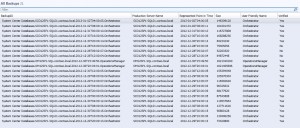
Backup CI
 Relationship between windows server and backup CI

When the runbook is done the service request is updated with some information, which can be read from the Service Manager self-service portal. As you can see the database has been restored to C:\RESTORE on the SCO12SP1SQL-01 server. A very Quick and easy way to roll back a database.

You can download my example files here, 20130103_DPM. Note that this is provided “AS-IS†with no warranties at all. This is not a production ready management pack or solution for your production environment, just a idea and an example.
Runbook servers in different time zones
In this blog post I will try to show how Orchestrator works with schedules and different time zones. In my sandbox I have one runbook server (SCO12SP1-01) in the USA and one runbook server (SCO12SP1-02) in Sweden. I want to configure my runbook to only run between 22 and 23 Monday-Friday. To do this I first create a schedule, in Runbook Designer on my Swedish runbook server where I also have the Runbook Designer console installed. Â Name of the schedule is “22-23 SWE” as I want the runbook to run between 22 and 23 and I created it on my Swedish machine.

Next I have create a small runbook that generates a platform event saying which runbook server it ran on and the local time of that runbook server. I have configured the runbook with the new schedule too.


If we run the following SQL query in the Orchestrator database we can take a look at all schedules
SELECT OBJECTS.Name, SCHEDULES.DaysOfWeek, SCHEDULES.DaysOfMonth, SCHEDULES.Monday, SCHEDULES.Tuesday, SCHEDULES.Wednesday,
SCHEDULES.Thursday, SCHEDULES.Friday, SCHEDULES.Saturday, SCHEDULES.Sunday, SCHEDULES.First, SCHEDULES.Second, SCHEDULES.Third,
SCHEDULES.Fourth, SCHEDULES.Last, SCHEDULES.Days, SCHEDULES.Hours, SCHEDULES.Exceptions
FROM SCHEDULES INNER JOIN
OBJECTS ON SCHEDULES.UniqueID = OBJECTS.UniqueID
WHERE (OBJECTS.Deleted = 0)

For the “22-23 SWE” schedule we can see in the database  the Hours column looks like “000000000040000040000040000040000040000000”. Hours are configured for any day that the schedule permit or deny. The Hours field contains in 7 parts, one for each day of a week. Each part contains of six characters, where the day is divided into 8 hours pieces, so 2 characters represent 8 hours of the day.
- The week = 000000000040000040000040000040000040000000
- Sunday and Saturday =Â 000000 = No hours permitted
- Monday-Friday =Â 000040
- 00 = hours 00-08 (no hours permitted)
- 00 = hours  09-16 (no hours permitted)
- 40 = hours 17-23
- 40 is hex, equals to 01000000 binary = penultimate hour in that time frame is permitted (if it was 23-00 it would look like 10000000)
If I start my runbook 11.32 PM Swedish time it will only run on the Swedish runbook (SCO12SP1-02) server as on the runbook server in the USA local time right now is 1.32 PM.

If I change the schedule to allow only 1-2 PM it will only run on the runbook server in the US.

That means that if you build you schedule for 1-2 AM in Sweden and trigger it on a runbook server in the USA, 1-2 AM is still 1-2 AM local time, no translation between time zones. The evaluation of the schedule is done local on the runbook server. If a runbook server is not allowed to run a runbook due to the schedule the runbook server will still download the runbook and then check the schedule locally.
If a runbook is scheduled to start during an hour that is skipped, due to daylight saving, when the system clock is adjusted forward by one hour, that starting time is skipped, and the runbook starts at the next scheduled time. If a runbook is scheduled to start during an hour that occurs twice because the system clock is adjusted backwards by one hour, the runbook launches twice.
Manage new monitoring by self-service (light MP authoring with a pinch of Orchestrator magic)
A common scenario I often see is that everyone in the IT organisation knows that Operations Manager can monitor everything and fulfill all requirements, but it is to complicated for different expert/administration teams to do anything in Operations Manager. For example if the Exchange team wants to monitor a event they need to ask the Operations Manager team to create the rule. Of course the Operations Manager team don’t have time to do that the same day, instead there is a delay and once the rule is created the Exchange team have already solve it in some other way. The result is that Operations Manager is not used as much as it should be used.
In previous posts I showed how to handle overwrites and groups in Operations Manager with self-service in Service Manager and a bit Orchestrator. In this post I want to share a idea how to handle new monitoring, for example creating new rules from the Service Manager self-service portal.
My example starts with a service request in the Service Manager portal. A engineer goes in a request a new Windows event rule in Operations Manager. The engineer fills in event ID, rule name, which Windows Log, service/system and also alert name. A service request is created and in the service request there is a runbook activity.

The runbook activity trigger a “master runbook”. The runbook first invoke a runbook that will find a suitable management pack, then invoke a runbook to create a new monitor or rule (I have only included the rule part so far), then it invokes a runbook to import the management pack into Operations Manager and finally it invokes a runbook to update the service request.

The 60.3 Find MP runbook will find and return the management pack to use. It use the service parameter from the service request to select management pack. All management packs that are in products are stored in a “production” folder. The “Check if MP exists” activity checks if there is a management pack in that folder for the selected service. If there is, it makes a copy of it to a “archive” folder and returns the file path. If there is not a management pack it will write a new management pack file and return the path of that file. The “Write new MP file” activity will write all the needed XML code to a new XML file, it includes a number of input parameters.

The 60.2 Create Rule runbook will first translate targeting between the service parameter and the target parameter needed in the management pack. In my example I only have one target there, that is Windows 2008 Computer. The runbook then finds the <Rules>,<DisplayStrings> and the <StringResources> sections of the management pack and then adds the new rule. We use “Find” to know where in the management pack, on which line, to insert the new configuration. Each “Add Rule -” activity use input parameters when writing the new rule.


The 60.5 Import MP runs a Powershell script to import the management pack into Operations Manager. The last runbook, 60.4 Update Service Request, will update the service request with some information about the new management pack.

This example shows a way to use the self-service portal in Service Manager to order a new event rule in Operations Manager. Orchestrator builds the new rule in a management pack and import it into Operations Manager. A engineer that don’t know much about Operations Manager can still “author” a new rule and import it into Operations Manager. You could include approval step in the process and you can also include a check on the Orchestrator side to make sure the management pack and the new rule is according to best practices.
You can download my example runbooks here, 60 Create OM Rule , please note that this is provided “as is†with no warranties at all. This is not a production ready management pack or solution for your production environment, just a idea and an example.
vNext of this example could include version handling in each MP, should be easy to build with a couple of counters. Also information about the service request requesting the new management pack version could be included in the management pack description, shown in the Operations Manager console.
Execute a service request at a later date
I received a questions a couple of days ago how to delay a runbook? The scenario was that someone submit a service request in Service Manager which includes a couple of runbook activities, but these runbook activities should not run until two days later. As we don’t want runbooks to be hanging, looping or paused for two days we can’t simple add a “wait two days activity†in a runbook. We also want to see in the service request in Service Manager that we are waiting for Orchestrator, and the service request should not be marked as completed until the runbook activities have run.
There are a number of ways to solve this. In this blog post I will show one where we use multiple runbooks and an external database to store data temporary. The scenario in this example is that you order a server reboot from the self-service portal in Service Manager. In the portal you pick a date and also set a checkbox if the server is an IIS server. Server reboot is only allowed after office hours, in this example around 23:00 every evening. The process is
- You submit a service request from the self-service portal in Service Manager, saying that a server need to be rebooted at a specific day. You also set if this service is a IIS Â or not
- A runbook is triggered and write the service request data into a external database
- The service request moves to next activity which is a manual activity
- Another runbook is running every day at 2300 and checks the external database for reboot jobs that should be executed at that day. If there is a job the runbook reads all the service request details from the external database, restarts the machine and updates the manual activity. If the server is a IIS server some extra steps is executed during the restart


- Monitor Date/Time, trigger the runbook every day at 2300
- Query Database, ask the external database if there are any reboot jobs to execute (SELECT * FROM Reboot WHERE DATE <= GETUTCDATE())
- If there are any rows returned the runbook moves to Restart System. Restart System reboots the target machine, it also sends the service request id to the target machine shutdown tracker.
- Run .Net Script, waits five minutes (Start-Sleep -s 300)
- Get Computer/IP Status, tries to ping the machine. If percentage of packets received is 100 the runbook moves to Query Database (2) else it generates an alert in Operations Manager
- Query Database (2) query the external database if the target machine is a IIS or not. As we use that on the link as condition we need to do the query again. A link can only have a condition based on the previous activity.
- If the target machine is a IIS we check the web server service, if the service is not equals “Service Running” we generate an alert in Operations Manager
- Of the machine is not a IIS or if the web server service is running, we move to Get SR
- Get SR picks up the service request
- Get Relationship gets all related manual activities, in this example we only have one, named “Waiting for Orchestrator to reboot”
- Update Activity, set the “Waiting for Orchestrator to reboot” activity to completed
- The last Query Database activity deletes the reboot job from the external database

Don´t forget to add a couple of activities to handle Operations Manager maintenance mode in your reboot runbooks too 🙂
As a alternative solution you could also create a new custom activity instead of using the default manual activity (example of how to build custom activity can be found here), then have only one runbook that checks every day at 2300 for activities of that class in “ongoing state”. The runbook can read all the settings from the custom activity, for example which server to reboot and when. If “when” is today the runbook reboots the server and marks the activity as completed.
Note that this is provided “AS-IS†with no warranties at all. This is not a production ready management pack or solution for your production environment, just a idea and an example.
Building a change calendar with Orchestrator and Service Manager
A change calendar keeps everyone informed about when changes will be performed and also gives a overview of planned changes in the environment. We handle change requests as work items in Service Manager but there is no change calender out-of-the-box in Service Manager. In this blog post I will show how to build a change calender with a shared calender in Exchange, Service Manager and Orchestrator. The idea is what when a change request is created in Service Manager a appointment is created in a shared Exchange calender. Then all engineers can access that calender and see all planned changes in one view.
The first thing to create is the runbook. The runbook monitor Service Manager for new change request, when there is one, the runbook trigger and create the appointment in Exchange. The runbook is quite small as you can see in the image below.

I use the Exchange Users Integration Pack to create the appointment, download it here. The “Monitor New Change Request” activity is configure to trigger on all new objects of Change Request. The “Create Appointment” activity and the Exchange connector is configured according to the images below.


Below is a image of the result in the shared calender, that every engineer can see from Outlook

Done! It is a very quick and easy solution that will bring a lot of value for many organisations. But what if you want to add something manually? Then you can of course create a appointment manual in Outlook and invite the shared calender, but you could also build a service request and use the self service portal in Service Manager to add that. Include a runbook activity in the service request that create the appointment.

What if you need to delete or update a appointment? The Exchange User integration pack will publish a ID for the item you create, in this case a appointment. Write that ID back to the service request. Then you can create a runbook that monitor change requests for changes, for example status changed to cancelled, and trigger a runbook that delete or update the change request. If you then have the Exchange appointment ID stored on the change request in Service Manager it is easy to pick it up and update/delete the correct appointment, instead of trying to find the correct appointment based on title or start date. In the runbook below I have added a Update Object activity that writes the Exchange ID to the change request.


Orchestrator dashboard in Operations Manager 2012
When you start utilize Orchestrator to integrate between services and execute workflows you soon realize that you need to get an overview of what Orchestrator is actually doing. With the Orchestrator management pack for Operations Manager 2012 you get a good foundation of monitoring the Orchestrator infrastructure, but not that much about what Orchestrator is really doing. If Orchestrator is integrated with Service Manager most runbooks will run as an activity in a work item in Service Manager and then we can use Service Manager Reports to review what has been executed. In this example I will show you how you can build a dashboard in Operations Manager 2012 to show what is going on in Orchestrator.

With Operations Manager we can run a VB script and return the result as performance data. We can then use reports, performance views or dashboards to look at the performance data. In this example I have created a number of rules that runs VB scripts every 15 minute. Each script query the Orchestrator database for some information and sends the result back as performance data to Operations Manager. Some of the rules could be merge together to one SQL query, but as this is only an example and not complete management pack I did not re-wrote that. In Operations Manager I have created a dashboard to show the data.

Each script have an override controlled parameter, Script Arguments, which input Orchestrator database server and Orchestrator database name to the script. My example rules use a run as profile named “Contoso – Orchestrator – DB read account†to configure which account to use when query the Orchestrator database. With default settings, in this example, each query runs every 15 minutes and ask for data for the last hour.


My example dashboard includes five widgets, each widget show a number of performance instances.
- Queue
- Pending Jobs, show number of runbooks with pending status, meaning they are waiting to start
- Top minutes in queue, show number of minutes top 1 job have been in the queue.
- Runbook Results
- Success, show number of runbooks that have ended with success result
- Warning, show number of runbooks that have ended with success result
- Failed, show number of runbooks that have ended with success result
- Runbook Jobs. This widget show number of times each runbook have run with success result. You can easy see which runbook that most often executed. The names you see is the name of the runbook.
- Orchestrator Server Status, show status of my Orchestrator roles. In this sandbox all roles are on the same server, SCO01.
- Orchestrator Alerts show alerts generated by my Orchestrator machine.
You can download my example MP here, NOT SUPPORTED – Contoso.Orchestrator – v2 . Note that this is provided “AS-IS†with no warranties at all. This is not a production ready management pack or solution for your production environment, just a idea and an example.
As always, big thanks to Patrik for support and good discussions around System Center.
Other examples around scripts in rules, generating performance data, can be found here
Job Concurrency in Orchestrator
At each runbook you can configure Job Concurrency, default setting is “1”. The job concurrency setting lets you configure the maximum number of simultaneous jobs, for an individual runbook, so that you can carry out multiple requests for the same runbook at the same time. With the default setting of “1” only one instance of the runbook will run at the same time.
There are some scenario where you need to modify this setting, also a couple of scenario where you should not modify it. For example if you have a runbook working with a counter you should not have multiple runbooks instances running, as they will all affect the same counter. Another example are runbooks that starts with a Monitoring activity, they cannot run multiple instances. Before modifying this setting it is also important to look into what the runbook is doing, if the runbook for example creates a new unique computer name it sometimes will result with multiple computers with the same name.

I did a test with two runbooks, the first runbook trigger the second runbook. 5.1 trigger a new instance every 30 seconds, and invoke the 5.2 runbook. When 5.1 invoke runbook 5.2 it is also pass a timestamp to runbook 5.2. Runbook 5.2 writes the timestamp from runbook 5.1 and a new timestamp to a text file. Runbook 5.2 then sleeps for 3 minutes and ends.


As runbook 5.1 trigger a new instance of runbook 5.2 every 30 seconds, and runbook 5.2 only runs one instances at the same time, there will be a queue. You can check the queue with the following SQL query against your Orchestrator database
SELECT [Microsoft.SystemCenter.Orchestrator.Runtime.Internal].Jobs.Id, [Microsoft.SystemCenter.Orchestrator.Runtime.Internal].Jobs.ParentId,
[Microsoft.SystemCenter.Orchestrator.Runtime.Internal].Jobs.ParentIsWaiting, [Microsoft.SystemCenter.Orchestrator.Runtime.Internal].Jobs.StatusId,
[Microsoft.SystemCenter.Orchestrator.Runtime.Internal].Jobs.CreationTime, POLICIES.Name, DATEDIFF(MINUTE,
[Microsoft.SystemCenter.Orchestrator.Runtime.Internal].Jobs.CreationTime, GETUTCDATE()) AS QueueTime
FROM [Microsoft.SystemCenter.Orchestrator.Runtime.Internal].Jobs INNER JOIN
POLICIES ON [Microsoft.SystemCenter.Orchestrator.Runtime.Internal].Jobs.RunbookId = POLICIES.UniqueID
WHERE ([Microsoft.SystemCenter.Orchestrator.Runtime.Internal].Jobs.StatusId NOT LIKE ‘4’)
AND ([Microsoft.SystemCenter.Orchestrator.Runtime.Internal].Jobs.StatusId NOT LIKE ‘3’)
AND ([Microsoft.SystemCenter.Orchestrator.Runtime.Internal].Jobs.StatusId NOT LIKE ‘2’)
This is a example of the result from the SQL query

- ID is the runbook job instance ID
- ParentID is the job that started this job. As you can see in the image all jobs have a parentID that starts with 45723… that is the 5.1 runbook, the runbook with the Invoke Runbook activity
- ParentIsWaiting is set to “1” if the runbook that trigger this job is waiting until this job is complete. When you configure a Invoke Runbook activity there is “Wait to completion” option, if you check it the parent runbook will wait until the runbook it trigger is completed
- StatusId is current stats of the job.
- 0 = Pending
- 1 = Running
- 2 = Failed
- 3 = Canceled
- 4 = Completed
- CreationTime is when the job was created in the database
- Name is the name of the runbook running
- QueueTime is number of minutes between “NOW” and CreationTime, number of minutes it has been in pending state
Next image is an example of the log file that the 5.2 runbook writes to. As you can see the delay between the runbook was triggered and the time it executed is growing fast when only one runbook instance is allowed to run simultaneous.

Pass information between runbook activity
In Service Manager 2012 we can use runbooks from Orchestrator as activity in for example a service request template. This brings a lot of cool possibilities for automation in your data center. I have blogged a number of examples around this that you can find here on the blog. But in most of the examples I use only one runbook activity, and if I need to use multiple runbooks they are all started from one “master” runbook, not as individual activities in the service request template.  I came across a scenario where we needed to use multiple runbook activities in the same service request template and we needed to pass information between the runbook activities. One benefit with splitting multiple runbooks into multiple runbook activities is that it is easier to track the result in Service Manager, when each step in a complex workflow is its own runbook activity. This also gives the benefit that a Service Manager operator can re-start/re-run a step if needed.
In this blog I will show how you can use two runbook activities in a service request and pass information from runbook activity one to runbook activity two. We will also see how the result from both runbook activities can be published in the service request and self-service portal. In my demo example the first runbook generates an “account name” and the second runbook generates a “phone number”.
Each instance of a runbook activity have a number of “generic/blank” fields that we will use to store the result, they are for example named TEXT1 to TEXT10. Why not store the result in the Service Request? Even if the service request have some fields I could use I don’t want to do that as it would be difficult to remember what result I store in which property. An alternative would be to extend the service request class, but that would result that all kind of service requests would get those new properties, as they use the same service request class.
The first runbook, in this example named 12.1, has one input parameter which is the runbook activity ID. The runbook then generates an account (random 4 characters) and returns account name back to Service Manager.

In Service Manager I have configured that OUT from this runbook should be written to the TEXT1 field of the runbook activity instance. This is done in the service request template, on the runbook activity.

The second runbook, in this example named 12.2, have one input parameter which is the runbook activity ID. The runbook then generates a phone number (random numbers). Then it gets a bit more complicated 🙂
- Get Related Service Request. This activity use the input parameter, the runbook activity instance ID, to get the related Service Request.
- Get Service Request. This activity gets the Service Request that the previous activity found
- Get Related Runbook Activities. This activity finds all related runbook activities to the service request. We need to do this as we need to find the first runbook activity and read the TEXT1 field.
- Get Runbook Activities. The “Get Related Runbook Activities” will return all related runbook activities, in this example there are two runbook activities in the service request. The link after the “Get Runbook Activities” activity is configured with a filter to only continue with the runbook activity that that a specific title. This title is the title you configure in the service request template.
- Update Imp Result. This activity update the service request with both a implementation result and an new description. Implementation result and description are both visible in the Service Manager console. The description field is also visible in the self-service portal.


SQL query to show last result for each runbook
The following SQL query will show you last result for each runbook. The query will also show you when it started and ended, and at which runbook server.
SELECT PI.Status, POLICIES.Name, PI.TimeEnded, PI.TimeStarted, PI.Computer
FROM POLICIES
INNER JOIN
(SELECT PI1.PolicyID, PI1.TimeStarted, PI1.TimeEnded, PI1.Status,
ACTIONSERVERS.Computer
FROM PolicyInstances AS PI1
INNER JOIN ACTIONSERVERS ON PI1.ActionServer = ACTIONSERVERS.UniqueID
WHERE PI1.TimeEnded = (SELECT MAX(PI2.TimeEnded) FROM PolicyInstances AS PI2 WHERE PI2.PolicyID = PI1.PolicyID)
) AS PI ON PI.PolicyID = Policies.UniqueID
WHERE (POLICIES.Deleted = 0) AND (POLICIES.CheckOutUser IS NULL)
a example of the result

Recent Comments