Home » Articles posted by Anders Bengtsson (Page 33)
Author Archives: Anders Bengtsson
 Look for new databases (...with a pinch of DPM)
 Ops Mgr 2007 R2 RC at Connect
Script: Notification Logfile
I have seen a number of questions regarding notification log on the root management server (RMS). Unfortunately this is not a standard function, instead you have to look in the logfile of the mailserver, if it is SMTP notification. But there is a lot of operations manager administrators who don´t have access to the mailserver or the SMTP logfiles. I have written a script to show you a solution to this, a script that will create a local notification logfile on the RMS.
Â

Â
Recipient – Configure your recipients with a notification device that use this channel. When you setup the notification channel, you input a name, use this as channel for the notification device. Input the recipient e-mail address as delivery address for the selected channel.
Notifiation Channel – Setup a new command notification channel. This is the settings I use in my lab
Notification command channel name: VBLogFile
Full path to file: c:\windows\system32\cmd.exe
Command line parameters: /c C:\send_mail.vbs “$Data/Context/DataItem/AlertName$” “$Data/Context/DataItem/ManagedEntityPath$\$Data/Context/DataItem
/ManagedEntityDisplayName$” “$Data/Context/DataItem/AlertDescription$” “$Data/Context/DataItem/LastModifiedBy$” “$Data/Context/DataItem/Severity$” “$Data/Context/DataItem/Priority$” “$Data/Context/DataItem/ResolutionStateName$” “$Data/Recipients/To/Address/Address$”
Intial directory: C:\
Note that all Ops Mgr parameters are between ” “, else the script will not work if the parameter includes a blank space. With my example settings the script has to be C:\send_mail.vbs and the logfile will be created in the same directory.
The script , send_mail.vbs, will get a number of parameters from the command notification channel. It will then translate severity and priority into words and send the mail. After that it output some data variables to the logfile, psmgr_notification_logfile.txt.
You should change strFROM and strSMTP. strFROM is the sender e-mail address and strSMTP is the FQDN of your mailserver.
You can download the script here.
If you want to add more parameters, there are a lot of them at Kevin Holman’s webpage, here.
Ops Mgr Tools
Here are a some tools that is useful to know about when working with Ops Mgr 2007:
- Create URL Monitor, script to create url monitors, download
- Agent MM, a command line tool to place OpsMgr agents into Maintenance mode, download
- Creating overrides using the SDK, download
- DumpMpContents, dump the contents of a management pack, download
- GroupMM, takes a group and puts all the computers in the group, download
- MP2XMLDUMPER, export MP to XML, download
- MPTOXML, Converting a sealed management pack to readable XML, download
- MPViewer, show the contents of a management pack, for example rules, monitors, views, tasks, console tasks and reports, download
- OpsMgr 2007 Database and Data Warehouse Size Calculator, download
- Agent Proxy Configuration Tool, download
- ProxySettings, enabling proxying for agents, download
- Run As profile configuration helper, configure a RunAs profile for agents in bulk, download
- Counts and displays the number of security events generated every second, download
- How to specify which RunAs account to use for a particular RunAs profile on a particular agent, download
Thanks to Stuart B. Renes for the list.
Notification Scenarios
I have seen a number of questions about different notifiation scenarios. I thought I could write down a comment to some of the most comment ones.
All alert for all machines within a group
In the “create new subscription wizard” unselect all groups and then select only the group including the current machines. Then select all classes and all alert criterias.
All alerts for a specified technology
In the “create new subscription wizard” unselect all classes and then select the current technology. For example if you want all alerts related to Active Directory, select all Active Directory classes.
All alerts for a specified technology on a specifyed machines
In the “create new subscription wizard” unselect all groups and then select only the group including the current machines. Then select all classes and all alert criterias. Unselect all classes and then select the current technology. For example if you want all alerts related to Exchange, select all Exchange classes.
All alerts an special alert
This in not as easy as in MOM 2005. But you can still solve it. Please take a look at this post and this post.
All alerts for all machines within a OU
Please take a look at this post.
All alerts for all machines within a AD Site
Start by create a new group within Ops Mgr. Configure dynamic members, select the Windows Computer class and choose Active Directory Site as property. The query formula should look something like this ( Object is Windows Computer AND ( Active Directory Site Equals Paris ) AND True ) . In this example the AD site is named Paris. In the “create new subscription wizard” unselect all groups and then select only the group including the current machines. Then select all classes and all alert criterias.
Â
Pete and I wrote a guide about configure notification in Ops Mgr, you can read it here. If you need to configure notification on heartbeat failure, please take a look at this post. I have also written posts about alert aging and SMS notification.   Â
Â
Operations Manager 2007 Service Pack 1 (SP1) Now Available
Ops Mgr SP1 RTM is here! You can download it from the links below. Please read the Upgrade Guide before you start deploying SP1.
- Operations Manager 2007 Service Pack 1 Upgrade Package, link
- System Center Operations Manager 2007 Service Pack 1 Evaluation Edition, link
- What’s New in Operations Manager 2007 Service Pack 1 , link
- List of issues that are fixed in System Center Operations Manager 2007 Service Pack 1, link
- Upgrade Paths, link
If you want to discuss the service pack please join the SP1 news group at microsoft.public.opsmgr.sp1 at news.microsoft.com. I recommend JetBrains Omea Readers as news group reader, you can download it here. More information about Microsoft news groups here.
SMS Notification
With Short Message Service (SMS) you can easy send messages (max 160 characters) to mobile phones. Messages can be textual (alphanumeric) or binary. These are the four steps you setup notification with SMS:
- Configure a GSM modemÂ
- Configure SMS notification channel
- Configure notification recipients
- Configure notification subscription
A GSM modem can be any normal mobile phone, as long as your RMS server founds it as a modem in the Operating Systems. I tried this with a ordinary Sony Ericsson mobile phone, connected to the RMS through a USB cable. Simple connect the phone and install suitable drivers. When planning this, make sure there are drivers for your platform, for example I couldn’t found any X64 drivers for my phone. All notification are sent from the RMS. Of course you could build a script that RMS triggers with command notification that send SMS from another machine. A tool that might be useful then is Microsoft SMS Sender.Â
To configure a SMS notification channel you simple click “Enable short message services notifications”, under Administration/Settings/Notification and the Short Message Service tab, in the console.
Create a notification recipient under Administration/Notifications/Recipients. Add a notification device that use the short message service channel.
Create a notification subscription and add your new notification recipient to it. One thing that you might want to modify is the SMS format. Check the “Use custom SMS format” on the Formats page, and then modify the subject line, in the subscription properties wizard.Â
Plan your SMS notification careful so you don’t send out hundreds of SMS to all mobile phones. When configure your notification recipients with SMS device you can configure schedule, one idea can be that the SMS device is only available during non-office hours. During office hours you can most probable receive notification with e-mail.
Happy SMSing!
Alert Aging
There is a couple of different theories posted in forums about alert aging and notification subscriptions. I will try to explain how alert aging works.
During configuration of a new subcriptions you can configure alert aging notification option. You will then get a notification if an alert that meets all other subscription criteria remains in any alert resolution state checked on the alert criteria page for longer than X minutes. For example, if you select NEW under alert criteria and input 10 minutes on the alert aging page you will get a notification if an alert remains in criteria NEW for 10 minutes.
Please note that there will be ONE notification sent to you, not two or three or once every X minute, only one notification, after X minutes.
For example if you have a team of operators watching the console and you want to make sure them don´t miss an alert, so you configure a subscription for second line engineers with alert aging. If your operators dont do anything (for example change resolution state) on the alert for X minutes, you want to send it direct to second line. These second line engineers will get only one notification, it is there for very important that you plan your alert flow. For example don´t send notification e-mails to a personal mailbox, send it to a function or role, which is always supervised.
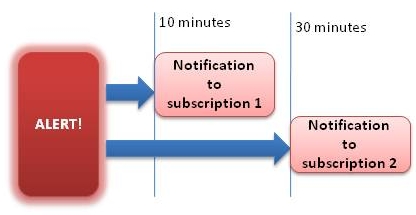
If you want to escalate your alerts to multiple levels you will have to create multiple notification subscriptions. For example first one after 10 minutes and then a second subscription that will send notification to 3rd line if no one does anything with an alert within 30 minutes.
Â
Â
Pete and I updated our guide on configuration of notification in Ops Mgr 2007. The updated version includes steps for configuration of self-service notification as review of enhancements in the notification engine. You can download the new version here
The AD Role Holders Report
A short post about one of the AD MP Reports:
According to the detaljs for the AD role holders report in the Active Directory management pack you should choose the “Active Directory Domain Controller Computer Role” as object type. Unfortunately this object dont work. Instead you should click “Add Group” and add the “Active Directory Forest” object type.
[Swedish] Experternas arena @ Microsoft.se
Jag har fått möjlighet att köra en frågespalt på Svenska Microsoft Technet webben. Mitt område är System Center. Besök min spalt och de andra experternas spalter här. De andra experterna är bla Marcus Murray (IT-säkerhet), Johan Arwidmark (Deployment) och Joachim Nässlander (Windows Server 2008). Har ni någon bra fråga, tveka inte att skicka in den!
När jag är igång och skriver om svenska nyheter vill jag passa på och tipsa om en övergripande System Center utbildning. Den innehåller Operations Manager 2007, Configuration Manager 2007, Data Protection Manager 2007 och ger en inblick i Service Manager, mer info här.
Ideas about FTP monitoring
You can monitor a IIS FTP site with the Internet Information Services (IIS) Management Pack. But that management pack only monitor the FTP from the server side. I received a couple of questions how to monitor a FTP from the client side. You can do that with a vbscript, but if you are not that into scripting you can solve it like this:
You can setup a port check. TCP Port check easy to add with the monitoring wizard under management pack templates.
You can also create a FTP.EXE script that logon to your FTP server and perform a number of commands. ftp.exe is a built-in FTP tool in Windows. If you run it with the -s: parameter you can specify a script. You can also use the -d parameter to turn on debug and then the dump the result to a logfile with >>ftpcheck.log. That logfile you can check with a rule or monitor from Ops Mgr. Example
ftp.exe -d -s:ftpscript.ftp >>ftp_log.log
You can run the complete command from a Timed Commands/Execute a command rule. You can then create a Alert Generating Rules/Event Based/Generic Text Log (Alert) rule to monitor that ftp_log.log file. In this post you can read how to setup a rule to check a logfile. Your ftpscript.ftp file can look like this
open 10.1.1.1

loginname

Password

binary

send contoso-test-file.txt

get contoso-test-file.txt

bye
As you can see, it is normal FTP commands inside that file. If you want to only test download a file from a FTP and dont want to check the ftp_log.txt file, you can check when the downloaded file was last updated, according to this post. You can also use this script to search your logfile for words, and generate events.
Converting MOM 2005 Biztalk 2004 MP
Yesterday I needed a Biztalk 2004 management pack for Ops Mgr 2007. The only Biztalk managamange pack available in the System Center Operations Manager 2007 catalog is for Biztalk 2006. I converted the MOM 2005 Biztalk 2004 MP to Ops Mgr 2007 format, according to Petes guide. But, when I tried to import the management pack into Ops Mgr 2007 I recived a error saying “XSD verification failed for management pack”. I then downloaded XML Notepad 2007 and took a look at the XML file. The NAME field included a lot of spaces, I removed them and wrote Biztalk2004 in the NAME field instead. After that there was no problem importing the Biztalk 2004 management pack into Ops Mgr 2007.
Recent Comments