Home » System Center Operations Manager 2007 (Page 11)
Category Archives: System Center Operations Manager 2007
SMS Notification
With Short Message Service (SMS) you can easy send messages (max 160 characters) to mobile phones. Messages can be textual (alphanumeric) or binary. These are the four steps you setup notification with SMS:
- Configure a GSM modemÂ
- Configure SMS notification channel
- Configure notification recipients
- Configure notification subscription
A GSM modem can be any normal mobile phone, as long as your RMS server founds it as a modem in the Operating Systems. I tried this with a ordinary Sony Ericsson mobile phone, connected to the RMS through a USB cable. Simple connect the phone and install suitable drivers. When planning this, make sure there are drivers for your platform, for example I couldn’t found any X64 drivers for my phone. All notification are sent from the RMS. Of course you could build a script that RMS triggers with command notification that send SMS from another machine. A tool that might be useful then is Microsoft SMS Sender.Â
To configure a SMS notification channel you simple click “Enable short message services notifications”, under Administration/Settings/Notification and the Short Message Service tab, in the console.
Create a notification recipient under Administration/Notifications/Recipients. Add a notification device that use the short message service channel.
Create a notification subscription and add your new notification recipient to it. One thing that you might want to modify is the SMS format. Check the “Use custom SMS format” on the Formats page, and then modify the subject line, in the subscription properties wizard.Â
Plan your SMS notification careful so you don’t send out hundreds of SMS to all mobile phones. When configure your notification recipients with SMS device you can configure schedule, one idea can be that the SMS device is only available during non-office hours. During office hours you can most probable receive notification with e-mail.
Happy SMSing!
Alert Aging
There is a couple of different theories posted in forums about alert aging and notification subscriptions. I will try to explain how alert aging works.
During configuration of a new subcriptions you can configure alert aging notification option. You will then get a notification if an alert that meets all other subscription criteria remains in any alert resolution state checked on the alert criteria page for longer than X minutes. For example, if you select NEW under alert criteria and input 10 minutes on the alert aging page you will get a notification if an alert remains in criteria NEW for 10 minutes.
Please note that there will be ONE notification sent to you, not two or three or once every X minute, only one notification, after X minutes.
For example if you have a team of operators watching the console and you want to make sure them don´t miss an alert, so you configure a subscription for second line engineers with alert aging. If your operators dont do anything (for example change resolution state) on the alert for X minutes, you want to send it direct to second line. These second line engineers will get only one notification, it is there for very important that you plan your alert flow. For example don´t send notification e-mails to a personal mailbox, send it to a function or role, which is always supervised.
If you want to escalate your alerts to multiple levels you will have to create multiple notification subscriptions. For example first one after 10 minutes and then a second subscription that will send notification to 3rd line if no one does anything with an alert within 30 minutes.
Â
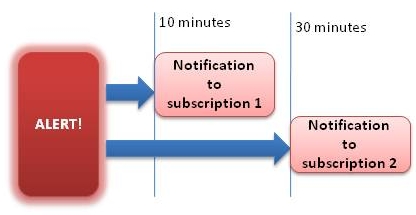
Â
Pete and I updated our guide on configuration of notification in Ops Mgr 2007. The updated version includes steps for configuration of self-service notification as review of enhancements in the notification engine. You can download the new version here
The AD Role Holders Report
A short post about one of the AD MP Reports:
According to the detaljs for the AD role holders report in the Active Directory management pack you should choose the “Active Directory Domain Controller Computer Role” as object type. Unfortunately this object dont work. Instead you should click “Add Group” and add the “Active Directory Forest” object type.
Ideas about FTP monitoring
You can monitor a IIS FTP site with the Internet Information Services (IIS) Management Pack. But that management pack only monitor the FTP from the server side. I received a couple of questions how to monitor a FTP from the client side. You can do that with a vbscript, but if you are not that into scripting you can solve it like this:
You can setup a port check. TCP Port check easy to add with the monitoring wizard under management pack templates.
You can also create a FTP.EXE script that logon to your FTP server and perform a number of commands. ftp.exe is a built-in FTP tool in Windows. If you run it with the -s: parameter you can specify a script. You can also use the -d parameter to turn on debug and then the dump the result to a logfile with >>ftpcheck.log. That logfile you can check with a rule or monitor from Ops Mgr. Example
ftp.exe -d -s:ftpscript.ftp >>ftp_log.log
You can run the complete command from a Timed Commands/Execute a command rule. You can then create a Alert Generating Rules/Event Based/Generic Text Log (Alert) rule to monitor that ftp_log.log file. In this post you can read how to setup a rule to check a logfile. Your ftpscript.ftp file can look like this
open 10.1.1.1

loginname

Password

binary

send contoso-test-file.txt

get contoso-test-file.txt

bye
As you can see, it is normal FTP commands inside that file. If you want to only test download a file from a FTP and dont want to check the ftp_log.txt file, you can check when the downloaded file was last updated, according to this post. You can also use this script to search your logfile for words, and generate events.
Converting MOM 2005 Biztalk 2004 MP
Yesterday I needed a Biztalk 2004 management pack for Ops Mgr 2007. The only Biztalk managamange pack available in the System Center Operations Manager 2007 catalog is for Biztalk 2006. I converted the MOM 2005 Biztalk 2004 MP to Ops Mgr 2007 format, according to Petes guide. But, when I tried to import the management pack into Ops Mgr 2007 I recived a error saying “XSD verification failed for management pack”. I then downloaded XML Notepad 2007 and took a look at the XML file. The NAME field included a lot of spaces, I removed them and wrote Biztalk2004 in the NAME field instead. After that there was no problem importing the Biztalk 2004 management pack into Ops Mgr 2007.
Links during January
- Tool: What’s in my management pack? Dump the contents of a management pack. Link
- Download: Microsoft System Center Essentials 2007 VHD, link
- DOC: System Center Data Protection Manager 2007 System Requirements, link
- Video: System Center Operations Manager 2007 Service Pack 1 Training Videos, link
- Info: Support plans for OpsMgr 2007, SCE and MOM 2005 running on Windows Server 2008, link
- KB: When you restart Root Management Server, the Health Service does not start in System Center Operations Manager 2007, link
- KB: Event ID 2115 is logged, and a management server generates an “unable to write data to the Data Warehouse” alert in System Center Operations Manager 2007, link
- KB: The System Center Operations Manager 2007 reporting feature and the System Center Essentials 2007 reporting feature do not work correctly when you configure SQL Server 2005 Reporting Services to run in SharePoint integrated mode, link
- KB: Error message when you try to remove the System Center Operations Manager 2007 database role: “Error 1324. The folder path ‘Microsoft SQL Server’ contains an invalid character”, link
- KB: The Root Management Server encryption key is unavailable after you replace or reinstall the Root Management Server server in Microsoft System Center Operations Manager 2007, link
- KB: You do not see the additional alert criteria that you selected when you view the properties of a subscription in Microsoft System Center Operations Manager 2007, link
- KB: Registry entry names that contain a backslash character (\) are considered as part of the registry path when you use Registry probe, link
- KB: How to monitor disk performance on Windows 2000 Servers by using System Center Operations Manager, link
- KB: When many alerts occur at the same time, Notification Workflow Solution Accelerator version 2.1 does not send notifications in MOM 2005, link
- KB: When you select many items in any of the views, some action tasks that you typically expect may not be available in Operations Manager 2007, link
- KB: The CPU percentage Utilization monitors do not work on a Windows 2003 server, link
- KB: Exchange server cannot be detected as “back-end†server, link
- KB: Gateway server is not working properly after installation, link
- KB: Exchange MP Reports – “Top 100” Returns ‘Blank’, link
- MP: Microsoft SharePoint Portal Server 2003 Management Pack, link
- MP: Information Worker Management Pack, link
- MP: Microsoft Windows Server 2000/2003 Terminal Services Management Pack, link
- MP: Microsoft Windows SharePoint Services 2.0 (2003) Management Pack, link
- MP: Microsoft Windows Server 2000/2003 Operating System Management Pack, link
- MP: System Center Operations Manager 2007 Management Pack Update, link
- MP: Microsoft Windows Client 2000/XP Operating System Management Pack, link
- MP: Microsoft Windows Server 2000/2003 Active Directory Management Pack, link
- MP: Microsoft Exchange Server 2003 Management Pack, link
- MP: Microsoft Windows Server 2000/2003 Internet Information Services Management Pack, link
- MP: Intel Active Management Technology Management Pack, link
- MP: Microsoft® System Center Data Protection Manager 2007 Management Pack for Microsoft Operations Manager 2005, link
- MP: System Center Operations Manager 2007 Configuration Pack for Configuration Manager 2007, link
TS: Microsoft System Center Operations Manager 2007, Configuring
Finally the Microsoft System Center Operations Manager 2007, Configuring exam is live and public. If you pass you will be a Microsoft Certified Technology Specialist (MCTS): System Center Operations Manager 2007, Configuration. You can read about the exam here. Good Luck!
Check passwords about to expire
I have written a small script that check if account passwords are about to expire. If they are, you get a event in the local event viewer. You can pick up that event with Ops Mgr and MOM and then generate a alert for your operators and/or administrators. You can download the script here.
Default settings are that you will get a event if the password will expire within 20 days and the script checks all user objects within this OU OU=Service Accounts,OU=Contoso EMEA,DC=emea,DC=corp,DC=contoso,DC=localÂ
MS50028 Managing System Center Operations Manager 2007
This week I have been teaching the new “Managing System Center Operations Manager 2007” course. It is a 5-day course with a mix of theory, instructor led teaching and hands on labs. My understanding is that we were first in the world to carry out this course, outside Microsoft. It was a very instructive week and I want to thank all students, Swedish as well as international participants, for great discussions.
This course contains the following headings:
- Module 1:Â Installing System Center Operations Manager 2007
- Module 2: Using the Operations Console
- Module 3: Configuring Management Group and Agent Settings
- Module 4: Agent Installation
- Module 5: Management Packs
- Module 6: Reporting
- Module 7: Agentless Exception Monitoring
- Module 8: Audit Collection Services
- Module 9: Using Operations Manager 2007 Command shell
- Module 10: Complex Environments
- Module 11: Migrating from MOM 2005 to Operations Manager 2007
The course is preparing for the 70-400 exam, MCTS (Microsoft Certified Technology Specialist): System Center Operations Manager 2007, Configuration.
If you have any questions regarding this course or other System Center courses, send me a e-mail.
ACS Collector Performance Counters
After you have implement Audit Collection Services in your environment you must start monitor the collector. There is a number of performance counters that can help you with this:
- Connected Clients
- Database Queue % Full
- Database Queue Backoff Threshold in %
- Database Queue Disconnect Threshold in %
- Database Queue Length
- DB Loader Event Inserts/sec
- DB Loader Principal Inserts/sec
- DB Loader String Inserts/sec
- DB Principal Cache Hit %
- DB Request Queue Length
- DB String Cache Hit %
- Event time in collector in milliseconds
- Incoming Events/sec
- Interface Audit Insertions/sec
- Interface Queue Length
- Registered Queries
If you want to collect this performance data and review it for analyse and plannig, you can first create a collection rule and then a performance view.
- Start the console, click Authoring
- Right-click Rules and choose to create a new rule
- Rule Type: Choose to create a Collection Rules/Performance Based/Windows Performance. Click Next
- General: Input a rule name, description and choose “Microsoft Audit Collection Services Collector” as rule target, then click next.
- Performance Counter: input “ACS Collector” as object. If you want to collect for example number of events inserted in the database per second, select “DB Loader Event Inserts/sec” as counter. Select “Include all instances for the selected counter”. Configure the interval and then click Next
- Optimized Collection: Choose to use optimization or not, click Create
If you want to view the collected data you can create a performance view, and configure it to show data related to “Microsoft Audit Collection Services Collector”.
Recent Comments