Home » Articles posted by Anders Bengtsson (Page 24)
Author Archives: Anders Bengtsson
50217 – Planning and Deploying Microsoft System Center Service Manager 2010
Microsoft Learning will release a Service Manager 2010 four-day instructor-led (classroom) course in the beginning of next year. I will deliver this course in Sweden, if you have any questions about the course or want to attend, send me a e-mail at andersATcontosoDOTse . We are planning to deliver this course during Q1 2010.
This four-day instructor-led course provides students with knowledge and skills to plan, install and configure System Center Service Manager. It starts with a one-day workshop on the Microsoft Operations Framework and other methodologies for planning and deploying service management solutions, and then goes deeper into implementing, configuring and integrating Service Manager with other System center products . It also focuses on how IT processes such as MOF & ITIL processes can be implemented side by side with Service Manager.
- Day 1: Using the Microsoft Operations Framework to Set the Baseline for a Service Manager 2010 Implementation
- How MOF and ITIL Processes Support System Center Service Manager
- Change Management
- Configuration Management
- Service Desk
- Incident Management
- Problem Management
- Reviews and Reports
- Policy and Process exercises
- Day 2: Planning a System Center Service Manager 2010 Deployment
- Organizational analysis
- Planning and architecture design
- Deploying Service Manager
- Day 3: Configuring and troubleshooting system center service manager 2010
- Configurations Management and Connectors
- Service Manager Management Packs
- User Roles and Functions
- Troubleshooting Service Manager
- Day 4: Operating and Maintaining System Center Service Manager 2010
- Operating and using the product
- Data Warehouse and reporting
- Self Service Portal
- Maintaining Service Manager
Where did I put my distributed application?
When you create a new distributed application you need to select a management pack to store it in. If you later would like to see in which management pack you stored it, it can be difficult to find a way in the console. But there is at least one way:
- Navigate to Authoring, Distributed Applications
- Right-click the distributed application and select Edit… from the menu
- Â In the Distributed Application Designer Window, select a component group
- In the component group details pane, click Configure Health Rollup
- In the Override Properties window, you will see the management pack under “select destination management pack”


DPM 2010 – SQL Server End-user recovery
Data Protection Manager (DPM) 2010 (currently in beta) allows backup administrators to authorize SQL Server database owners to recover their databases without intervention from the backup administrator.
To do this, the DPM administrator must create and manage DPM roles. A DPM role allows backup administrators to control what an end-user can recover and which instances of SQL Server they can recover to. A DPM role for SQL Server End-User Recovery (SQL Server EUR) includes the following:
- Users: A security group that represents a set of end users.
- Objects: SQL Server databases that can be recovered and instances of SQL Server that have been identified for an alternate instance recovery.
- Recovery permissions for alternate instance recovery, which a DPM administrator uses for managing SQL Server EUR functionalities used by end-users.
Â
Source: DPM 2010 beta documentation
The first thing you need to do is to install the SQL Server end-user recovery client on the protected machine, in this example hq-opsmgr28. The EUR client application enables end-users to perform recoveries of databases.

After that you need to create a role, that is done, in the current beta, with DPM Command shell. The following example creates a role named “Operations Manager SQL”.
$Role = New-DPMRole -name “OpsMgrSQL” -description “Operations Manager SQL” -DPMServerName HQ-DPM55
Add-DPMSecurityGroup -DPMRole $Role -SecurityGroups “Hq\OpsMgrSQL”
$DatabaseForEndUserRecovery = $null
$ListOfPGs = Get-ProtectionGroup -DPMServerName HQ-DPM55
$ListOfPGs | ForEach-Object {if ($_.FriendlyName -eq “SQL Protection Group”) {$PG = $_; break }}
$DatasourceInPG = Get-Datasource $PG
$DatasourceInPG | ForEach-Object {if ($_.LogicalPath -eq “HQ-OPSMGR28\OperationsManager”) {$DatabasesForEndUserRecovery +=,$_}}
Add-DPMRecoveryItem -DPMRole $Role -type SQLDatabase -datasource $DatabasesForEndUserRecovery
Add-DPMRecoveryItem -DPMRole $Role -type SQLInstance -sqlinstances “HQ-OPSMGR28”
$RecoveryTargetInstance = New-DPMRecoveryTarget -Type SQLINSTANCE -RecoveryTarget “HQ-OPSMGR28\Recovery” -RecoveredFilesPath C:\TEMP
Add-DPMRecoveryTarget $Role $RecoveryTargetInstance
Set-DPMRole -DPMRole $Role
This script will create a new role named OpsMgrSQL. It will add the security group HQ\OpsMgrSQL to this role. Get the list of protection groups and all data sources in SQL Protection Group, and then add the OperationsManager database to the list of databases we want to allow the role to recover . Then add the list to the role as recovery item. Add the required instance whose database we want to recover, and add the target instance and recovery target. Finally we save the role.
Members of the HQ\OpsMgrSQL group can now connect to the DPM server HQ-DPM55 and restore the OperationsManager database (from the hq-opsmgr28 server). The OperationsManager database is protected by the SQL Protection Group and can be restored to the HQ-OPSMGR28\Recovery SQL instance only.
From the end-user recovery wizard, in the protected server, the end-user can now recover the database

Â

Â

Â


Â
The OperationsManager database is restored and back online again. Performed by the SQL administrators without any delay or wait for backup administrators.
Check last successful full backup of Exchange 2007
I found a nice script from Scott that reports on last successful full backup of Exchange 2007. If you want to do that from Operations Manager 2007 you could modify the power shell script a bit.. The power shell script below checks when last full backup was made, it checks for the presence of storage groups and databases within them. You could store the script at your Exchange mailbox servers, in for example C:\temp\LastBackupReport.ps1, and then call it from a monitor with a vbscript.
$iNomHours = “1” #Enter number of hours since last backup that requires attention
if (-not (Get-PSSnapin Microsoft.Exchange.Management.PowerShell.Admin -ErrorAction SilentlyContinue))
 {Add-PSSnapin Microsoft.Exchange.Management.PowerShell.Admin}function BackupStatus
 {
 param($db)
 $sBackupRunning = “”
 $sCMStatus = $sCheckMark
 #Note if backup is currently running
 If ($db.BackupInProgress -eq $true)
  {$sBackupRunning = “(Backup In Progress)”}
 #Determine if backup has ever completed
 If ($db.LastFullBackup -ne $null)
  {
  $sBackupDay = $db.LastFullBackup.get_DayofWeek()
  $sBackupDateTime = $db.LastFullBackup.ToString(“g”)
  #Flag if last completed backup started over 1 hours ago
  If (($date – $db.LastFullBackup).TotalHours -gt $iNomHours)
   {
   $sLastBackup = “Last Backup Started: ” + $sBackupDay + “, ” + $sBackupDateTime
   $sCMStatus = “”
   $script:bAlert = $true
   }
  Else
   {
   $sLastBackup = “Last Backup Started: ” + $sBackupDay + “, ” + $sBackupDateTime
   }
  }
 Else
  {
  $sLastBackup = “No full backup has completed yet”
  $sCMStatus = “”
  $script:bAlert = $true
  }
 $script:sOutput += “” + $sSpace + $sSpace + $db.Name + ” ” + `
  $sLastBackup + “” + $sCMStatus + ” ” + $sBackupRunning + “”
 }$date = Get-Date
$sSpace = ” ”
$sOutput = “indicates that no backup started within the configured timeframe, which is ” + $iNomHours + ” hours.”#Retrieve Exchange servers with mailbox role
$ExServer = Get-ExchangeServer | where {$_.IsMailboxServer -eq $True} | Sort-Object Name
Foreach ($server in $ExServer)
 {
 $sOutput += $server
 #Retrieve storage groups for a given server
 $StorageGroup = $server | Get-StorageGroup | Sort-Object Name
 #Check for absence of any storage groups
 If (($StorageGroup | Measure-Object Name).Count -eq $null)
  {
  $sOutput += $sSpace + “No storage groups present.”
  }
 Else
  {
  Foreach ($sg in $StorageGroup)
   {
   $sOutput += $sSpace + $sg.Name
   #Retrieve mailbox databases for a given storage group
   $MailboxDatabase = $sg | Get-MailboxDatabase -Status | Sort-Object Name
   $PFDatabase = $sg | Get-PublicFolderDatabase -Status
   #Check for absence of any databases in storage group
   $bMdbExist = ($MailboxDatabase | Measure-Object Name).Count -ne $null
   $bPFExist = ($PFDatabase | Measure-Object Name).Count -ne $null
   If ((!$bMdbExist) -and (!$bPFExist))
    {
    $sOutput += $sSpace + $sSpace + “No databases in storage group.”
    }
   Else
    {
    if ($bMdbExist)
     {
      Foreach ($mdb in $MailboxDatabase)
      {
      BackupStatus $mdb
      }
     }
    if ($bPFExist)
     {
     BackupStatus $PFDatabase
     }
    }
   }
  }
 }
$sOutput += “”
If ($bAlert -eq $true)
 {
 Write-host “Attention Required”
 Write-Host $bAlert
 Write-host $sOutput
 }
Else
 {
 Write-host “All ok”
 }
Â
Â
The VB script below is used in a timed script two state monitor
pscommand = “C:\temp\LastBackupReport.ps1”
cmd = “powershell.exe ” & pscommand
Set shell = createObject(“Wscript.Shell”)
Set executor = shell.exec(cmd)
executor.StdIn.Close
varPSResult = executor.StdOut.ReadAll
varString = InStr(varPSResult, “True”)
Dim oAPI, oBag
Set oAPI = CreateObject(“MOM.ScriptAPI”)
Set oBag = oAPI.CreatePropertyBag()
Call oBag.AddValue(“varPSResult”,varPSResult)
If varString > 1 Then
Call oBag.AddValue(“Backup”,”Error”)
Call oAPI.Return(oBag)
Else
Call oBag.AddValue(“Backup”,”Ok”)
Call oAPI.Return(oBag)
End If
Settings for the monitor (Timed Script Two State Monitor)
- General. Monitor target: Exchange 2007 Standalone Mailbox Role
- Schedule. Run every X hours
- Script. File Name: ExchangeBackup.vbs
- Script. Timeout:Â 2 Minutes
- Script. Paste the script in
- Unhealthy Expression: Property[@Name=’Backup’] Does not equal Ok
- Healthy Expression: Property[@Name=’Backup’]Â Equal Ok
- Alerting. check Generate alerts for this monitor
- Alerting. Alert description: $Data/Context/Property[@Name’varPSResult’]$ No backup for the last X hours
Query a database from a task
I have seen a number of questions where Operations Manager operators would like to have more info about windows machines in the console. You could include info in the console with a new management pack, but if you already have it in another database, it would be easier to query that database direct. I have written a script that will take a machine name (prinicipal name) and query a database for more information it.

Â
The script
‘## Get parameter (computer name) into the script
set oArgs=wscript.Arguments
‘## Query the database for info
Const adOpenStatic = 3
Const adLockOptimistic = 3Set oAPI = CreateObject(“MOM.ScriptAPI”)
Set oBag = oAPI.CreatePropertyBag()Set objConnection = CreateObject(“ADODB.Connection”)
Set objRecordSet = CreateObject(“ADODB.Recordset”)objConnection.Open _
“Provider=SQLOLEDB;Data Source=hq-opsmgr28;” & _
“Trusted_Connection=Yes;Initial Catalog=databasename_here;” & _
“User ID=domai\username;Password=Password_here;”objRecordSet.Open “SELECT * FROM machines WHERE FQDN LIKE ‘%” & oArgs(0) & “%'”, _
objConnection, adOpenStatic, adLockOptimisticvarNo = objRecordSet.RecordCount
Do Until objRecordSet.EOF
   Wscript.Echo “**********************************************”
   Wscript.Echo “*                                           *”
   Wscript.Echo “*         Contoso Machine Database      *”Â
   Wscript.Echo “*                                           *”
   Wscript.Echo “**********************************************”
   Wscript.Echo ” ”
   Wscript.Echo ” ”
   Wscript.Echo “Hostname: ” & objRecordSet.Fields.Item(“Hostname”)
   Wscript.Echo “FQDN: ” & objRecordSet.Fields.Item(“FQDN”)
   Wscript.Echo “SLA level: ” & objRecordSet.Fields.Item(“SLAlevel”)
   Wscript.Echo “Owner: ” & objRecordSet.Fields.Item(“Owner”)
   Wscript.Echo “Role: ” & objRecordSet.Fields.Item(“Role”)
   Wscript.Echo “Location: ” & objRecordSet.Fields.Item(“Location”)
   Wscript.Echo “Service: ” & objRecordSet.Fields.Item(“Service”)
   Wscript.Echo “Note: ” & objRecordSet.Fields.Item(“Note”)
   Wscript.Echo ” ”
   Wscript.Echo ” ”
   Wscript.Echo “**********************************************”
   objRecordSet.MoveNext
Loop
I store this script local (C:\scripts\querySQL.vbs) on the machine running the console, and call it from a task. The settings of the task are the following
- Task Name: Contoso – query db
- Task target: Windows Computer
- Application: C:\windows\system32\cmd.exe
- Parameters: /C cscript.exe C:\scripts\querySQL.vbs $Target/Property[Type=”Windows!Microsoft.Windows.Computer”]/PrincipalName$
- Working directory: C:\Windows\system32
Override Management Pack
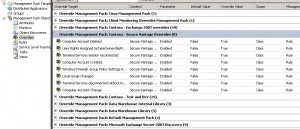
In Operations Manager 2007 R2 there is a new view in the auhtoring workspace called Overrides. You can use the override view to edit/view/add overrides. You can also use it to show what overrides you have in which management pack. Click on the Override view and then right-click in the result pane, select personalize view, then select to group items by Override Management Pack. That will give you a list of all overrides, groups by the management pack that stores the override.
System Center operations Manager Cross Platform management packs(s) are imported in this management group. Please delete these management packs(s) before upgrading to System Center Operations Manager R2
I did a Ops Mgr 2007 SP1 upgrade to Ops Mgr R2 upgrade this week too. The RMS was installed on a cluster. There was no problem upgrading the first RMS cluster node. The important thing is to make sure that the Ops Mgr service (SDK, health and config) cant fail over to the second node during the upgrade. That upgrade took around 20 minutes. Then we moved over to the second RMS cluster node, the upgrade was interrupted with the following error:
System Center operations Manager Cross Platform management packs(s) are imported in this management group. Please delete these management packs(s) before upgrading to System Center Operations Manager R2
This management group have never run a beta version of X plat. The only UNIX MPs we had was the default management packs:
- UNIX LogFile Template Library
- UNIX View Library
- UNIX Service Template Library
- Unix Core Library
We deleted them and tried to upgrade the second RMS cluster node again. But without luck. We then figure that maybe the cluster resources must be owned by the second node (found that later in the upgrade guide too) so we moved the cluster over to node 2. The installation was running a little bit longer but was “interrupted before successâ€. In the logfile we found:
Error:Unable To Connect to SDK To Retrieve MP: Error: The sdk service is either not running or not yet initialized.
Error:StackTrace:Â Â Â at Microsoft.EnterpriseManagement.DataAbstractionLayer.SdkDataAbstractionLayer.HandleIndigoExceptions(Exception ex)
  at Microsoft.EnterpriseManagement.DataAbstractionLayer.SdkDataAbstractionLayer.CreateChannel(TieredManagementGroupConnectionSettings managementGroupTier)
  at Microsoft.EnterpriseManagement.DataAbstractionLayer.SdkDataAbstractionLayer..ctor(DuplexChannelFactory`1 channelFactory, TieredManagementGroupConnectionSettings managementGroupTier, IClientDataAccess callback, CacheMode cacheMode)
  at Microsoft.EnterpriseManagement.DataAbstractionLayer.SdkDataAbstractionLayer.CreateEndpoint(ManagementGroupConnectionSettings connectionSettings, IClientDataAccess clientCallback)
  at Microsoft.EnterpriseManagement.DataAbstractionLayer.SdkDataAbstractionLayer.Connect(ManagementGroupConnectionSettings connectionSettings)
  at Microsoft.EnterpriseManagement.ManagementGroup..ctor(String serverName)
  at Microsoft.EnterpriseManagement.ManagementGroup.Connect(String serverName)
  at Microsoft.MOMv3.Setup.MOMv3ManagedCAs.DetectXPlatMPs(Session session)
Action ended 11:00:38: _CheckXplatBetaMPPresent.540EA3C0_A5E9_41EA_A585_822C09EA2650. Return value 1.
MSI (s) (FC:94) [11:00:38:424]: Doing action: _AbortXPlatMPFound.540EA3C0_A5E9_41EA_A585_822C09EA2650
Action 11:00:38: _AbortXPlatMPFound.540EA3C0_A5E9_41EA_A585_822C09EA2650.
Action start 11:00:38: _AbortXPlatMPFound.540EA3C0_A5E9_41EA_A585_822C09EA2650.
System Center Operations Manager Cross Platform management pack(s) are imported in this management group. Please delete these management packs(s) before upgrading to System Center Operations Manager R2.
MSI (s) (FC:94) [11:02:09:347]: Product: System Center Operations Manager 2007 R2 — System Center Operations Manager Cross Platform management pack(s) are imported in this management group. Please delete these management packs(s) before upgrading to System Center Operations Manager R2.
We realized that during the upgrade of the Ops Mgr services the node stops the services and they fail over to the first node. So we removed the first node from “available nodes†in the cluster administrator console. That step, “locking†the cluster resources on the node that you upgrade is not really in the upgrade guide. After that the installation was interrupted again, and in the logfile we found
Error: ImportUnixDataItemTransforms: Error: Cannot insert the value NULL into column ‘DatatypeID’, table ‘dbOpsMgr.dbo.UIDatatypeTransform’; column does not allow nulls. INSERT fails.
The statement has been terminated.
So we imported all four default UNIX management packs again, and tried again and it finally worked. Upgrade of the other components of the management group was really easy and fast.
Summary: If you see a error saying that you have cross platform management packs installed and they have to be removed before upgrade, make sure the SDK service is running and it is running on the machine you are trying to upgrade. In some phase of the upgrade you will run the RMS role on the not-yet-upgraded RMS cluster node together with a upgraded ops mgr db. The Ops Mgr db was upgraded together with the first RMS node.
New connect site for the OpsMgr community
Yesterday the product group launched a new connect portal that will allow you to provide feedback to the OM team as well as participate in surveys that have been traditionally reserved for TAP programs. All you need to do is be registered on connect and you’ll be able to participate. Check it out here.
Notification based on a distributed application in R2
In Operations Manager 2007 Sp1 when you created a distributed application there was also a group created, including all objects in the distributed application. I cant find a corresponding group in Ops Mgr R2. I used that group for notification, notification for everything in a distributed application. If you want to do the same thing in R2, get notification for all new alerts for all objects in a distributed application, you can
1. Create a distributed application
2. Create a new group with the following forumla “( Object is Contoso - Distributed Application - Spoolers AND ( Display Name Matches wildcard * ) AND True ) “. “Contoso – Distributed Application – Spoolers” is the name of my distributed application. To build the forumla select your distributed application as class and then “Display Name Matches wildcard *” as expression. Remember to add the forumla under dynamic members.
3. Create a new subscription with the following subscription critiera
Notify on all alerts

raised by any instance in a Contoso - Group - Print Spooler DA group

and with New (0) resolution state
“Contoso – Group – Print Spooler DA” is the name of my group.
Notification and reporting for maintenance mode
When a monitored object, such as a computer or distributed application, goes offline for maintenance, Operations Manager 2007 detects that no agent heartbeat is being received and, as a result, might generate numerous alerts and notifications. To prevent alerts and notifications, place the monitored object into maintenance mode. In maintenance mode, alerts, notifications, rules, monitors, automatic responses, state changes, and new alerts are suppressed at the agent.
More info about maintenance mode here (source).
Boris Yanushpolsk wrote a power shell script to use to see what is actually in maintenance mode. You run the script in Operations Manager command shell. If you want to publish this information to a web page, for example to share it between colleagues, you can use this modified version of the script. You could also schedule the script to make sure you have an updated web page all the time.

Â

If you want to get notified when a new maintenance window starts you could use the following script to get a notification. This script will send you an e-mail with information regarding new maintenance windows. It will also log the information to a logfile that you later can use to generate reports for maintenance windows within your environment. Read this post about generating reports based on logfiles. Download the script here. Remember to rename the file to .ps1 and run it from Operations Manager command shell. The following picture shows a notification e-mail from the script.
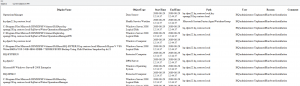
With default settings the script will look for maintenance windows created in “now-72 hours”. You can change this with the $seconds, $hours and $hours variable. For example if you schedule the script to run every two minute you want to change it to $minutes=2. If you want the script to generate a logfile you will need to change $log to $true. If you want to get notified with e-mail you need to specify $e-mail=$true and then smtphost, from, to and subject.
Big thanks to Marco Shaw (power shell MVP), read his blog here.
Recent Comments