Home » System Center Operations Manager 2007 (Page 19)
Category Archives: System Center Operations Manager 2007
 Convert a incident to a service request, with a bit of Orchestrator magic
 Moving a VHD between storage accounts
Agentless Exception Monitoring (AEM)
Operations Manager client monitoring mode enables the administratorsto monitor operating systems and applications for error. Client monitoring configures clients to send error reports to an Operations Manager Management Server insted of Microsoft. With the reporting function client monitoring mode can then generate reports based on these errors. Error reports can be send from the Ops Mgr server to Microsoft. Two good things about AEM are that clients dont need a agent and all client settings are controlled by a group policy.
Windows Error reporting is a feature of Windows XP and Windows 2003 server. If you are running Windows 2000, this is a function included in applications, for example Office.
A great benefit of this are that administrators can get a report about application problems within the organisation. This information can be foundation for software upgrade, software updates and purchase of new software. This information will help administrators to get a overview of software problems within the organisations, and that can help the organization to maintain the productivity instead of fighting with software filled with problems.
Â
Â
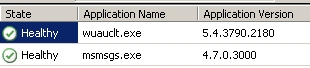
This is not post a complete step by step guide about configure AEM, if you are having problem with this, please contact me in a news group and I will help you. Here is a general overview how to setup AEM (step by step guide will be uploaded later…)
- Enable client monitoring mode on management server in the Administration part of the Console. This will start a wizard where you will input for example a directory to store the client monitoring mode data. You can also replace Microsoft and enter your own organization name, this will be in the dialog box when a application crash at a client. During this wizard a ADM file will be created, including all GPO settings that you need to control clients.
- In a GPO, import your ADM file created during step 1, then enable all policies from that ADM file. Some settings will be set to disable even if you set them to enable. You will have to “show GUI” within them to keep them enable, but you dont have to do that, it will work anyway. Â
That should do it! Now your management server will recive errors and you can see reports about applications with errors. You can look at this in the console, under monitoring and Agentless Exception Monitoring. There are a number of defaul views
- Application Error Events, all applications from all machines
- Application View, state view that lists applications
- Crash Listener View, management servers listening for failure/errors
- Error Group View, applications errors by error group
- System Crash View, computers that have an OS failure
Under Administration/Settings/Error Transmission you can setup everything about forwarding errors to Microsoft. Don´t forget to setup this.
If you want to test your AEM settings there are a couple of good ways, first a KB how to generate blue screens and then BANG.
This post was written in collaboration with Björn Axéll, thanks for good discussions and tips.
MOF, ITIL and System Center Operations Manager 2007
When a organization pass the stage from an IT department that is just a bunch of guys and to a business focused unit providing IT solutions for their business, then they will need some kind of  framework and best practices.  In general, frameworks for IT is all about managing your IT services to the same high level of quality you expect from the rest of your business processes. In this post I will write about two well known frameworks, ITIL and MOF, and also give some examples how Operations Manager 2007 provide the organization with tools for those frameworks.
IT Infrastructure Library (ITIL)
ITIL is a compile of best practices from companies around the globe. ITIL describe in general how to structure work and organization to deliver IT services in a stabile and effective way. Â There are eight disciplines with ITIL:
The IT Service Management sets
-
Service Delivery
-
Service Support
Other operational guidance
- ICT Infrastructure Management
- Security Management
- The Business Perspective
- Application Management
- Software Asset Management
To assist with the implementation of ITIL practices a further book was published providing guidance on implementation (mainly of Service Management):
- Planning to Implement Service Management
Microsoft Operations Framework (MOF)
Many companies have accepted ITIL and then modify it to its own framework, for example IBM, HP and Microsoft. Some companies add new components and some merge it with already existing framework. Â Microsoft Operations Framework is built upon ITIL. MOF does the work of adapting ITIL with specific guidelines for using Microsoft products and technologies.
The MOF model includes the following parts
- Changing (where new service solutions, technologies, systems, applications, hardware and processes are introduced)
- Operating (performing day to day tasks effective)
- Supporting (resolution for incidents, problems and investigation)
- Optimizing (minimizing costs and optimizing performance, capacity and availability in delivering IT services for the organization)
System Center Operations Manager 2007
With the four areas above in the mind, what can Operations Manager provide us with and help use work with ITIL and MOF?
Changing – When new products and technologies are introduced you should make sure they can be monitored in Operations Manager; if there is no management pack from the vendor you can build your own. You can also use reports and performance view to plan you new system and how it will work together with the rest of systems.Â
Operating – All day to day tasks can be initiated from the Operations console. Tasks are built in every management pack, but you can also build your own. If you have a daily task where you manually check if X = Y or Z and then you do something. Why don’t let Operations Manger look for you and perform that task? You can do that as a response on an alert or with a script.
Supporting – This is what operations manager is about, monitoring. From Operations Manager you can interpret and act on information or problems when it occurs. Operations Manager also includes links to both a company knowledgebase and to Microsoft product knowledge. This will help you to minimize time taken until the incident are resolved. Operations Manager support role based monitoring and security. This will make it easier when setting up notification and console scope for different teams within you organization. Operations Manager is designed as a model based health monitoring service. A object can be a low-level singel CPU but it can also be the entire array of devices and services that comprise a complete supply chain system.
Optimizing – Operations Manager can monitor performance and also generate reports to help you find bottlenecks and also plan new purchases. Every management pack includes a number of reports. Operations Manager can also help you plan maintenance to minimize unnecessary downtime. A exemple of function for this is distributed applications where you can setup all dependences within your IT environment.Â
During System Center suite rollout we will see more of model-base management, ITIL, MOF and Dynamic Systems Initiative (DSI), all technologies that help businesses enhance the dynamic capability of its people, process, and IT infrastructure.
Â
Links during Mars
Intresting links found during mars. A lot of them are from Microsoft Management Summit 2007Â (MMS 2007)
- A new version of the Exchange MP are available. Download it hereÂ
- Demo: Windows Server Virtualization management, watch it here
- Number of Microsoft Certified Professionals Wordwide, info
- The unofficial source for all your MP authoring needs in System Center Operations Manager 2007, Authorsmps.com
- More Operations Manager 2007 webcasts here
- System Center Operations Mananger 2007 documentation, here and here
- How to test notification settings after you configure e-mail notifications for a recipient or for a subscription in Operations Manager 2007, KB
- Error message when you click Record after you start the Web Application Editor in Operations Manager 2007: “The requested lookup key was not found in any activation context”, KB
- Microsoft Management Summit Podcasts, download here
- System Center Operations Manager 2007 Overview Datasheet, here
- Monitoring Exchange Server and Unified Communications with Operations Manager 2007 Datasheet, here
- White Paper – What’s New? Why Upgrade to System Center Operations Manager 2007, here
Microsoft System Center Operations Manager 2007 RTM Evaluation Edition
System Center Operations Manager provides an easy-to-use monitoring environment which includes thousands of event and performance monitors across hundreds of operating systems and applications to provide a single view of the health of an organization’s IT environment. The evaluation edition is valid for 180 days after installation.
File Name: OM2007 EvalCDImage.exe
Version: 2007
Date Published: 3/23/2007
Language: English
Download Size: 280.8 MB
You can download it here
Where did repeat count go?
Are you missing the repeat count column in Operations Manager 2007 default Active Alert view? Then you can simple right-click the view, choose “Personalize view…” and check “Repeat Count” under “Columns to display”. Then click OK and you have the repeat count column again. Note that in the “Personalize View” window you can choose how to sort columns, for example if you choose severity you will fast see which alert in the view that are the most serious.Â
Alert Resolution States
As you might notice there are only two resolution states in Operations Manager 2007, new and closed. Most likely you want to add more states. That you can do like this:
- Start Operations Console
- Click Administration and then Settings
- Right-click Alerts and choose Properties
- In the “Global Management Group Settings – Alerts” windo click “New…” and add resolution state. Click Ok, and then Ok again in the first box.
- Now you can right-click a active alert (under Monitoring)Â and set the new resolution state
Operations Manager 2007 is RTM
System Center Operations Manager 2007 is RTM, Released to Manufacturing. Build 06.0.5000.0 was the golden version. There will be a trial version available soon, at Microsoft System Center webpage, here.
Management Pack Objects OpsMgr 2007
Are you running OM 2007 yet? If you do, you have presumably noticed all new features.  When you look in the Authoring pane of the Operations Console you will see a number of new features under management pack objects. In this post I will try to explain some of the news regarding management packs.
Â

Attributes are almost the same as in MOM 2005, but here are a couple of news that you should know as a OM 2007 administrator. In MOM 2005 a attribute check one registry key or a registry value. In OM 2007 a attribute can check the registry or WMI query, this is controlled by the “Discovery Type”. When creating an attribute an object type must be selected as a target for it. A object type can include a number of attributes, for example a number of registry values. You can then create a group that has a dynamic inclusion rule for servers that only have that object type. In MOM 2005 you did this with a forumla at the computer group object. Â
Monitors
What is the main diffrence between a rule and a monitor?
For example, a monitor can be used to estimate the state of a event (if it exist) or the value of a performance counter. The result of that control the health state of a target and the alerts that are generated. There are three types of monitors:
Object Discoveries
Object Discoveries are used to find objects in the network that need to be monitored. In a management pack there are a number of types of objects that the management pack monitors. Every management pack also includes object discoveries to find the specific objects on the network that are of the types monitored by the management pack. Under the object discoveries node you will see a list of all object discoveries in the management group.
Rules
Rules are like rules in MOM 2005, used to collect data and generate alerts. Rules can be used for a large number of reasons, the most common scenarios are:
Tasks
Tasks are used to run commands/action on managed machines. A great feature in OpsMgr 2007 is the possibility to combine run-as accounts with tasks. The default account for tasks are the action account.
Views
Views are groups of managed objects that have commonality, which is defined in the view properties. When you select a view a database query is made and the result of the query are displayed in the result pane. There are a number of views that you can access from the opertions console
Â
Updated: Configuring Notification in OM 2007
Pete and I updated our guide on configuration of notification in OM 2007. The updated version includes steps for configuration of self-service notification as review of enhancements in the notification engine. You can download the new version here
New Newsgroups
There has been beta news groups for a while but today a number of public news group open for System Center Operation Manager 2007. You will find them at news.microsoft.com , their names are microsoft.public.opsmgr.*
See you there !
Recent Comments