Home » Articles posted by Anders Bengtsson (Page 8)
Author Archives: Anders Bengtsson
 System Center Orchestrator 2012 Unleashed on Amazon
State tracking and failover in SMA
As you might know a runbook restarts at the first activity when it fails over to secondary runbook server in Orchestrator. The failover mechanism is automatically in Orchestrator, but restarting at first activity is a challenge. Read more about state tracking in Orchestrator here.
SMA do this a bit different ïŠÂ A great news for all Orchestrator administrators is that you can create checkpoints in your runbooks. A checkpoint is a snapshot of a running runbook or workflow, including variable values, output and everything done until that point. You can place a checkpoint anywhere you want in a runbook, but each time you do a checkpoint it cost a bit of performance and storage. A best practices is to add a checkpoint after each important part of the runbook that you don’t want the runbook to re-run if it is restarted. For example if you have a runbook building a virtual machine and then configure it you might want to do a checkpoint after the virtual machine is created. If the runbook is interrupted it will continue with the configuration when it is resumed. As checkpoints are stored in the SMA database they are worker independent, meaning that one worker can start the workflow, then if interrupted and another worker can pick up at latest checkpoint. Another nice benefit with checkpoints is that you can suspend a running runbook. For example if you need to do maintenance on the worker or if the runbook is interrupted due to a network error, you can suspend it, fix the network error and resume the runbook.
When a worker (Runbook Service) starts it decide which queue “slots” to process. Let’s say you have two worker servers, then they will pick up half of the “slots” each. If one worker goes offline you need to update runbook worker deployment settings to only include one worker. Else there is a risk that jobs will not be picked up and suspended jobs will not be resumed. This re-configuration is done with Powershell, the New-SmaRunbookWorkerDeployment cmdlet. As the worker service configure queue “slots” when starting it is important to stop all workers before running new-smarunbookworkerdeployment cmdlet, else there is a risk that jobs will be picked up multiple times or jobs become corrupt. One important thing to note about that cmdlet is that New-SmaRunbookWorkerDeployment will replace the existing settings. If you want to add one worker you need to run New-SmaRunbookWorkerDeployment and add both the old and new worker. The following script adds a worker named SMA02 to the existing configuration. WAP01 is the machine running SMA web service.
$youbService = “https://wap01” $workers = (Get-SmaRunbookWorkerDeployment -YoubServiceEndpoint $youbService).ComputerName if($workers -isnot [system.array]) {$workers = @($workers)} $workers += “SMA02” New-SmaRunbookWorkerDeployment -YoubServiceEndpoint $youbService -ComputerName $workers
If you have two workers, SMA01 and SMA02 and SMA01 goes offline you can run the following command to remove SMA01 and configure only SMA02 as worker
New-SmaRunbookWorkerDeployment -WebServiceEndpoint https://wap01 -ComputerName SMA02
Once you have run the New-smarunbookworkerdeployment cmdlet you can start the worker services again.
Quick summary
- Make sure to include checkpoints in your runbooks
- Make sure to have multiple workers
- When one worker goes offline, or you need to do maintenance, use New-SmaRunbookWorkerDeployment to remove/add workers. But first stop all running workers (Runbook Service)
- Start all workers (runbook service)
Common questions
Q: What if I need to run new-smarunbookworkerdeployment when I have running runbooks?
A: It is possible to configure drain time. Drain time can be up to 20 minutes and is started when you stop the runbook service. During drain time the worker will not pick up any new jobs and running jobs will suspend if possible (if they have a checkpoint). Runbooks without a checkpoint will continue to run and might be interrupted when the runbook service stops after drain time.
Q: How many checkpoints can I create in a runbook?
A: You can create as many as you like, but SMA will only use the latest one. You can only resume at the latest one.
Q: What will happened if a runbook have no checkpoints and it is moved to another worker?
A: If there are no checkpoints in the runbook and it is transferred to another worker, then the runbook will restart at the second worker
Q: how do I create a checkpoint?
A: Include “Checkpoint-Workflow” in your runbook
Q: I see “Queued” as job status after I reconfigured workers, seems like no jobs are running?
A: This can happened if no worker is running, make sure at least one of the workers are running
Q: When I tries to start the Runbook Service on a worker I get an error in the System log saying “The Runbook Service service terminated with the following error: Incorrect function”
A: Most likely you are trying to start a worker that is not in the runbook worker deployment settings. Re-configure with new-smarunbookworkerdeployment
Q: Is it possible to automate the “new-smarunbookworkerdeployment” part?
A: Yes! See this blog post for example
Example
In this example I have two runbook workers, SMA02 and WAP01. I have a runbook named test_failover. This runbook runs 20 loops. For each loop it writes a timestamp to a SQL table, creates a checkpoint and waits two minutes.

In the SQL table I can see the test_failover runbook writing rows, one for each loop.

If I now stop the runbook service on SMA02 I can see that the Runbook service is “Stopping” for 10 minutes. Drain time in my environment is 10 minutes. The test_failover runbook stopped at loop number 4.

I stop the Runbook Service on WAP01 and run “New-SmaRunbookWorkerDeployment -WebServiceEndpoint https://wap01 -ComputerName wap01″ to remove SMA02 from my configuration. Then start the Runbook Service on WAP01 again. I can see that the runbook now running on WAP01. As you can see in the figure loop 4 and 3 was written same second. When I stopped the Runbook Service loop 3 was just about to be written by the “WriteLog” runbook, but it was queued until WAP01 resumed the jobs.
 
Note that this is provided “AS-IS†with no warranties at all. This is not a production ready solution, just an idea and an example.
Copy or rename a SMA runbook
You may have notice that in the Windows Azure portal there is no way to copy or rename a SMA runbook. But it is of course possible with a small Powershell script. The script in this blog post will copy a source SMA runbook and store all settings in a new SMA runbook. The script will also import the new runbook and delete the old one. You can comment (#) the last part if you just want to copy your source runbook and not delete it. If you keep the last part, delete source runbook, then the result of the script will be a rename of the runbook.
$path = "C:\temp"

$targetrunbookname = "newdebugexample"

$sourcerunbookname = "debugexample"

$WebServiceEndpoint = "https://wap01"

##

## Get source runbook

##

$sourcesettings = Get-SmaRunbook -WebServiceEndpoint $WebServiceEndpoint -Name $sourcerunbookname

$source = Get-SmaRunbookDefinition -WebServiceEndpoint $WebServiceEndpoint -name $sourcerunbookname -Type Published

##

## Create the new runbook as a file with source workflow and replace workflow name

##

New-item $path\$targetrunbookname.ps1 -type file

add-content -path $path\$targetrunbookname.ps1 $source.content

$word = "workflow $sourcerunbookname"

$replacement = "workflow $targetrunbookname"

$text = get-content $path\$targetrunbookname.ps1

$newText = $text -replace $word,$replacement

$newText > $path\$targetrunbookname.ps1

##

## Import new runbook to SMA and set runbook configuration

##

Import-SMArunbook -WebServiceEndpoint $WebServiceEndpoint -Path $path\$targetrunbookname.ps1 -Tags $sourcesettings.Tags

Set-SmaRunbookConfiguration -WebServiceEndpoint $WebServiceEndpoint -Name $targetrunbookname -LogDebug $sourcesettings.LogDebug -LogVerbose $sourcesettings.LogVerbose -LogProgress $sourcesettings.LogProgress -Description $sourcesettings.Description

##

## Delete sourcerunbook

##

Remove-SmaRunbook -WebServiceEndpoint $WebServiceEndpoint -name $sourcerunbookname -Confirm:$false
Note that this is provided “AS-IS†with no warranties at all. This is not a production ready solution, just an idea and an example.
Logging in Service Management Automation (SMA)
In Service Management Automation (SMA) there are a couple of different ways to write to a log. In this blog post I will show you how to write to the job history tab and how to write to an external SQL database.
If you have published a runbook you can use Write-Verbose, Write-Progress and Write-Debug as shown in figure 1 to write log message. The result of write actions will be shown in History for each runbook job, example shown in figure 2. Figure 3 show important settings to make this work, you need to enable logging on the runbook, else you will see no log messages in the job history.

Figure 1 Write to log examples

Figure 2 Log examples

Figure 3 Log settings
Another alternative for logging is logging to an external database. We have earlier used the same logging solution for Orchestrator runbooks. Figure 4 shows a SMA runbook that writes to a SQL database named SMALOG. As you can see in figure 4 the “writelog” SMA runbook use three parameters, Runbook, Job and Description. Other runbooks invoking this runbook need to provide current runbook, current job ID and a log message description. To get the current runbook name and job ID you can use the code shown in figure 5. The writelog runbook use the Get-Date to get current time. The log database is shown in figure 6.

Figure 4 SMA runbook writes logs to SQL database

Figure 5 Get current runbook name and job ID

Figure 6 Example of log database
Download examples here. Logging . Note that this is provided “AS-IS” with no warranties at all. This is not a production ready solution, just an idea and an example.
Pass information between Orchestrator runbook and SMA runbook
Difficult to come up with a good blog post title, as Service Management Automation (SMA) is part of Orchestrator 2012 R2, so in some way a SMA runbook is also a Orchestrator runbook J This blog post will show you how to start a SMA runbook from Orchestrator and then pass information from the SMA runbook to Orchestrator runbook data bus.
From Orchestrator we can start a SMA runbook with a Run .NET Script activity, shown in figure 1. In this example we start a SMA runbook named “justadelay”. “Justadelay” is a small SMA runbook that waits a minute and then sends back three variables, just an example to show how this integration can be done. Figure 3 show the SMA runbook “justadelay”.
In this example I run PowerShell remote session from Orchestrator runbook to a machine named WAP01. WAP01 is my SMA and Windows Azure Pack (WAP) server with the SMA Powershell module installed. You could of course run the script locally on your Orchestrator runbook server if you have SMA PowerShell module installed. The script includes a “while” loop that checks if the SMA job is completed, once it is completed we get all output from the SMA runbook job and insert it into an array named “output”. The “while” loop will make sure the Run .NET Script activity (in the Orchestrator runbook) waits until the SMA job is completed. The entire command (invoke-command) is within a variable named SMAoutput. SMAoutput is the variable we publish to the data bus in the Orchestrator runbook, figure 2.
The Send Platform event activity in the Orchestrator runbook (figure 1) is used to output the data returned by the SMA runbook, figure 4 shows one of three events.

Figure 1 Start SMA runbook from Orchestrator
Â

Figure 2 Publish output to data bus

Figure 3 SMA runbook

Figure 4 Data from SMA runbook
Note that this is provided “AS-IS” with no warranties at all. This is not a production ready solution, just an idea and an example.
Export runbooks with SMA
This runbook can be used to export SMA runbooks based on runbook tag. All runbooks with the tag you specify as a parameter will be exported to the C:\TEMP folder. Remember to update $WebServiceEndPoint to your SMA web service.
workflow Export-Runbook

{

param

(

[Parameter(Mandatory=$true)]

[string] $Tag

)

$WebServiceEndpoint = "https://wap01"

InLineScript {

$runbooks = Get-SMArunbook -WebServiceEndpoint $using:WebServiceEndpoint | Where-Object {$_.Tags -like "*$using:Tag*"}

foreach ($i in $runbooks)

{

$runbooktoexport = Get-SmaRunbookDefinition -Type Draft -WebServiceEndpoint $using:WebServiceEndpoint -name $i.RunbookName

$outpath = "C:\temp\" + $i.RunbookName + ".txt"

$runbooktoexport.Content | Out-File $outpath

}

}

}
Note that this is provided “AS-IS†with no warranties at all. This is not a production ready solution, just an idea and an example.
List with Choice columns and the SharePoint IP
I have read in a number of forums posts that there are challenges using SharePoint list with columns of type choice together with the SharePoint integration pack (IP). The challenge is that if you use the Get List Item activity together with a choice column you will notice the result is blank/null, no data is returned by the activity. Other column types, for example Single line of text, works fine. Choice columns is columns with a menu to choose from, for example drop-down menu, radio buttons or checkboxes. This blog post will show how to get data from Choice columns with the SharePoint web service.
In this example I have a list named Virtual Machines. I use this list to manage my virtual machines in my sandbox, for example if I create a new item Orchestrator will notice that and create a new virtual machine based on the list item. This list includes two columns of type Choice, one for virtual machine size and one for virtual machine location.


Figure 1 SharePoint list settings and SharePoint form
Figure 2 show the runbook monitoring the Virtual Machine list in SharePoint for new items. When a new item is found the runbook use the Ask web service (Invoke REST Service) activity to query SharePoint for all information about the new list item. Most of the data the runbook gets from the Monitor activity but not data input in a Choice column, in this example the Monitor activity publish Size and Location as blank/null values. Figure 3 show the configuration of the Ask web service activity. The Title value in the URL is the server name inputted in SharePoint as a single line of text, which is picked up fine by the Monitor activity. The Ask web service activity will return all data for the specified server, including data inputted in a Choice column, the Query XML activity filter out and return only the Location attribute. Figure 4 show the configuration of the Query XML activity. Once the runbook have the location it will either invoke Virtual Machine Manager (VMM) to build the virtual machine or Service Management Automation (SMA). I use the SMA feature of Orchestrator 2012 R2 for cross cloud management, building virtual machines in Azure. I could build the Azure virtual machine from a Orchestrator runbook too, but it is handy to use PowerShell workflows in SMA for that. I use VMM for building virtual machines in my private cloud.

Figure 2 Runbook monitoring SharePoint list

Figure 3 Query web service settings

Figure 4 Query XML to get server location
Note that this is provided “AS-IS” with no warranties at all. This is not a production ready solution, just an idea and an example.
NOTE: THERE IS A UPDATE VERSION OF THIS IP. THAT WORKS WITH LIST ITEMS, DOWNLOAD
Temporary Permissions with System Center
Do you have multiple accounts for administrator of your IT environment? Do you have for example one local administrator account, one Active Directory administrator account, one account to administrate some business service and one account that you use to log on to your workstation and read your e-mail? Do you remember all the passwords? I often see customers having a challenge remember all passwords and when to use which account.
Another funny (or scaring) side of it is that everyone is more or less administrator of everything, it is just a question about clicks. For example an engineer is not a domain admin but administrator of Orchestrators that integrates with Active Directory using a domain administrator account. Another example could be an engineer without any administrator accounts except is Operations Manager administrator, with indirect access to all servers as local system, including domain controllers.
One thing that also crossed my mind is why do so many engineers have permissions to do 200 tasks, when you normally only do 20 tasks? Why do you have an account that could delete the entire domain when all you do is reset passwords and add members to groups? There is an imminent risk of human errors.
I am no security expert but I want to show a way to minimize number of administrator accounts floating around, and maybe minimize human errors. The scenario is that no engineers have more than one account. That account is a normal user account, no special administrator permissions at all. When the engineer are about to do something special he or she request permissions and also describes the work that will be done. The engineer also select number of hours permissions are needed.

Figure 1 The Service Request form
The service request templates includes the following activities
- Runbook, update approval step. This step will look which system the requester has requested permissions to, and then depending on the system configure the manual approval step. If it is for example Active Directory the runbook activity will add a group of people that can approve Active Directory permissions.
- Review Activity, “managers” or “owners” approve temporary permission
- Runbook, grant temporary permissions. A runbook grants the requester permission to the system

Figure 2 Service Request Template
The first runbook, 2.7.2 in this scenario, is the runbook that will update the review activity based on the request. The review activity is configured in the service request template without any reviewers, it is the 2.7.2 runbook that will populate the list of Reviewers. A dynamic approval step J

The second runbook, 2.7.1 in this scenario, is the runbook that will grant permission to the requester. It gets the user requesting permissions and add that user to a group in Active Directory. The Map System To Group activity will decide which security group to add the user to, depending on system. In the end of the runbook it updates the service request with information that permissions has been granted and when the permissions will be removed. The Format Timestamp activity is used to get expire time for the permissions. But there is one more extra important activity in the runbook. The Write to Temp Permissions database activity. For each permission granted this activity writes a row to a SQL database.


Figure 3 Temp Permissions database
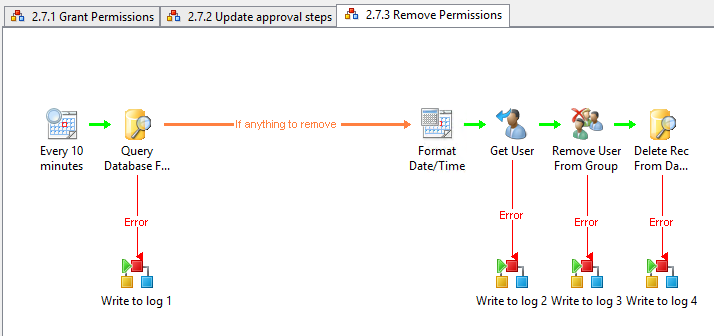
The last runbook, 2.7.3 in this scenario, is removing permissions. Every 10 minutes it query the Temp Permissions database for permissions to remove. If there is any permissions to remove, based on the ExpireDate column, the runbook will remove the user from the security group and remove the record in the database. There will still be logs in the technical log database for Orchestrator, more info about logs here. You will also have a work item, a Service Request, in Service Manager which information about the temporary permission, including requester, approver, description and system.
You can download the runbooks, 20131204_TempPermissions. Note that this is provided “AS-IS” with no warranties at all. This is not a production ready solution, just an idea and an example.
System Center Universe (Houston, TX, USA)
I will deliver a session at System Center Universe in Houston together with Pete Zerger
GET IN THE CENTER. Join us for the third annual System Center Universe, a one-day globally available technical event featuring Microsoft product gurus and community experts. This year’s event will include breakout sessions to allow for more topics and content!
The live event will be centered at the Hilton University of Houston, with a live-streaming broadcast for all virtual attendees. Don’t miss out on this cosmic experience of knowledge and community interaction.
Our session is named Master Class: Orchestrating Daily Tasks Like a Pro.
In this class, through live demonstration, you will learn the secrets to more effective process automation with System Center 2012 R2 in the context of two common enterprise use case scenarios. Professors Bengtsson and Zerger will share methods and strategies to answer some of the toughest challenges to enterprise automation
It will be a great mix of System Center, best practice, Swedish, English, lesson learned, demos, more demos and a lot of tips and trix.
Thanks Cameron for inviting me!
More info here
Q&A around Orchestrator Integration Packs when upgrading
Last weeks I have received a lot of questions around what will happen to runbooks and integration packs when upgrading to Orchestrator R2. Here are top five questions and answers.
Can I integrate with System Center 2012 SP1 or 2012 from Orchestrator 2012 R2?
Yes, R2 supports running Integration Packs from both 2012 SP1 and 2012
Can I integrate with both System Center 2012 SP1 and 2012 R2 from same Orchestrator?
Most likely the R2 integration pack will work for both. But from a support point of view you need to have the 2012 SP1 integration pack AND the 2012 R2 integration pack. The challenge is that the R2 integration pack will replace/upgrade the SP1 integration pack. To be fully supported you will need two Orchestrator envrionemnts, one with 2012 SP1 integration pack and one with R2 integration pack.
I have a number of runbooks today working with Service Manager 2012 SP1, I am planning to upgrade Orchestrator to R2, will these runbooks work?
Yes, you will keep the same integration packs in R2, in this scenario the SP1 integration pack.
I have a number of runbook today, do I need to rebuild them after R2 upgrade?
No, you don’t. The same integration packs and activities will be in Orchestrator after upgrade
I have System Center 2012 SP1 today, I am planning to upgrade both Service Manager and Orchestrator. Do I have to update all my Service Manager runbooks?
No, when you have upgraded Service Manager to R2 you will upgrade the integration pack for Service Manager to R2 too. Orchestrator is the first component to upgrade and the Service Manager R2 integration pack works with Service Manager SP1 too. The upgrade sequencing for System Center 2012 R2
- Service Management Automation
- Orchestrator
- Service Manager
- Data Protection Manager (DPM)
- Operations Manager
- Configuration Manager
- Virtual Machine Manager (VMM)
- App Controller
- Service Provider Foundation
- Windows Azure Pack for Windows Server
- Service Bus Clouds
- Windows Azure Pack
- Service Reporting
More info about the upgrade here.
Note that this is provided “AS-IS†with no warranties at all. This is not a official support statement.
Compare Software on Computers
From time to time you need to compare what software are installed on two computers. For example when using a test environment to test a new release of a software you want to make sure the test environment has same version installed as the production environment. Service Manager includes all this information as it synchronize it from Configuration Manager and Operations Manager. Unfortunately there is no out of the box report or feature to do this. I guess we could do it with Service Manager Powershell but for an Orchestrator geek like me it is much fast done with a runbook J
Figure 1 shows the master runbook. It invokes three other runbooks, one to gather all installed software, one to compare installed software and one to find all software installed on both computers. The solution use a temporary SQL table to store data. The result, a report, is sent to the Service Request “requester” by e-mail. In the start of the master runbook there are three Service Manager Activities, these are used to get the “requester”. The Send Email activity in the end use this information to send the report file.
Figure 2 shows runbook 8.3.2. This runbook first drops the temporary table if exists. The temporary table is named based on the computer name, if we have ran a comparison before, we delete the temp table. The master runbook will also delete temporary table, but if there is a “left over” from another job it is deleted in the 8.3.2 runbook and also we want to make sure no old data is affecting our new report. The 8.3.2 runbook gets all the installed software on one computer and insert it into the temporary SQL table. The runbook insert both software display name and GUID. Two software could be named the same, so then we also compare GUID of the CI. If we were interesting in installed patches we could use Software Updates class instead of the Software Items class. We run runbook 8.3.2 once of each computer.
Figure 3 shows runbook 8.3.2. This runbook use a SQL query to find software installed on one computer but not the other one. We run runbook 8.3.2 once for each computer.
Figure 4 shows runbook 8.3.4. This runbook use a SQL query to find software installed on both computers.

Figure 1. Master runbook

Figure 2. Runbook 8.3.2

Figure 3Runbook 8.3.3

Figure 4 Runbook 8.3.4
I use Service Manager Portal to submit a service request which will start a runbook activity, runbook 8.3.1. Figure 6 shows an example report, delivered by e-mail. The report is very basic, built in HTML. You could re-design it easy by changing HTML code in the runbook.

Figure 5

Figure 6 Report
You can download the runbooks, CompareSoftware. Note that this is provided “AS-IS†with no warranties at all. This is not a production ready solution, just an idea and an example.
Recent Comments