Home » Articles posted by Anders Bengtsson (Page 35)
Author Archives: Anders Bengtsson
 How many instances of this activity do we have? And where are they?
 Pass information between runbook activity
Ops Mgr 2007 and Win Srv 2008 with Hyper-V
I saw an interesting blog post from the Operations Manager product team about Ops Mgr db and reporting running at Windows Server 2008 (Longhorn). Of course I wanted to test that and what is a better occupy on a winter day then try some new technologies.

I already had a Windows Server 2008 RC1 ENT X64 box running so I simple added the Hyper-V role. I installed a new virtual machines in Hyper-V, a virtual machine running 2008 RC1 ENT X64. There was no real issue during the setup of Ops Mgr. The blog post from the product team is pretty accurate about the SQL setup. But I didn’t do any changes to my applicationHost.config files as the blog post tells you to. I first did, but after a lot of trouble with SQL reporting I restored my original file and SQL reporting started to work. I install all components of Ops Mgr and then installed SP1 RC too. The only issue was the AcsConfig.xml permission issue, there is a KB about that problem here.
After I had installed Ops Mgr Reporting and also applied SP1 RC I had to re-run Reporting Services Configuration Manager. I had some problem with the encryption key and also the web service identity. My ReportServer application pool also reconfigured it self during the setup, so I had to reconfigure that application pool identity too in the IIS console. My Reporting configuration now looks like this
-Report Server Virtual Directory
- Name: ReportServer
- Website: Default Web Site
-Report Manager Virtual Directory
- Name: Reports
- Website: Default Web Site
-Windows Service Identity
- Service Name: ReportServer
- Service Account: NT Authority\LocalService
- Built-in Account: Local Service
-Web Service Identity
- ASP -NET Service Account: NT Authority\SYSTEM
- Report Server: ReportServer
- Report Manager: ReportServer
-Database Setup
- Server Name: OpsMgr
- Database Name: ReportServer
- Credentials Type: Windows Credentials
- Account Name: CORP\svc_dra (Data Warehouse Read Account)
-Execution Account
- Account: CORP\svc_dra
Later IÂ had a problem when running reports, I recived “Value cannot be null, parameter name: GroupList”. The problem seems to be with the “Data Warehouse Main” data source. You can edit it from http://servername/reports. It is in the root and it is hidden, but if you click “show details” you will se it. The problem was that the connection string was blank and that the security settings was incorrect.
-Connection string
- data source=servername;initial catalog=OperationsMnaagerDW;Integrated Security=SSPI
-Connect using
- Credentials are not required
I have seen that issue in news groups before so I am not sure that has to do with Windows Server 2008. I think it is because I reconfigure the application pool and interrupt the encrypted content in SQL Reporting.Â
Some word about working with Hyper-V.
Last time I tried Microsoft Virtualization was in some early beta of Windows Server 2008. Virtualization was not very fast in that version. But this version is really nice to work with, installing OS don’t take many minutes, I have tried Windows Server 2003 and 2008 as guests, both X64. I recommend you all you try it in your lab.
As you all understand this setup of Windows Server 2008 and Ops Mgr 2007 is not supported at all, so dont try this in your production environment.
Bare Metal Recovery
The DPM System Recovery Tool (SRT) is a tool within Microsoft System Center Data Protection Manager 2007. SRT helps you recover a system that no longer start at all. Instead of having to first restore the operating system, then install alla patches, updates, applications and then restore the application backup, SRT can roll back a complete system.
SRT use a storage method which only stores one copy of any file with a unique content address computed by a 128-bit MD5 cryptographic algorithm. This means that if you have a number of similar machines the first machine will take the same amount of space as the space that you backup. But the other machines will only need 2% to 5% of space.
Before you can restore anything with SRTÂ you will have to create a recovery point schedule. This schedule will tell DPM how often to backup (create recovery points) the server and also the which recovery set to use. The recovery set define what to include in the recovery point. SRT includes two default recovery sets:Â Â Â Â Â
- System Volumes (system files, system settings and boot files)
- Disk Layout (disk information, including master boot code, partition table, partition and volume information)
You can create custom recovery sets, example to protect extra volumes, from DPM System Recovery Tool.
After you have create a schedule and you have at least one recovery point sucessfully created you can restore your machine. You can administrate both schedules, recovery sets and recovery points from DPM System Recovery Tool.
To do a bare metal restore you need to create a client boot CD. The client boot CD will be used to boot the target machine and contact the DPM server. This CD is not a unique for each machine, you can create it in DPM Recovery Center.
To restore your machine you can do like this
- Make sure the orginal machine is down and offline.
- Boot the target machine with the client boot CD (SRTBootClient.iso)
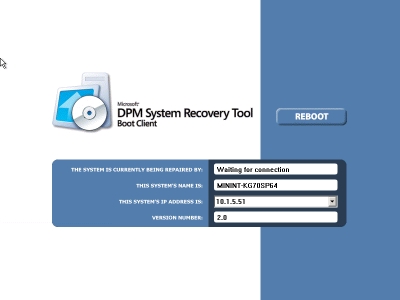
- DPM System Recovery Tool will start and you will be asked for TCP/IP Configuration
- After you have input TCP/IP configuration the system will wait for a signal from the DPM server
- Start Recovery Center at your DPM server and select your server. You can see all information about the recovery points in recovery center. Click Roll Back System to start the recovery. The DPM System Recovery Tool Rollback Wizard will start.
- In the Rollback Wizard you can select recovery point, recovery sets to restore and disks to include. In the end of the wizard you start the rollback.
- After a short while your target machine will be rebooted and the roll back is complete. You will get a report in HTML format and also information about the result in the recovery center.
Some screenshots from the process
Â
Â
Â

SNMP with Ops Mgr 2007
This weekend I have been tinker with SNMP in Ops Mgr 2007. It is fairly simple to create performance views and alerts based on SNMP traps. This is a great way to take control and get a overview of network devices like for example switches. You can create both alerts and performance views based on SNMP. If you are not sure which OID to build your monitor and rules on, you can use a tool named AdRem SNMP Manager. It includes a number of functions to handle SNMP, download a evaluation copy here. Getif is a free multi-functional Windows GUI based Network Tool that I also recommend when working with SNMP, link.

Â
Â
How to view all overrides
I saw a question about how to view all overrides. Boris Yanushpolsky in the Ops Mgr product team at Microsoft has made a tool to work with overrides in Ops Mgr 2007. With this tool you can easy browse overrides based on type or computer. Download the tool here. If you dont want to do it with a extra tool or if you want to include it in some kind of script, you can list overrides with command shell too,
get-managementpack | get-override
Links During November
- Microsoft® System Center Data Protection Manager 2007 Management Pack Guide for Microsoft® Operations Manager 2005, link
- Microsoft® System Center Data System Center Data Protection Manager 2007 Management Pack Guide for Operations Manager 2007, link
- Remote Operations Manager 2007 Deployment Guide and RelNotes, link
- Operations Manager 2007 Key Concepts, link
- Microsoft Print Service Management Pack for Operations Manager 2007, link
- System Center Virtual Machine Manager 2007 Scripting Guide, link
- Remote Operations Manager 2007 Deployment Guide and RelNotes, link
- Microsoft Print Service Management Pack for Operations Manager 2007, link
- Microsoft Windows Server 2000/2003 Operating System Management Pack, link
- New KB, The MonitoringHost.exe process on the System Center Operations Manager 2007 root management server may consume more than 2 gigabytes of memory, link
- Operations Manager 2007 Performance and Scalability Whitepaper, link
- Disabling Time Synchronization under Virtual PC 2007, link
- Forefront Security for Exchange Server 10.1 Management Pack for MOM 2005, link
Subscription ID -> Subscription Name
I saw a question from a engineer who recived a number of notifications about the same alert from different notification subscriptions. The questions was how to track down which subscription sending these notifications from the subscription ID. You can do that with Command Shell. Run
get-NotificationSubscription | where {$_.ID -like “subscription ID”}
Â
Event ID 12302: Volume Shadow Copy Service error
I ran into a issue today with Data Protection Manager 2007. When I tried to create a new protection group and select members I got
The Operation Failed bacuse of a protection agent failure
Retry the operation
ID: 998
Details Unknow error (0x80042318) (0x80042318)
on the member I found this error
Volume Shadow Copy Service error: An internal inconsistency was detected in trying to contact shadow copy service writers. Please check to see that the Event Service and Volume Shadow Copy Service are operating properly.
The workaround I found was to (on the member server)
- Backup the follwing regkey: HKLM\Software\Microsoft\EventSystem\{26c409cc-ae86-11d1-b616-00805fc79216}\Subscriptions
- Erase the regkey
- Reboot.
- Verify that things are working by running “vssadmin.exe list writers”
The deleted regkey will be regenerated after reboot.
Remeber to install article ID 940349 on the server you are trying to protect, else you will get an error about pre requirements when trying to select members to a proction group. At this page you can see all Software Prerequisites for different kind of workload.
Monitor and Report SQL Logons
In this post I will show how to setup SQL logon auditing. You will have to complete a number of steps before you have a complete auditing. Beware that logging all logon events can fill up your database. This post includes the following steps:
- Configure SQL to audit logon events
- Configure Ops Mgr to collect logon events
- Create a report to show the collected data
Configure SQL to audit logon events
Login auditing can be configured to write to the error log on the following events.
- Failed logins
- Successful logins
- Both failed and successful logins
To configure login auditing
- In SQL Server Management Studio, connect to an instance of the SQL Server Database Engine with Object Explorer.
- In Object Explorer, right-click the server name, and then click Properties.
- On the Security page, under Login auditing, click the desired option.
- After you have applied this setting you might need to restart the SQL service before it take effect. After that you should see logon events in the local application log, in event viewer.
Configure Ops Mgr to collect logon events
You will need some suitable class to target your rule to. If you import the SQL MP you will get a number of SQL classes.
- In the Ops Mgr Console click Authoring
- Right-click Rules and choose to create a new rule
- Create Rule Wizard – Rule Type: Choose to create a Collection Rules/Event Based/NT Event log. Choose a suitable management pack and click next
- Create Rule Wizard – General: Input a rule name for example “SQL Auditing – Success Logon”. Choose a target, for example “SQL 2005 DB Engine”. Click Next
- Create Rule Wizard – Event Log Type: Log Name should be Application then click Next
- Create Rule Wizard – Build Event Expression: input
Event ID equals 18453
Event Source equals MSSQLSERVER
Click Create
To collect also failed logon you need to create a rule to collect event ID 18456.
You can use the Effective Configuration Viewer from the Ops Mgr 2007 resource kit to verify if your new rule affect a SQL machine. You can also create a new event view, to show these events, after a couple of minutes you should see them.
Create a report to show the collected data
There is no report model in Ops Mgr by default, so if you want to create a brand new report, you must start with create a report model. You can do that with SQL Server Business Intelligence Development Studio. Take a look at Jonathan Hamb step by step guide how to create a report model here.
What you can do, with default reports, is a linked report. A linked report is like a shortcut to a program, it is a link that provide settings that inputs in a existing report. A linked report always inherits report layout and data source properties of the original report. All other properties and settings can be different from those of the original report, including security, parameters, location, subscriptions, and schedules.
To create a new report, for example a report showing all success logon events,
- Start the Ops Mgr console and click Reporting
- Click Microsoft Generic Report Library
- Click Event Analysis and then Open
- In the report select suitable FROM and TO for example
- Click Add Group and select SQL 2005 DB Engine Group
- Select MSSQLSERVER as SOURCE, 4 as Type, 18453 as Event ID and Success Audit as Event Type
- Click Run
Now you can see a report with all Sucess Audit. You can now click the File menu and choose Publish. This report will now be stored as a linked report under Authored Reports. The next time you want to see success logons to SQL you can click this report direct in the console, and all the parameters will be there.
If you select MSSQLSERVER as source and 4 as event type, you will get both Failure and Success audit events, but you must first make sure you have rules to collect them both.
Update Folder Security
This post is not about System Center, instead it is about updating adding permissions to folders. This script will read all folders in a folder and give the user with the same userID as the foldername permissions. I combine a script from Microsoft, xcacls.vbs, with my own script to attain this. More information about Xcacls.vbs here. Download my script here. Xcacls.vbs is a great script with a lot of functions and options.
Operations Manager 2007 Service Pack 1
Ops Mgr SP1 RC0 is here. You can download it from MS Connect, here. This version will support upgrade to the final version of SP1. The final version will be public around mid febuari 2008.
Some of the news in SP1 RC0
- Improved performance when working in the console
- Improved advanced search in the console
- Support for both SNMP v1 and SNMP v2 network devices
- Support for exporting diagrams to Visio VDX format
- Support for copy/paste from the alert details pane (Ctrl+C and Ctrl+V)
- RMS encryption key backup wizard
- Support to copy views between management packs
- Both the repeatcount and override summary function are improved
- Scripts can noe be used for diagnostic tasks
- Enable to publish a report to for example sharepoint services web sites
- ACS is now supported on the Management and Gateway server roles
- ACS forwarding can be enable with command shell script
Read more about What’s New in Operations Manager 2007 Service Pack 1, here
If you want to discuss the service pack please join the SP1 news group at microsoft.public.opsmgr.sp1 at news.microsoft.com. I recommend JetBrains Omea Readers as news group reader, you can download it here. More information about Microsoft news groups here.
Recent Comments