Home » Articles posted by Anders Bengtsson (Page 10)
Author Archives: Anders Bengtsson
 Integrate Service Manager and SharePoint announcements with a bit of Orchestrator magic
TechEd Follow up
I would like to start by saying THANK YOU to everyone that attended mine and Pete sessions and made them to top-15 sessions for the Modern Datacenter track at TechEd NA. If you did not attend TechEd or if you did and want to watch the session again you can find them at
TechEd
Microsoft Management Summit (MMS)
-  Best Practices For Runbook Authoring and Managing Orchestrator, link
Nordic Infrastructure Conference (NIC)
Last 30 Minutes Performance Data
I wrote a SQL query that I thought I could share. This SQL query will show collected performance data for a specific machine for the last 30 minutes. I was working with a issue where some agents stopped sending performance data. Before we found the root cause and a fix, we configured this script in a monitor to give us an alert if the agent was not sending performance data. Info how to configure a monitor to run a SQL query can be found here.
select Path, ObjectName, CounterName, InstanceName, SampleValue, TimeSampled
from PerformanceDataAllView pdv with (NOLOCK)
inner join PerformanceCounterView pcv on pdv.performancesourceinternalid = pcv.performancesourceinternalid
inner join BaseManagedEntity bme on pcv.ManagedEntityId = bme.BaseManagedEntityId
where path = 'dc01.contoso.local' AND (TimeSampled < GETUTCDATE() AND TimeSampled > DATEADD(MINUTE,-30, GETUTCDATE()))
order by timesampled DESC
Orchestrator Data Manipulation Functions
Orchestrator support a number of data manipulation functions. These functions can be used to manipulate string and  convert it into a usable form. You can also perform simple arithmetic operations, such as calculating sums and differences, and performing division and multiplication operations. For a complete list of the functions that you can perform see Technet. One nice thing about these data manipulation functions is that you can combine them.
Example, a simple text file
 I use a Read Line activity to read the line, and I can then manipulate the data, in this figure I do that in a Send Platform Event activity

The result will be
John Connor,Skynet,555-123456John ConnorJohnJoJO555-123456555123456124011
First line is the text line as in the text file. Then it is
String divided on “,” and showing first part
String divided on “,” and showing first part, then dividing that answer on ” ” and showing first part
String divided on “,” and showing first part, then dividing that answer on ” ” and showing first part, then showing two first letters from the left side
String divided on “,” and showing first part, then dividing that answer on ” ” and showing first part, then showing two first letters from the left side, then UPPER means converting that string to uppercase
About the numbers
String divided on “,” and showing third part
String divided on “,” and showing third part, then dividing that answer on “-” and showing first part
String divided on “,” and showing third part, then dividing that answer on “-” and showing second part
String divided on “,” and showing third part, then dividing that answer on “-” and showing first and second parts, then sum the two numbers
Operations Manager Admin Integration Pack (v1)
With the System Center Integration Pack for System Center 2012 Operations Manager we can integrate with Operations Manager and automate maintenance mode, alert handling, monitor for alerts, and state changes. Unfortunately there are no activities for handling management packs or management pack objects.
Some time ago I posted a blog post around self-service for Operations Manager (http://contoso.se/blog/?p=2764). That idea was built around creating new objects, like a rule, in XML and then import the management pack. While this works fine in some scenarios, there are other scenarios where it would be nice to have a bit more flexibility and reliability.
Russ Slaten (a true Texans with a lot of guns), a PFE colleague and Operations Manager Jedi from the US and I have built a first version of what we call “Operations Manager Admin Integration Pack†for Orchestrator. The purpose of this integration pack is to enable more self-service and automation scenarios in Operations Manager.

Activities in version 1 are
- Create MP. Creates a new management pack
- Create Performance Collection Rule. Creates a rule that collects performance data
- Create Event Alert Rule. Creates a rule that generates an alert based on event viewer event
- Delete Management Pack. Delete a management pack
- Delete Rule. Deletes an rule based on rule ID
- Export Management Pack. Exports a management pack
- Get Management Pack. Lists management packs from the management group
- Get Rule. List rules. With default settings the activity will list all rules, use the Displayname property to filter the search result
- Import Management Pack. Imports a management pack to the management group
These activities doesn’t use global connections, instead you can specify management server in each activity. This integration pack requires Operations Manager PowerShell snap-in on all Runbook servers.
As I think you have already realized, this integration pack enables a lot more self-service scenarios where non-Operations Manager Engineers can order new objects and handle management packs. Please take it for a spin and let us know what you think!
Example configuration for the “Create Rule Collection Performance†activity
| OM Â Server Name | SCOM-Lit.Litware.com |
| MP Â Name | Custom.Example.Sandbox |
| Rule  Name | Custom.Example.Sandbox.Rule.Test1 |
| Rule  Displayname | Sandbox  Test Rule 1 |
| Rule  Description | Sandbox  Rule for testing |
| Rule  Target | ‘Microsoft.Windows.Computer’ |
| Object  Name | Processor |
| Counter  Name | %  Processor Time |
| All  Instances | TRUE  (used for multi instance counters) |
| Instance  Name | If  AllInstances is false, then fill this in with either a target variable or  fixed value |
| Interval  Seconds | 300 |
| DW Â Only (Data Warehouse) | TRUE Â (If you only want to write to the data warehouse) |
| Is  Optimized | TRUE  (Use if you’re using the optimized data provider) |
| Tolerance | 10  (Percentage or absolute. If value changes more than x then collect, otherwise  skip) |
| Tolerance  Type | Percentage  (Percentage or Absolute) |
| Maximum  Sample Separation | 12  (How many samples can be skipped before forcing collection) |
Example configuration for the “Create Alert Event Rule†activity
| Management Pack ID | Custom.Example.Sandbox1 |
| Management Server | SCOM-Lit.Litware.com |
| Rule ID | Custom.Example.Sandbox.Rule.AlertTest8 |
| Rule Description | Sandbox Rule for testing |
| Rule Displayname | Sandbox Test Alert Rule 8 |
| Rule Target | Microsoft.Windows.Computer |
| Computer Name | $Target/Property[Type=”Windows!Microsoft.Windows.Computer”]/PrincipalName$ |
| Event Log Name | Operations Manager |
| Event ID | 9999 |
| Event Source | OpsMgr Scripting Event |
| Alert Name | Sandbox Test Alert Rule 8 |
| Alert Priority | High = 2Medium = 1Low = 0 |
| Alert Severity | Critical = 2Warning = 1Information = 0 |
Example configuration for the Create Management Pack activities

Example configuration for the Delete Management Pack activities

Example configuration for the Delete Rule activities

Example configuration for the Export Management Pack activities

Example configuration for the Get Management Pack activities
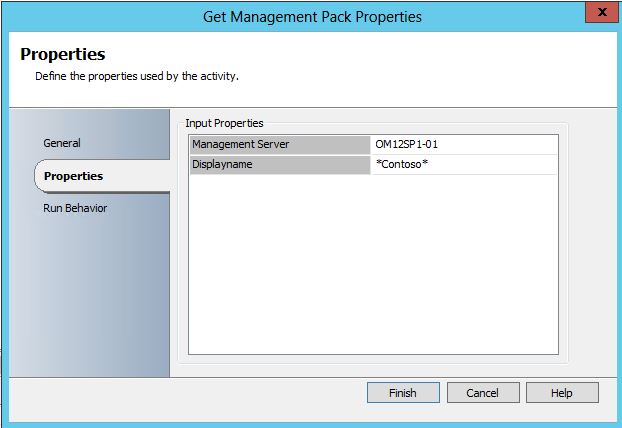
Example configuration for the Get Rule activities

Example configuration for the Import Management Pack activities

Big thanks to our colleague Stefan Stranger for Powershell support a very early morning 🙂
Download the IP, OMAdminTasks_20130508-1
Note that this is provided “AS-IS†with no warranties at all. This is not a production ready management pack or solution, just a idea and an example.
System Center Orchestrator 2012 Community Check – part VI
I have updated the “runbook validator” again. Added a couple of new checks and also added a table of contents in the beginning of the report. You can download the new version here, 20130419_SCO_CHECK.
Since I started to work with Opalis I have been surprised to see how fast people build their first runbook (policy back in Opalis). When showing Orchestrator for a group of engineers it doesn’t take many minutes before they have a running workflow. A disadvantage when it is too easy, drag-drop-done, is that Orchestrator is some times not used as it should be used. In Orchestrator the challenge is that many engineers quickly drag and drop a couple of activities to the runbook, click Start and then lean backward. Most likely they have a working runbook, but are they really working? Is it built as it should be? Is it tested? I have written a couple of blog posts around best practices and the areas that the “runbook validator” checks
- Fault tolerance in Opalis polices,
- Building a log for your runbooks
- Check in history
- Should this runbook be running
- Job concurrency in Orchestrator
- Consider Invoke Runbook activities when doing a update and dependencies between runbooks
- Activities not using default account and run a runbook with a specific account
- Link delays
The “runbook validator” is a set of runbooks that will check all other runbooks according to a number of best practices. A report file will be generated with the result. All runbooks use a number of variables, like Orchestrator database server name and database name. Don’t forget to update them before you run the check.
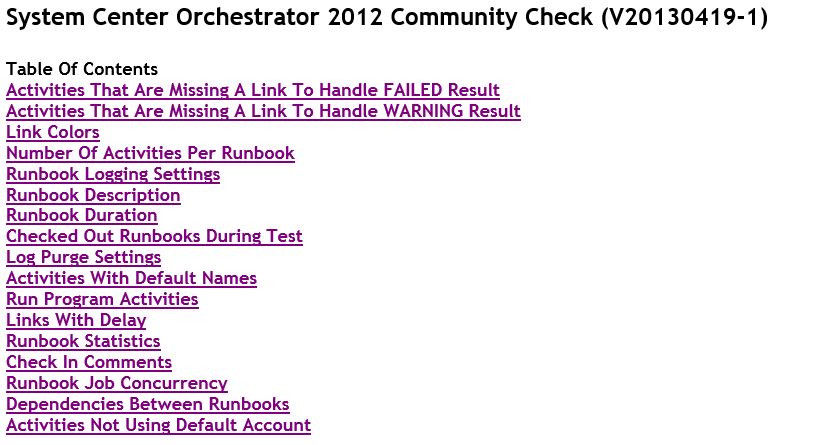 If you have any ideas what I should add, please post them as comment to this post or send me an e-mail. Please note that this is provided “as is†with no warranties at all. Also note this is all based on my ideas and is not a “Health check†or Microsoft official guidelines.
MMS SD-B317 follow up
I would like to start by saying THANK YOU to all 625+ that attended mine and Pete session and made it to one of the top-10 sessions at MMS 2013 🙂 Based on the request in the evaluation form and requests after the session I will try to share all things shown in the session. Video of the session can be found here http://channel9.msdn.com/Events/MMS/2013/SD-B317 , and PowerPoint SD-B317_Bengtsson. Marnix Wolf made some good notes during the session http://thoughtsonopsmgr.blogspot.com/2013/04/mms-2013-best-practices-for.html
The Excel sheet we used during the session to estimate the Orchestrator database size can be found here, Estimate the Orchestrator database size.
I have written a set of runbooks that will check your other runbooks according to best practices, download the runbook validator here. The “runbook validator” will check most of the things that Pete and I talked about during our session.
The runbook we discussed during the BOF session is included in this BOFdemo export file.

Please post a comment if you have any more questions around what we showed and discussed in the session
Check In History
Runbooks should be administered using version control. For each version deployed into production, create a package including the runbook and documentation. The documentation should include an explanation of the runbook, including all parameters, global settings and variables. As Orchestrator don’t include version handling it is a good idea to keep earlier runbook versions as export files, making sure you can rollback to earlier versions easy. You should also have a change management process around releasing new runbooks to production to make sure they are tested and signed off correct by the different teams.
As an additional layer of your change process, or maybe in lack of a change process, you can use check in comments in Orchestrator. In the Runbook Designer console you can enable “Prompt for comment on check inâ€.  This is not enabled by default but it is something you should enable at least in your production environment. The result is that each time you click check in in the Runbook Designer console you need to input a comment. It is very easy way to keep track of changes.
You enable check in comments from the Options menu > Configure, in the Runbook Designer console.

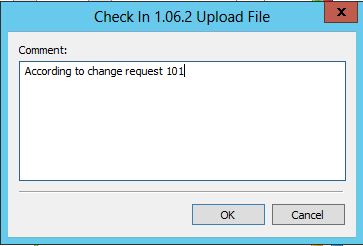
All check in comments are written to the Orchestrator database, in the CHECK_IN_HISTORY table. Together with the POLICIES table and the OBJECTS_AUDIT table we can list all comments with account name, runbook name and date. We can also use SQL Server Report Builder to build a report to show this data. The following SQL query will show all check in information.
SELECTÂ CHECK_IN_HISTORY.DateTime AS [Check In Time], POLICIES.Name AS [Runbook Name], CHECK_IN_HISTORY.Comment AS [Check In Comment], SIDS.Account, POLICIES.Version AS [Current Version in database]FROMÂ CHECK_IN_HISTORY INNER JOINÂ POLICIES ON CHECK_IN_HISTORY.ObjectID = POLICIES.UniqueID INNER JOINÂ SIDS ON CHECK_IN_HISTORY.CheckInUser = SIDS.SIDWHEREÂ (POLICIES.Deleted = 0) ORDER BY [Check In Time] DESC


“Current Version in database” is a value we get from the POLICIES table. Each time we click check in Orchestrator will add one to that value, so if we check out and check in a runbook 20 times it will show version 20. As we get this value from the current checked in runbook it will show the same “Current Version in database†for all check in for the same runbook, so it is not the version that was checked in at that time.
You can download my example report here, CheckInHistory. Note that this is provided “AS-IS†with no warranties at all
Microsoft TechEd North America and TechEd Europe
At Microsoft TechEd North America and Microsoft TechEd Europé 2013 I will present
Microsoft System Center 2012 – Orchestrator Crash Course
Orchestrator 2012 is here! Are you finally going to learn the drag-drop-done way or will you continue with your moonshine scripts? No scripting experience needed, use Orchestrator as it is meant to be used to accomplish integration, automation, and orchestration across your systems. This session starts with planning and deployment of Orchestrator, we then move on to start integrate and build runbooks. We give you a fast track, and highlight best practices and pitfalls to avoid. Join this session to learn how to become the integration and automation hero in your organization.
Join this session to get a quick introduction of Orchestrator and how to use it in your IT environment. See you there! 🙂
Tracking Logon and Logoff Activities in Service Manager
Last week I received a e-mail around tracking logon and logoff activities Service Manager with Operations Manager. It can be solved with a event collection rule and the default custom event report.
- In Operations Manager console, navigate to the Authoring work space and Rules
- Create a new rule of type Collection Rules/Event Based/NT Event Log
- Select a suitable management pack or create a new management pack, Next
- Input a rule name, for example Contoso – Service Manager – Logon and Logoff
- Select a rule target. If you have the Service Manager management pack imported you can use the SCSM 2012 Management Server class as target. Logon and Logoff events will be generated on your Service Manager management servers. Next
- Event Log Type, select or input Operations Manager, Next
- Build Event Expression like in the figure below, then save the new rule. In the example I exclude all events about my service accounts, all service accounts starts with svc.  Event ID 26328 is logon and event id 26329 is logoff.

Once the rule is created and deployed to your Service Manager management servers they will start report back events as soon as someone logon or logoff Service Manager. You can create a event view in the same management pack and configure the event view to show events generated by your new rule.

To show this data in a report you can use the default Reporting, Microsoft Generic Report Library, Custom Event report. The following figure show configuration of the Custom Event report

and the result of the report

If you want to look at the events in the Operations Manager data warehouse database you can use the following SQL query
select * from Event.vEvent ev
inner join Event.vEventDetail evd on ev.eventoriginid = evd.eventoriginid
inner join Event.vEventParameter evp on ev.eventoriginid = evp.eventoriginid
where eventdisplaynumber = ‘26329’ OR eventdisplaynumber = ‘26328’
If you want to build your own report you can use SQL Report Builder. I have a example of that here.
Orchestrator Scorecard
I in this blog post I would like to share an idea around measure how much time you are saving by using Orchestrator. Many organizations  spend weeks building cool runbooks, but are they really saving hours, or did the building phase took more hours then they will ever save? My idea is to build a report that show number of hours saved and compare it with number of hours building the runbook. To do a report on this we need some info about each runbook
- How often is the runbook running?
- How long would it take to do the same task manually?
- How much would manually hours cost us?
- How much did it cost to build the runbook?
There is another important aspect on this. Runbooks will always be executed the same way. When someone is doing a task manually there is always a risk that the do something wrong and we need to spend hours/day fixing that. That “risk” is difficult to estimate. If a solution includes multiple runbooks it could be difficult to estimate each runbook, then it might be configure hours on the “parent/root” runbook and not all the child/functions” runbooks.
All this info can be stored in the Service Manager database. I extended the runbook class with extra attributes.
- Runbook owner: Engineer responsible for the runbook
- Runbook Category: a category from a list item, a way to group runbooks
- Manual hours: Number of hours it will take to perform the task manual
- Manual cost: The cost per hour when performing the task manual
- Build cost: The cost to build the runbook

We can query the Orchestrator database to get runbook instance history, from the Microsoft.SystemCenter.Orchestrator.Runtime.RunbookInstances view. We can query the Service Manager database to can get runbook cost and hours, from the MTV_Microsoft$SystemCenter$Orchestrator$RunbookItem table. But out of the box Orchestrator only store 500 entries of log data, we should also try to keep the Orchestrator database small, so it is not a really good data source for this report. Instead I have created a new database where I write a daily summary for each runbook.


I have a runbook that read from the Orchestrator database and writes to the Log database. This runbook gets all runbook objects from Service Manager that have a “Build Cost” specified. Then it query the Orchestrator database for success and failed jobs for previous day,  and writes that to the Log database. It also writes a summary of number of hours saved (SM Manual Hours x Number of success jobs) and total amount of money saved (SM Manual Hours x Number of success jobs x manual hours cost).

We can then use SQL Report Builder to build a report to show the data. In my example I have a table and a smiley face icon. The smiley face icon show if I have saved more money then spent on building runbooks. I can also drill down into each runbook category and see data about each runbook. The report includes two parameters, start and end date, to report time frame.

You can download my example files here, OrchestratorScoreCard. It includes the Service Manager extension, the runbook and the SQL report file. Note that this is provided “AS-IS†with no warranties at all. This is not a production ready management pack or solution, just a idea and an example. As always, thanks to Patrik for support and good discussions around System Center.
Recent Comments